

This guide provides a straightforward method for creating a fixed amount discount for individual items in your inventory, allowing for effective promotions like “$10 off any Goya product.” It offers step-by-step instructions to set up the discount, ensuring clarity and ease of use. Additionally, it includes customization options for timing, making it a valuable resource for businesses looking to enhance their sales strategies. Viewing this guide will empower you to implement targeted discounts efficiently.
Tip: Cart Item Discount – Fixed Amount (One-time use per item)
This discount applies a fixed dollar amount off each item, but only once per item.
Ex: If you apply a $10 off discount to a product using this method, each item in the cart will receive a $10 discount—one time per item.
Let’s say a Spanish grocer wants to promote all Goya products.
$10 off any single Goya product (One time use)
1. Let’s learn how to create a new discount rule using the “Cart Item / Fixed Amount” option. Follow the guide below for step-by-step instructions.
2. Click the “Items” tab on the left side of the screen

3. At the top right of the screen click on “Price/Discount Rules”.

4. Click on “New Price/Discount Rule” to create a new discount.

5. Click the “Name” field to type in the name of your discount. Ex: Goya $10 Off
Choose “Cart Item/Fixed Amount” under Pricerule Type.

6. Click the “Type to search” box under products to select the items you want to include in this discount or sale. Start typing in the name of the product(s) you want included in this discount.
You can also choose Categories if you want all items in that category to get the discount. Just make sure not to select both categories and individual products at the same time.

7. Click the dropdown to continue adding items.

8. Once you’ve added all your desired items, it should look like this. To delete an item, just click the X next to its name.
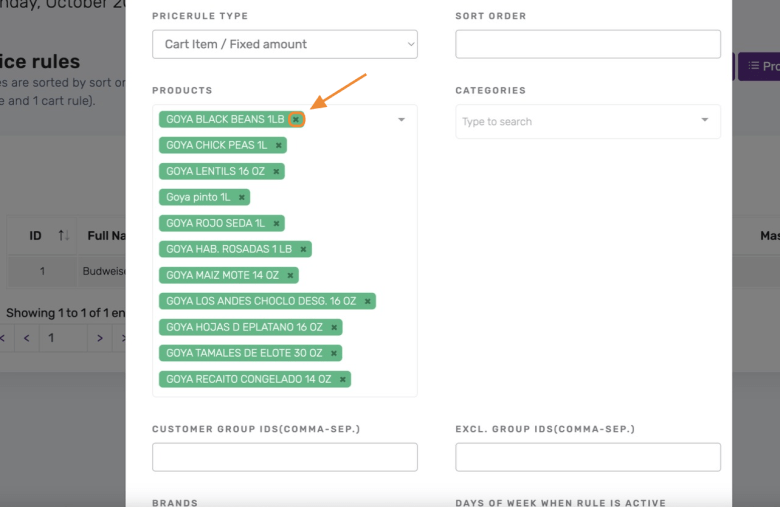
9. Scroll down, under the “Amount” field is where you’ll put the fixed amount off of these products.

10. Click “Save Changes.”

11. Additional customization options for your discount rule:
- Days of the Week: Choose exact days when you want the discount active.
- Hours of the Day: Choose certain hours, like “Lunch Special”, when the discount applies.
- Start & End Dates: Choose a specific start and end date for the discount to be active.
These options help you precisely adjust when the discount is available.


