

This guide provides a straightforward method for generating a Sales Items Report within a specified date range, making it essential for anyone looking to analyze sales data effectively. By following the step-by-step instructions, users can easily access detailed insights on product performance.
1. From the dashboard, click “Reports”

2. Click “Product Reports”

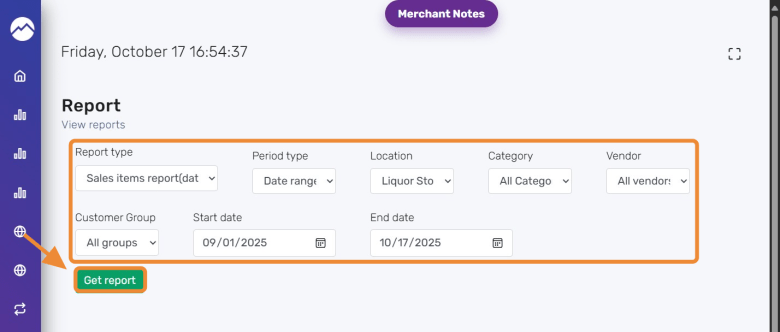
3. Select “Sales items report” (date range)

4. Select the “Date range” option.

5. Step 1. Select “Location” and choose “All Locations” or a singular.
Step 2. Select “Category”
Step 3. Select “Vendor” Choose a “Vendor” or “All Vendors”
Step 4. Select “All Groups” or a singular group
Step 5 Select The “Start Date” and “End Date”
Step 6 Click “Get Report”
6. Download the report by chooseing CSV, EXCEL, PDF, or “COPY” to your clipboard


