


This guide shows how to enable a tile-style modifier layout that reduces mistaps and improves visibility on busy or small POS screens by automatically adapting card size and spacing. It give cashier a more touch friendly way to pick modifiers. Switching to the card layout converts the standard list into large tiles, making it easier to spot sauces, toppings, or upgrades at a glance.
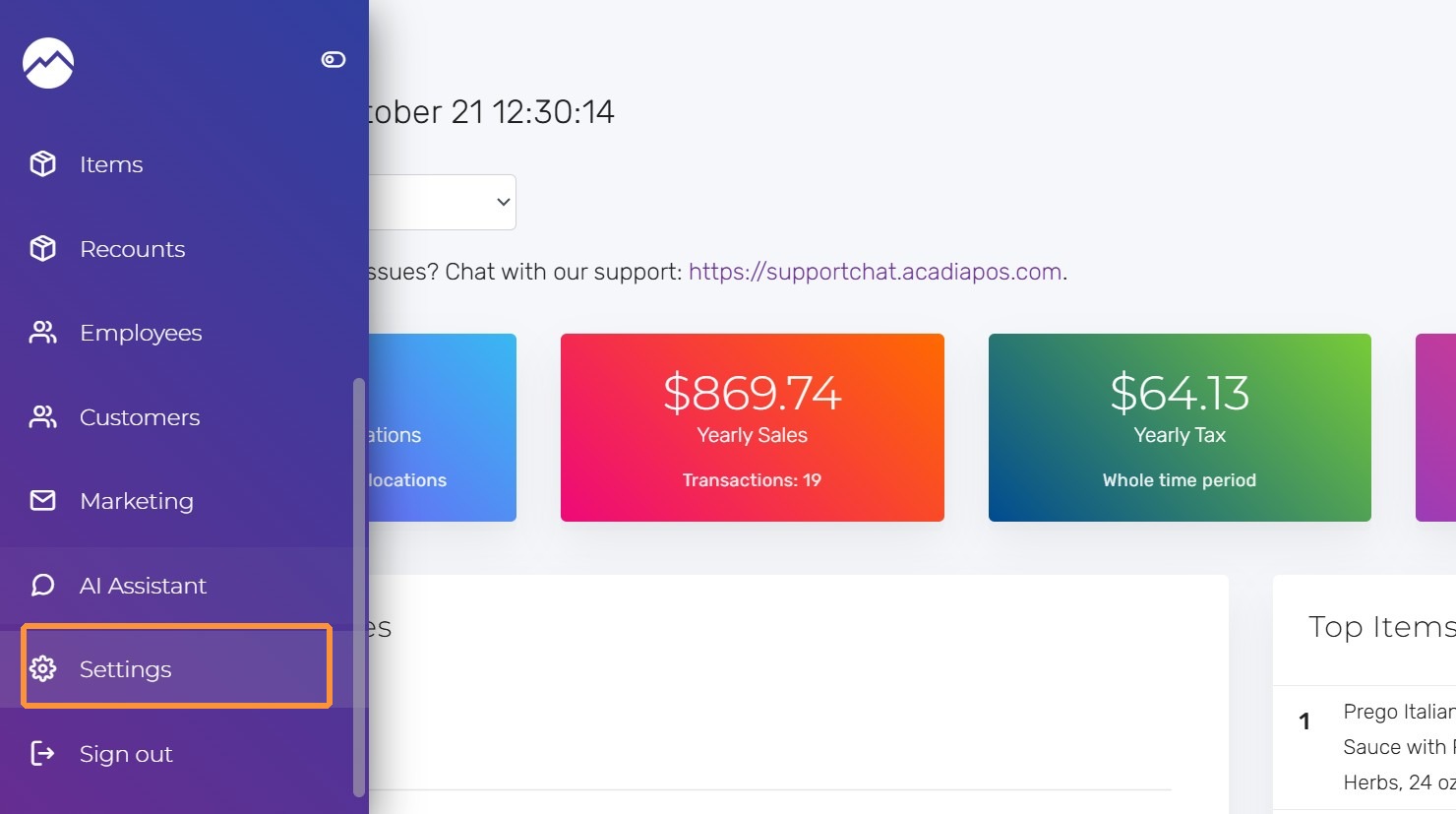
1. Navigate to manage.acadiapos.com for Retail or rfsm.acadiapos.com for Restaurant and click Settings in the sidebar menu.
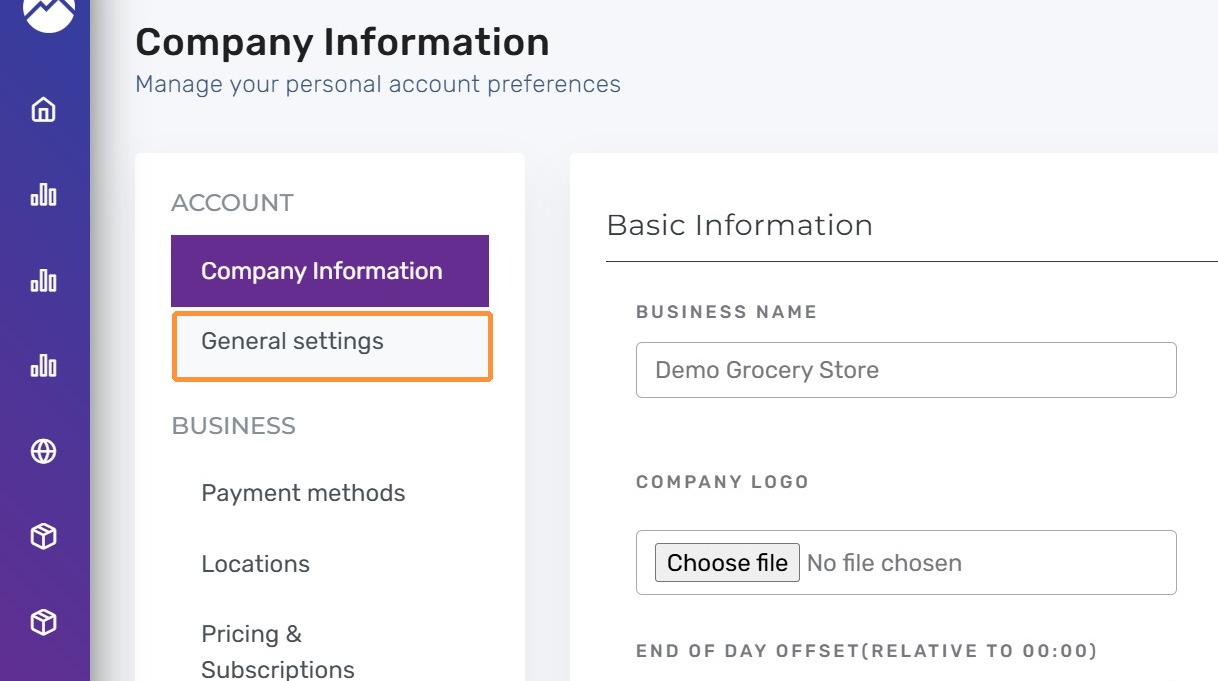
2. Click “General settings”
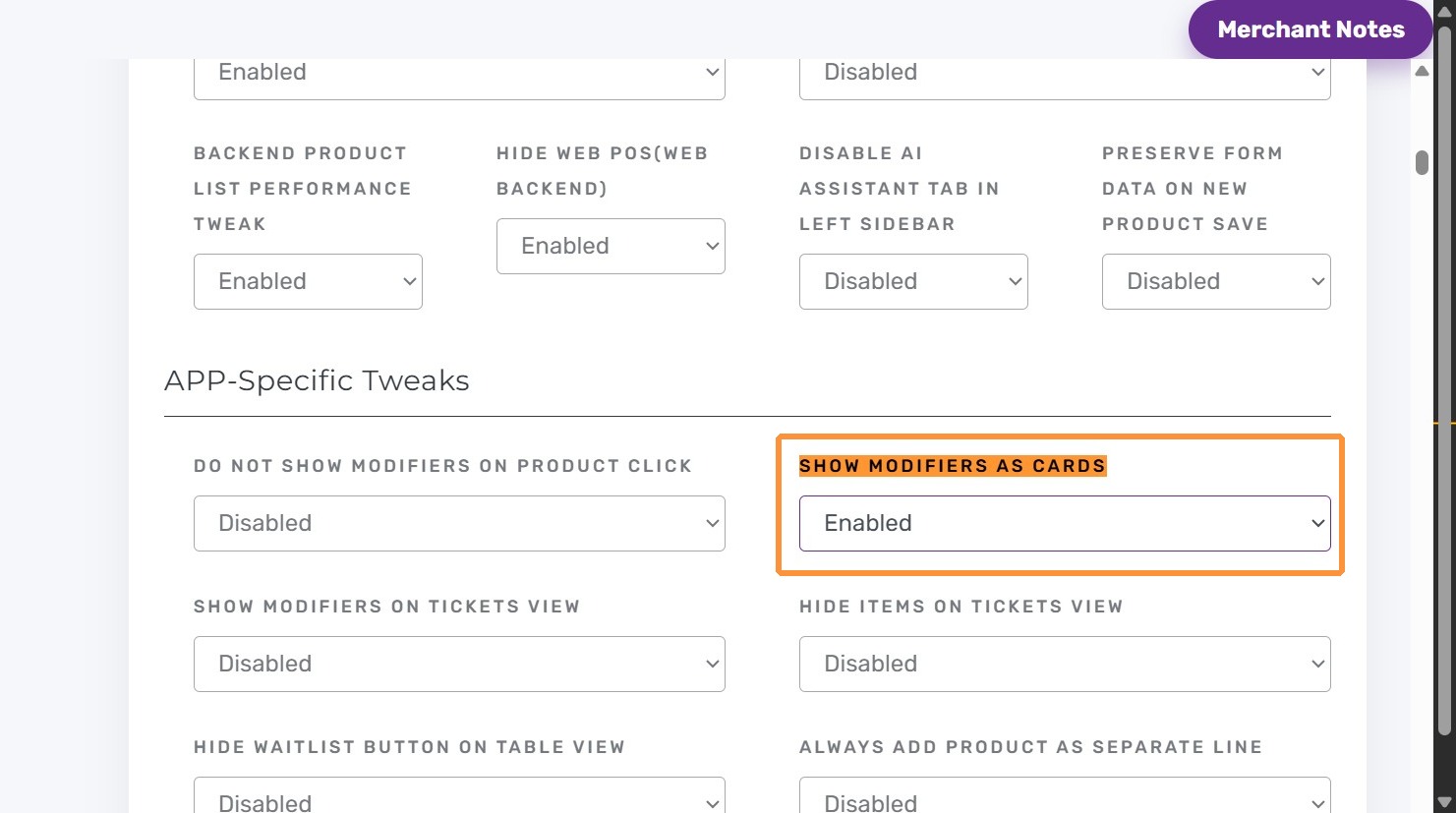
3. Press Ctrl + F (Windows) or ⌘ + F (Mac) and find “Show modifiers as cards”
Select “Enabled” for Show modifiers as cards.
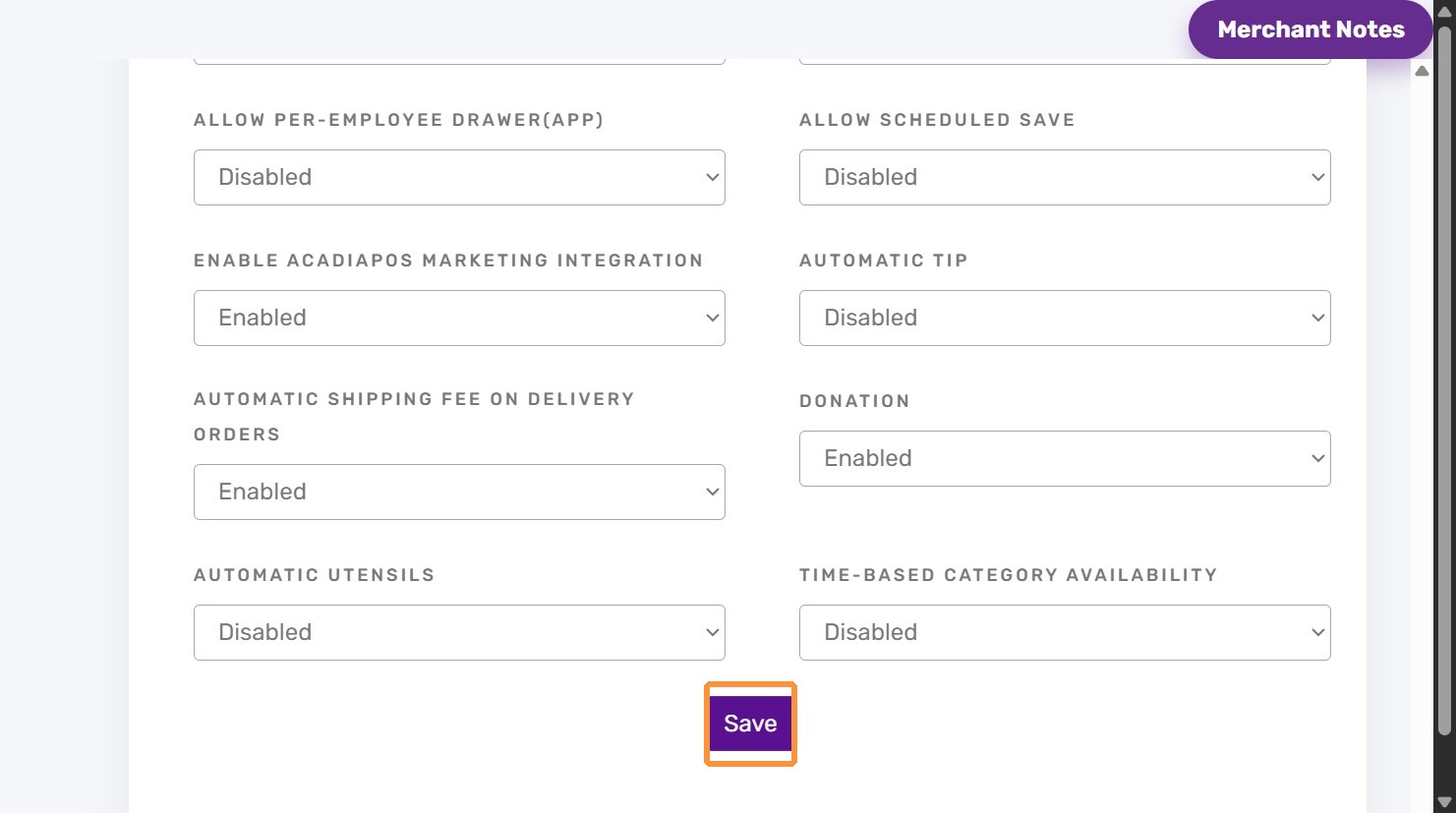
4. Click “Save”
5. Navigate to AcadiaPOS app and click on a product with modifiers
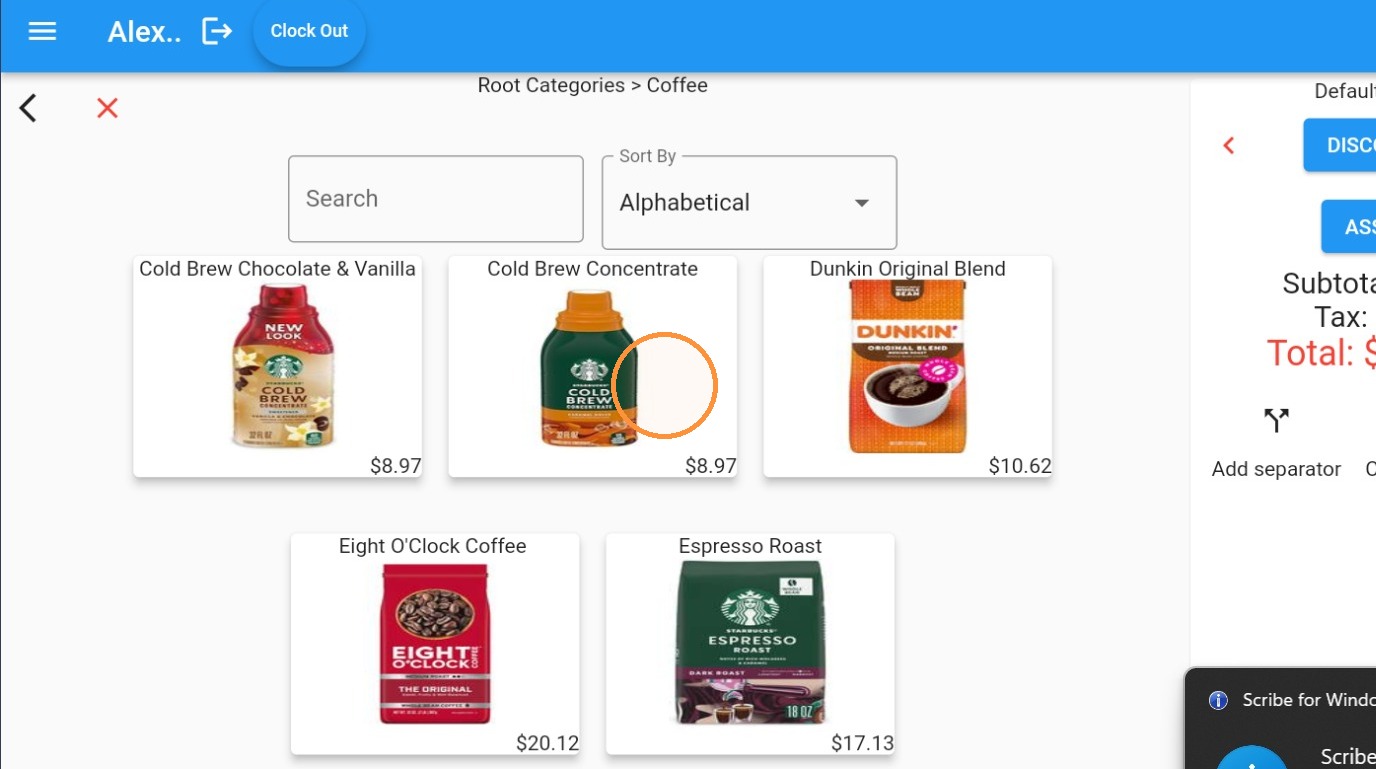
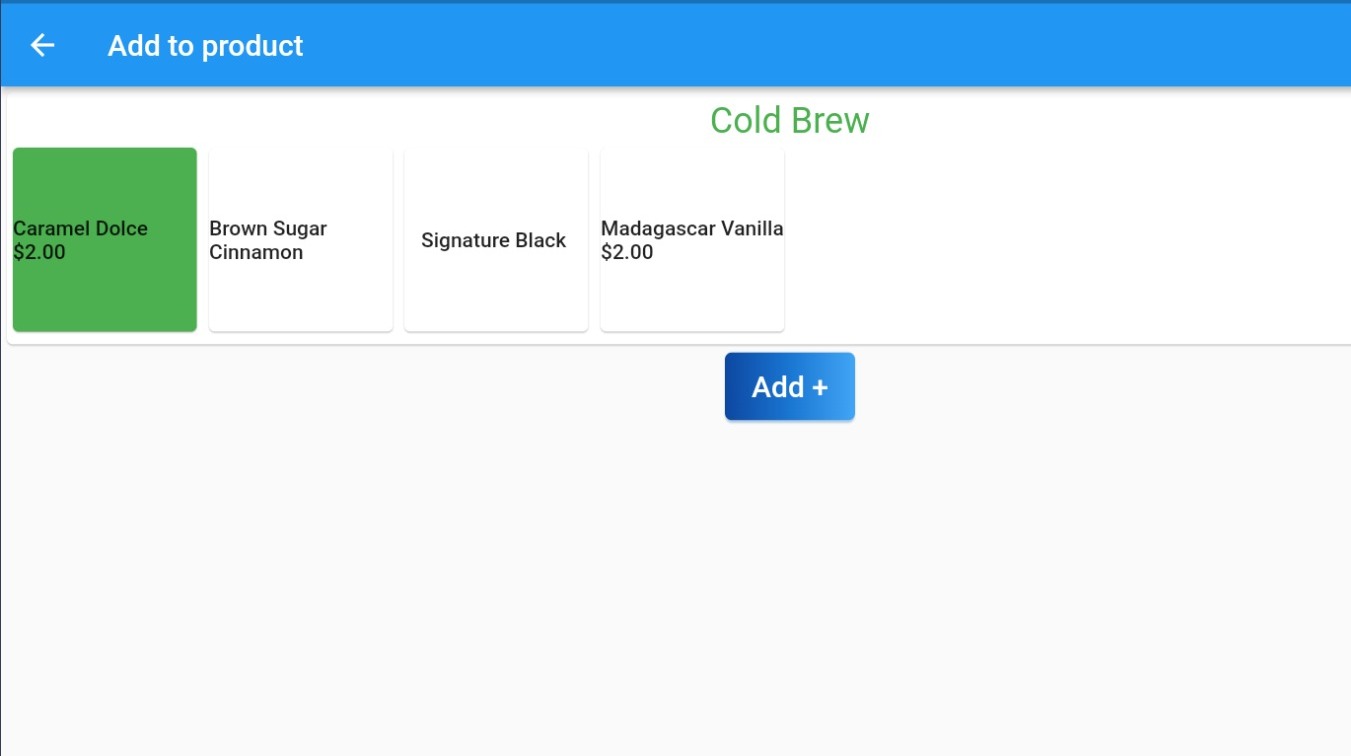
6. Modifier groups display as responsive tiles with clear spacing, reducing mis taps on busy stations.
The layout adapts automatically to the number of modifiers in a group and the screen size.
Switching the setting back to Disabled restores the previous list view instantly.
Tips:
- Combine the card layout with Available colors palette so high priority modifiers stand out.
- Test the layout on each POS device; cards are especially helpful on smaller tablets.


