


This guide shows how to turn on a small history icon next to on-hand quantities so staff can quickly view detailed adjustment history before making changes. The icon opens the audit trail for the selected product and location without leaving the page.
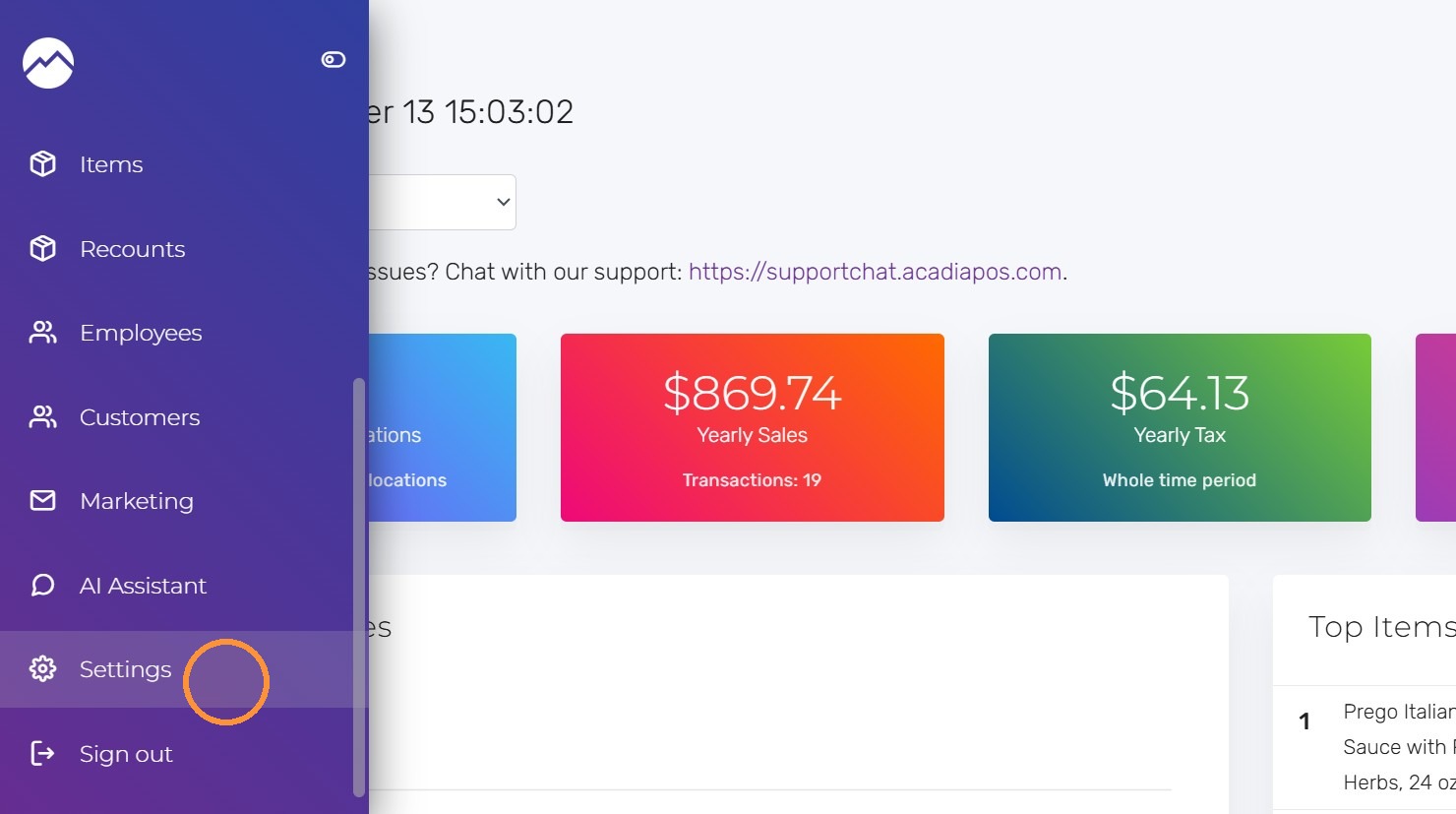
1. Navigate to manage.acadiapos.com for Retail or rfsm.acadiapos.com for Restaurant and click Settings in the sidebar menu.
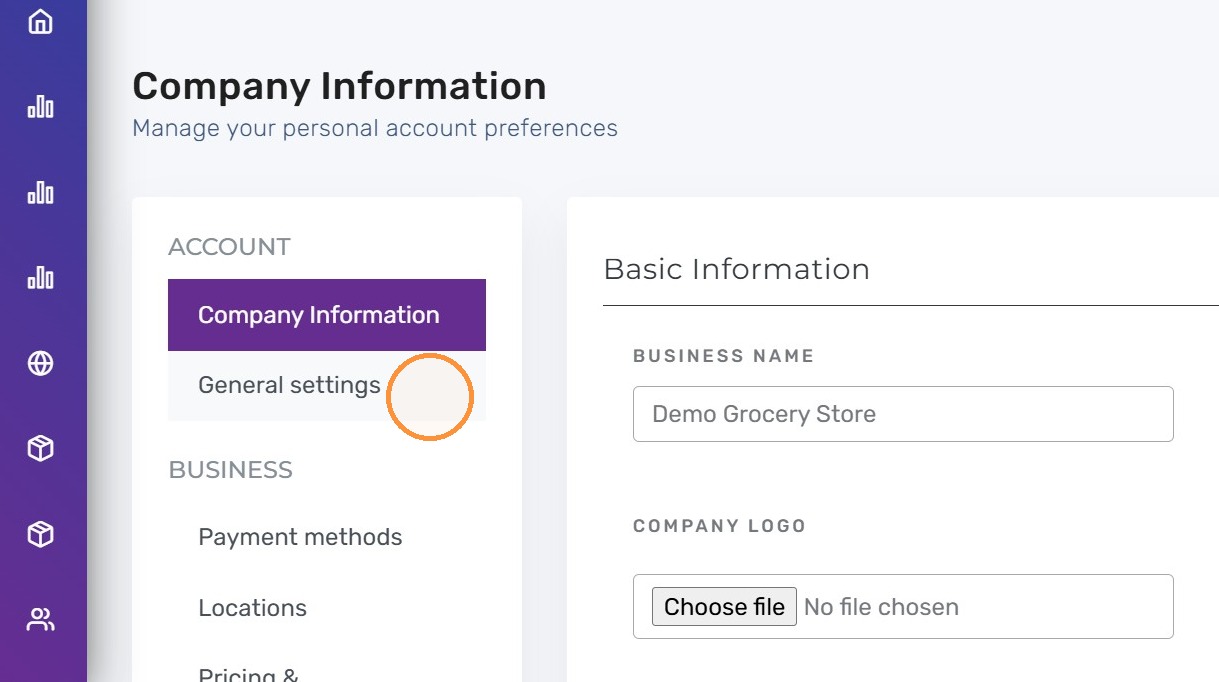
2. Click “General settings”
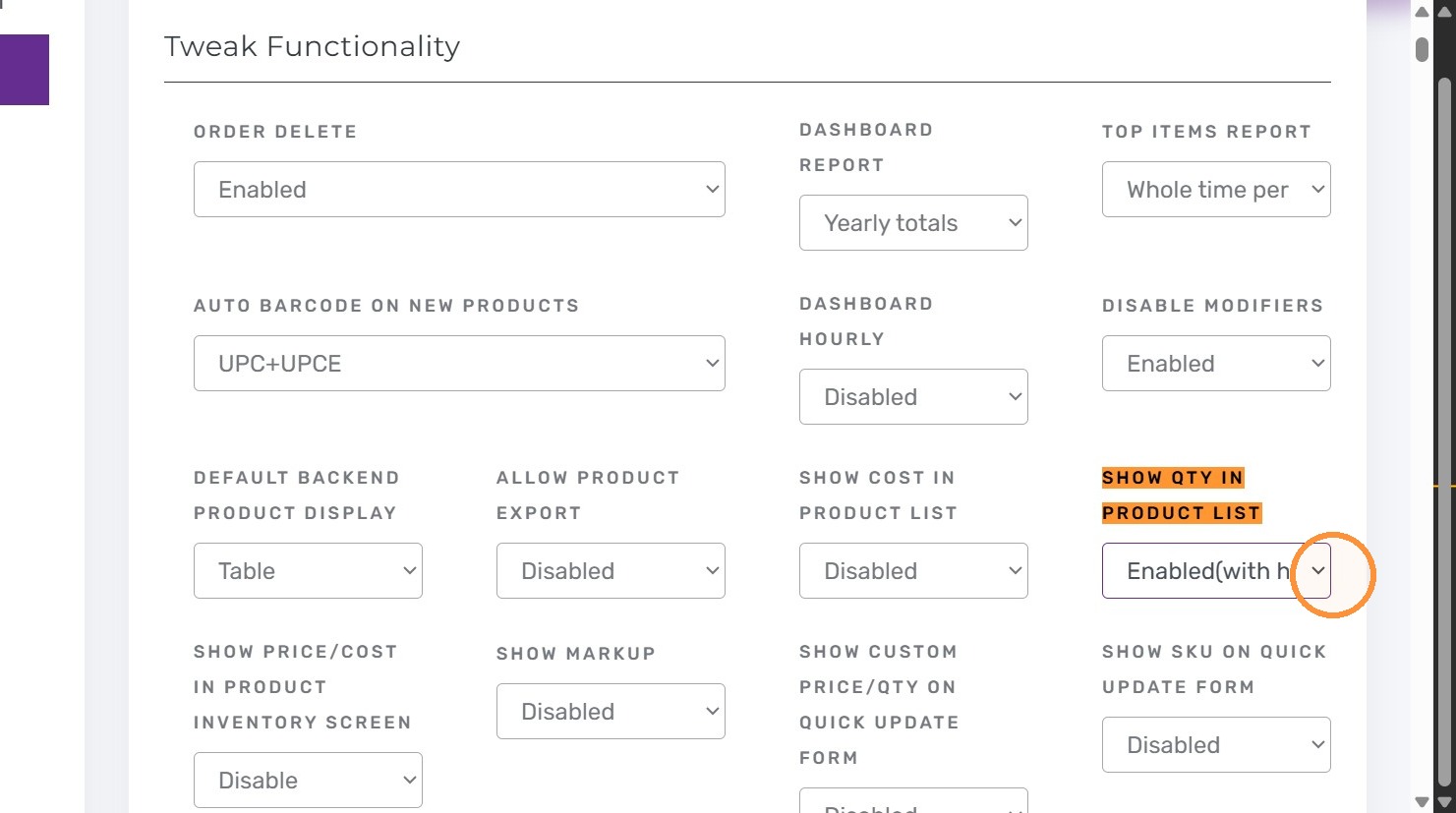
3. Press Ctrl + F (Windows) or ⌘ + F (Mac) and find “Show qty in prdouct list”.
Select “Enabled (with history icon)” for Show Qty in Product List.
Please note that the option appears only when inventory tracking is enabled for your company.
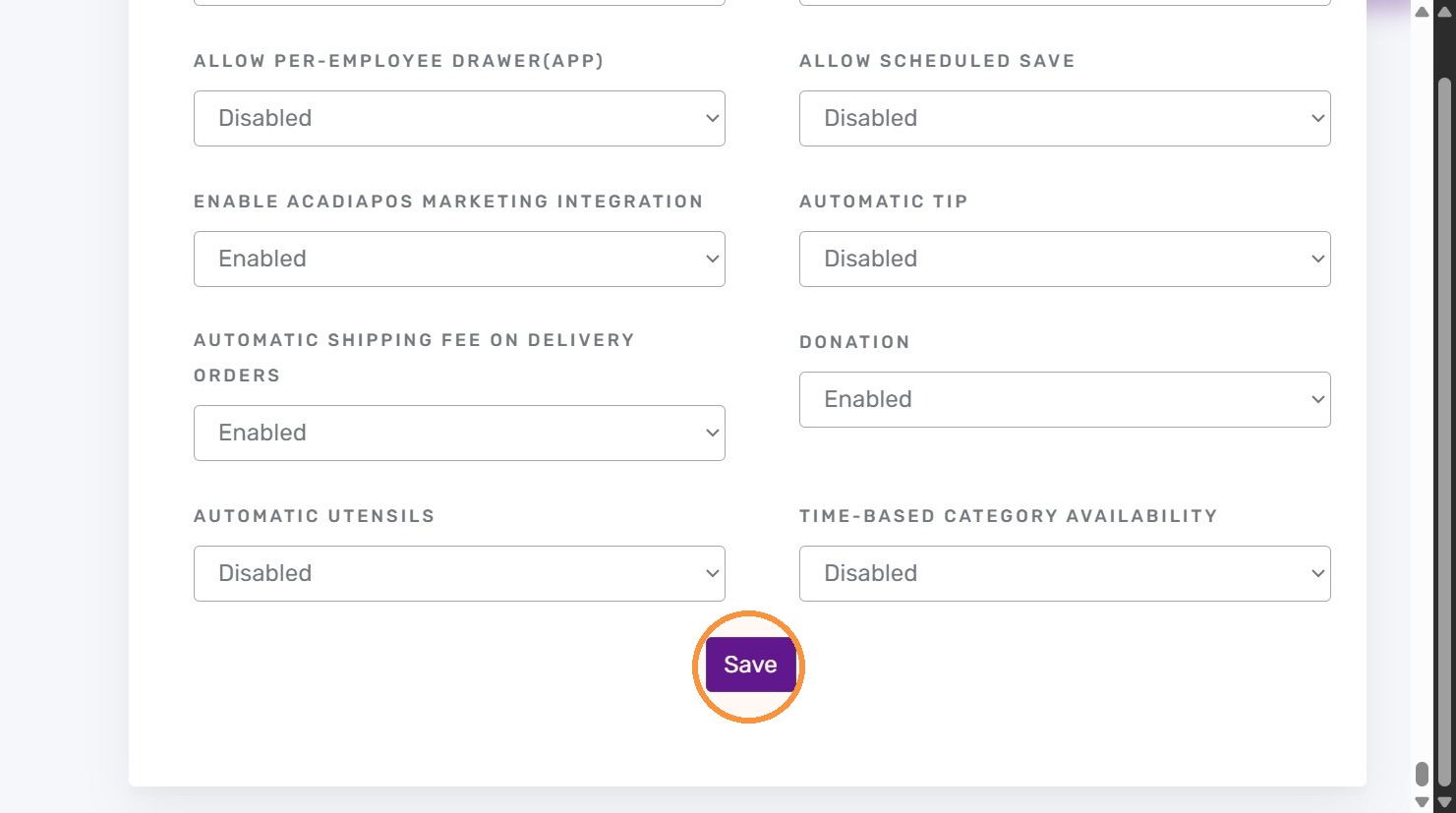
4. Click “Save”
Tips:
- Location columns display a small calendar icon next to the on-hand quantity. Clicking the icon opens the detailed adjustment history.
- Encourage staff to use the icon before creating manual adjustments; it often shows the original event that caused a discrepancy.
- Pair the setting with Show cost when running audits so supervisors can reconcile value and movement in one screen.


