


This guide shows how to enable and use Multi-Location Purchase Orders so you can create a single PO that ships to multiple destinations. With multi-location delivery enabled, buyers can earmark quantities per store while keeping vendor communication streamlined.
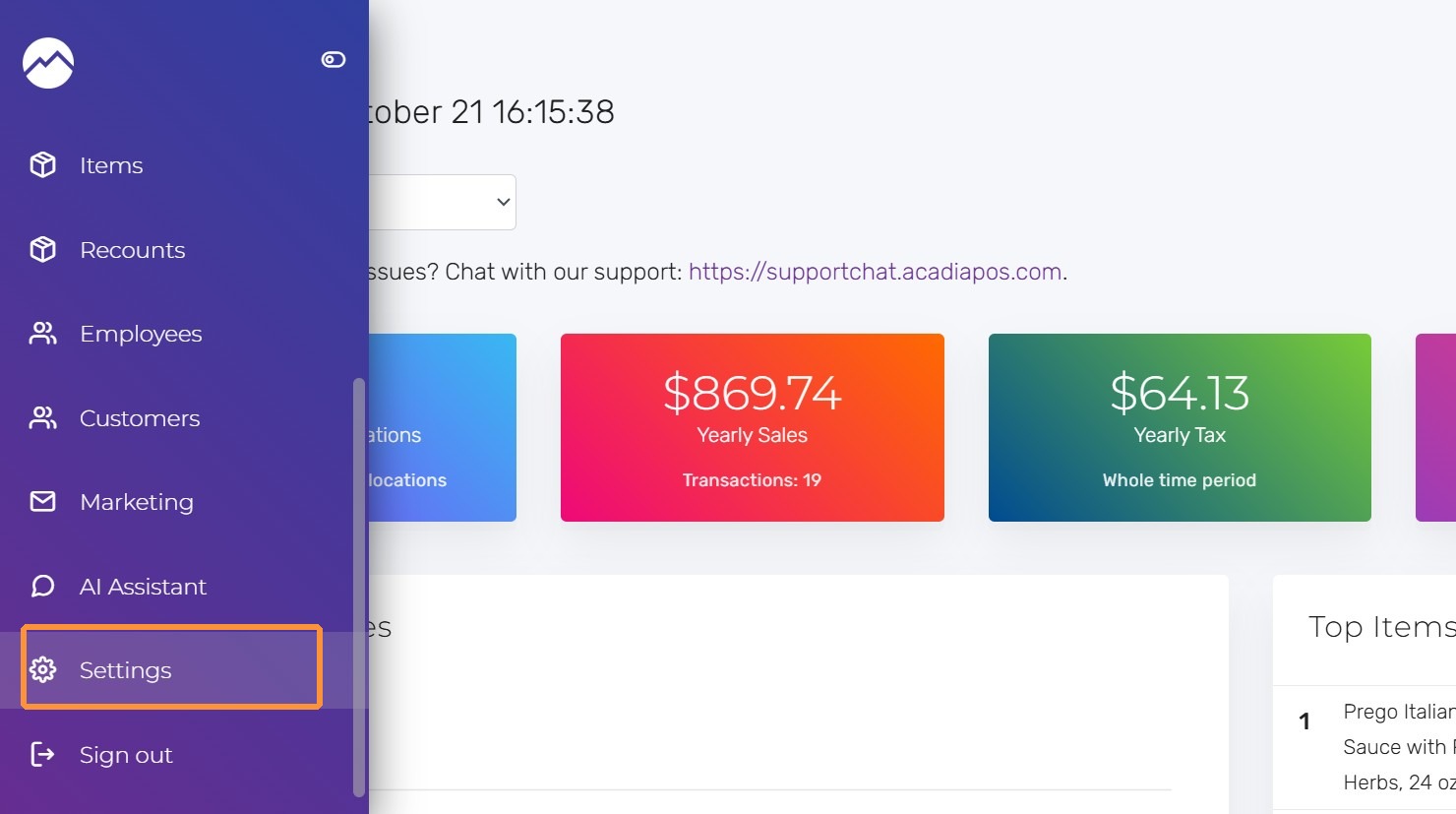
1. Navigate to manage.acadiapos.com for Retail or rfsm.acadiapos.com for Restaurant and click Settings in the sidebar menu.
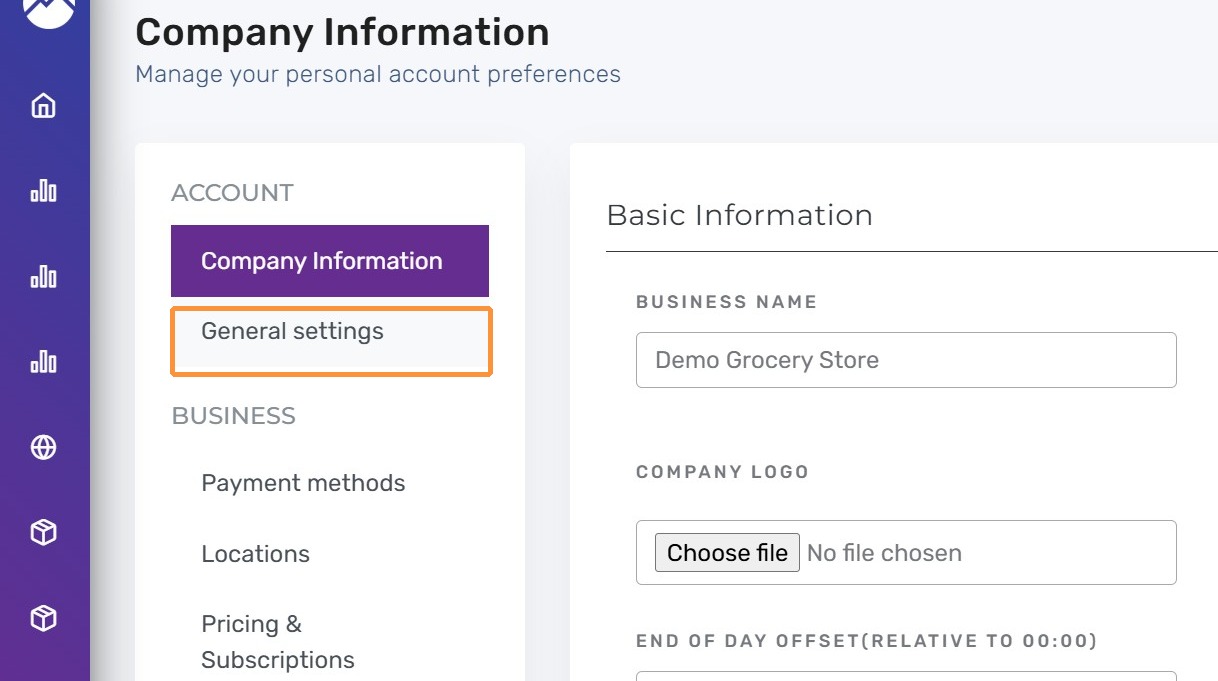
2. Click “General settings”
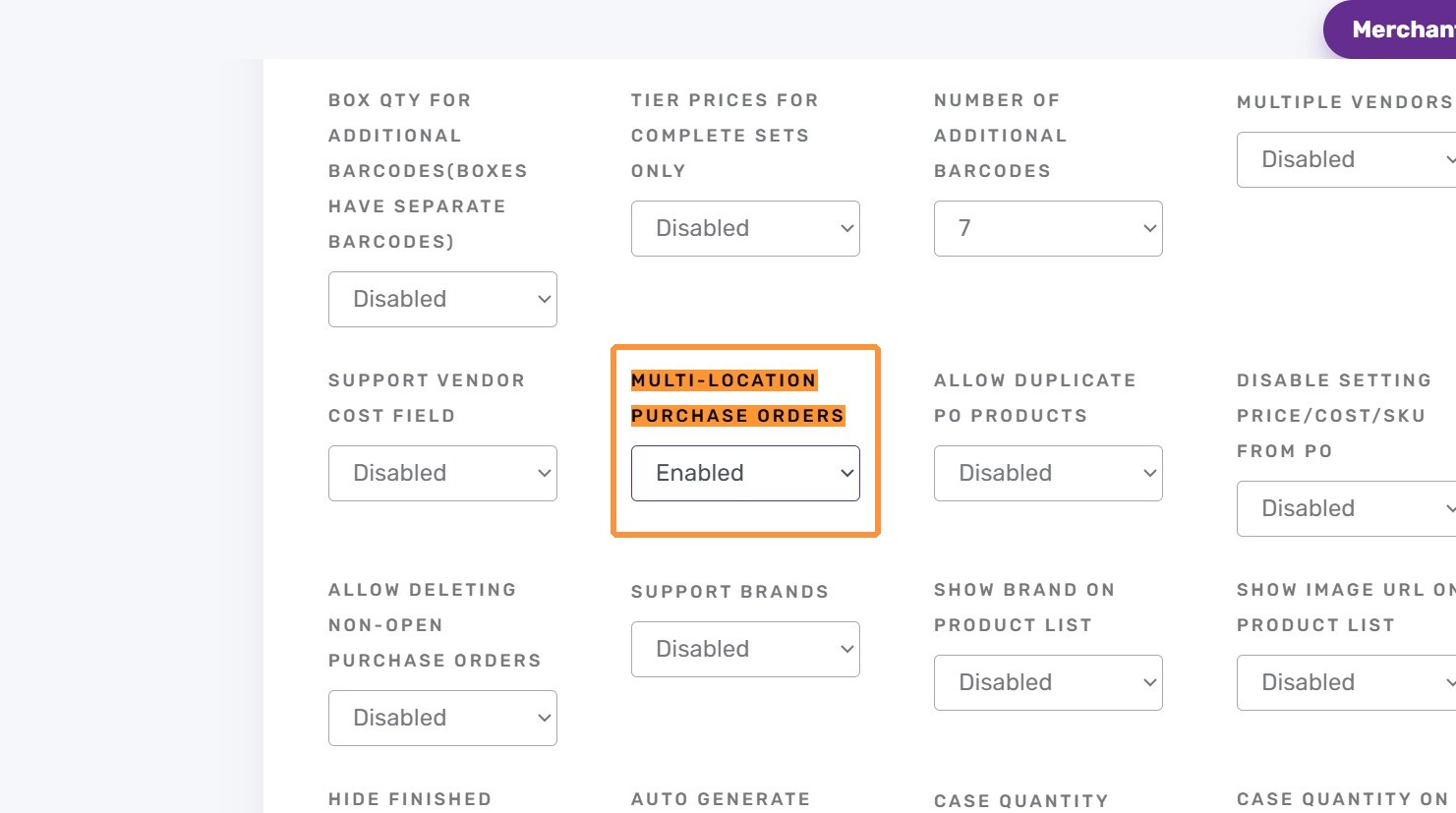
3. Press Ctrl + F (Windows) or ⌘ + F (Mac) and find “Multi-location purchase orders”
Set Multi-Location Purchase Orders to “Enabled”
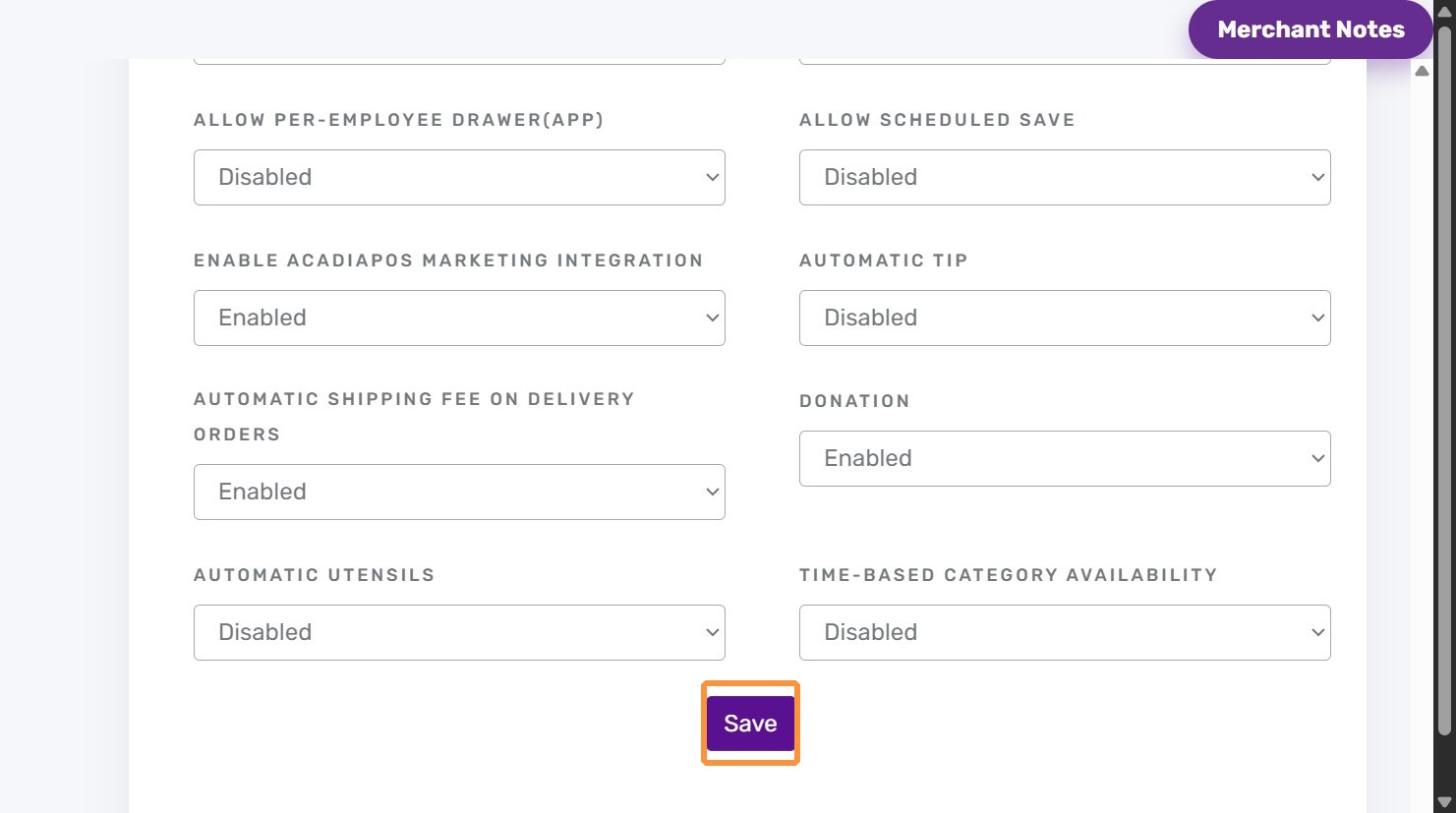
4. Click “Save”
5. Click “Purchase Orders”
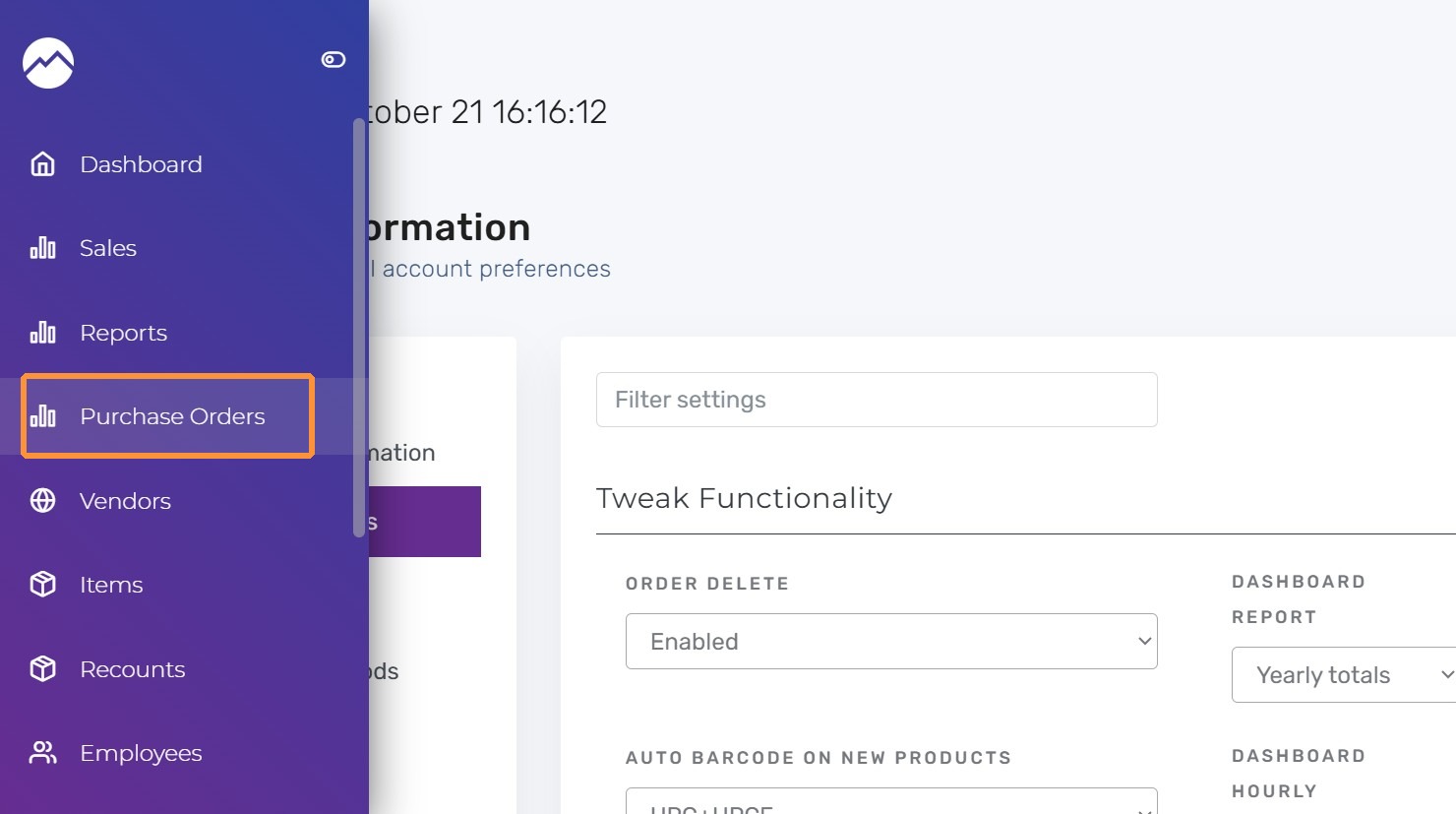
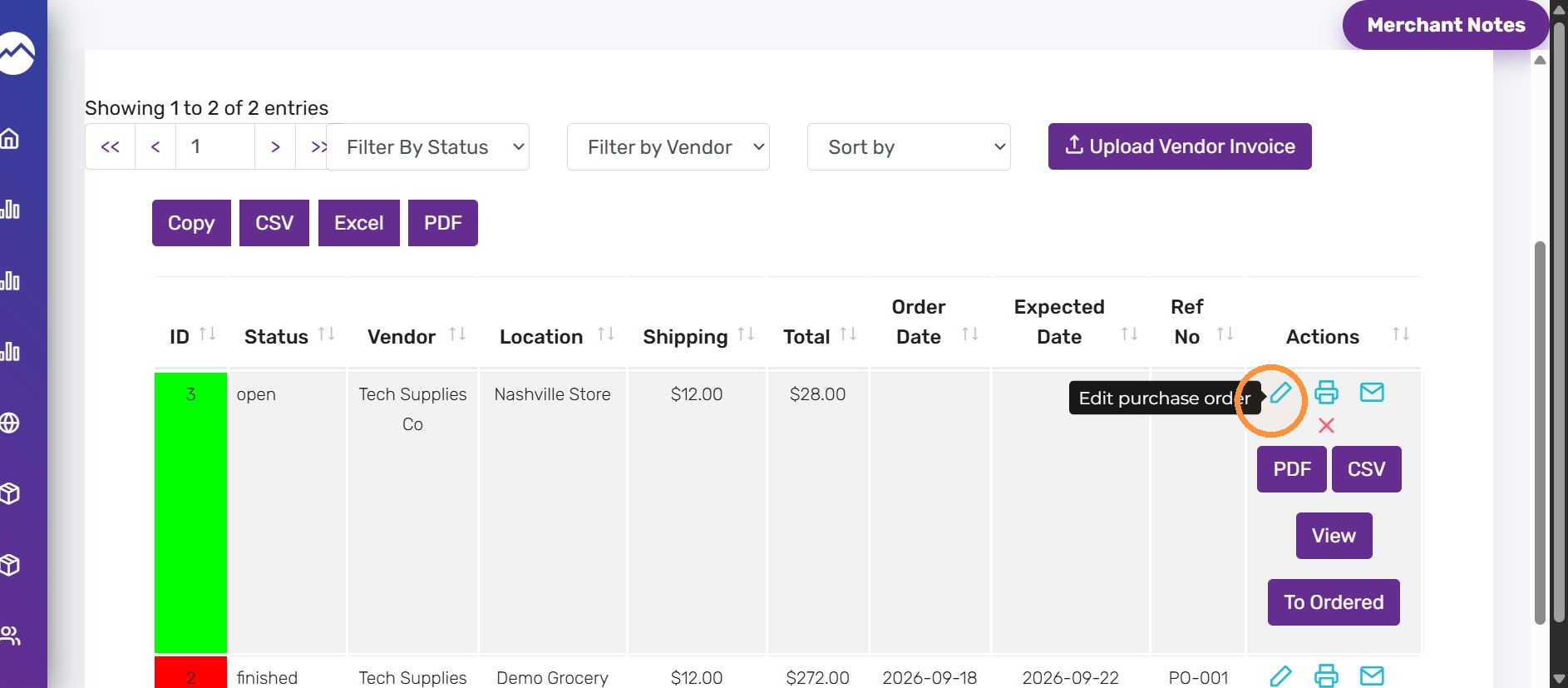
6. Create or edit a purchase order as usual
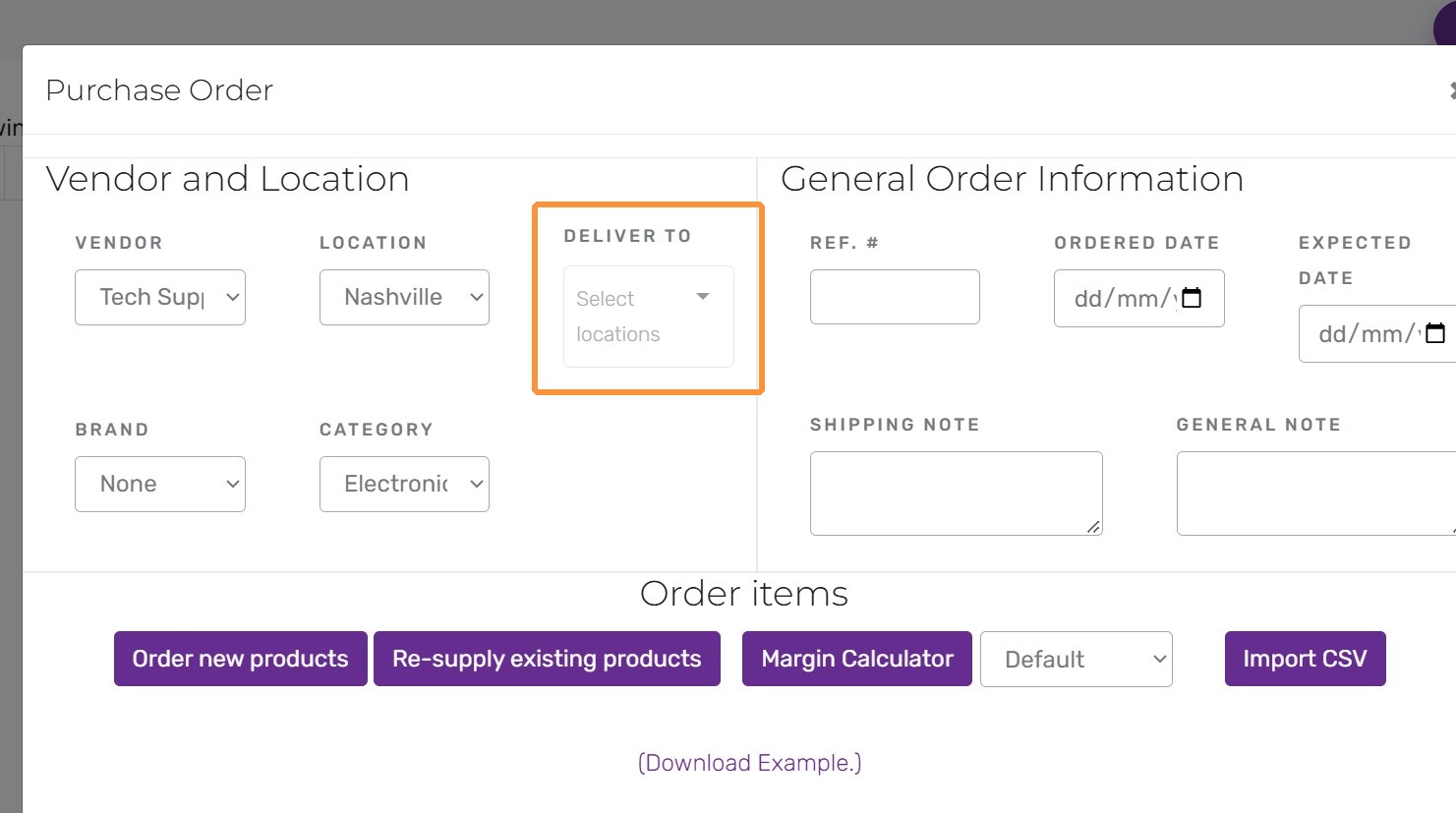
7. A new Deliver To picker appears near the header. Choose all destination locations (the originating location is still used for receiving and vendor paperwork).
For each line item, enter the quantities destined for each selected location. The summary card shows the overall ordered amount. Then click Save button.**
Tips:
- Use the notes field on the purchase order to let warehouse staff know shipments should be split in transit.
- If you frequently send the same mix of locations, create a draft order with the deliver-to list pre-filled and duplicate it next time.
- The feature works alongside existing price, tax, and approval workflows – no need to retrain vendors.


