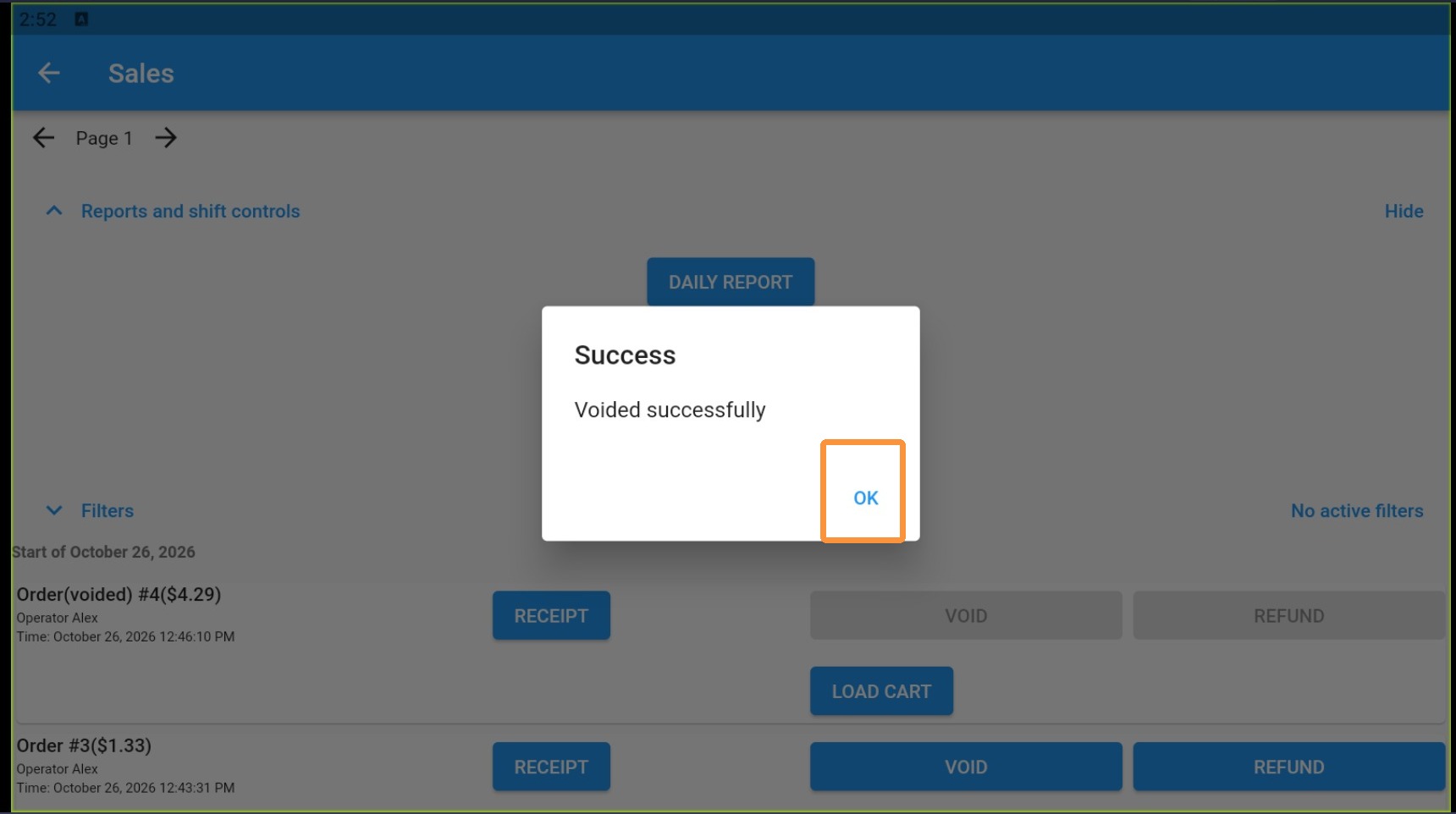


This guide shows how to add and use standardized void reasons in AcadiaPOS so your staff can record why transactions are voided. It explains where to enter comma-separated reasons in the web settings and how to select a reason when voiding a sale in the app.
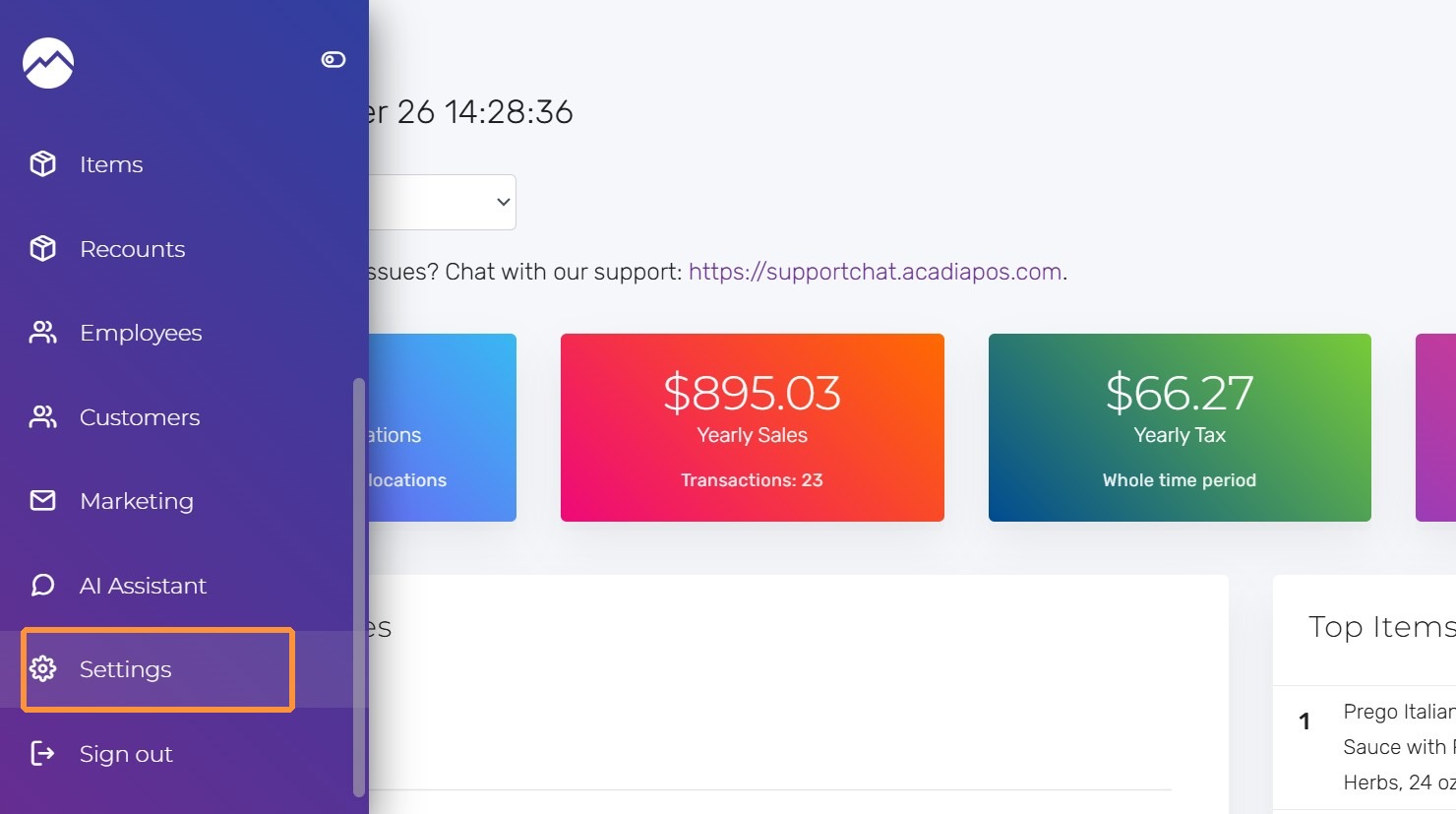
1. Navigate to manage.acadiapos.com for Retail or rfsm.acadiapos.com for Restaurant and click Settings in the sidebar menu.
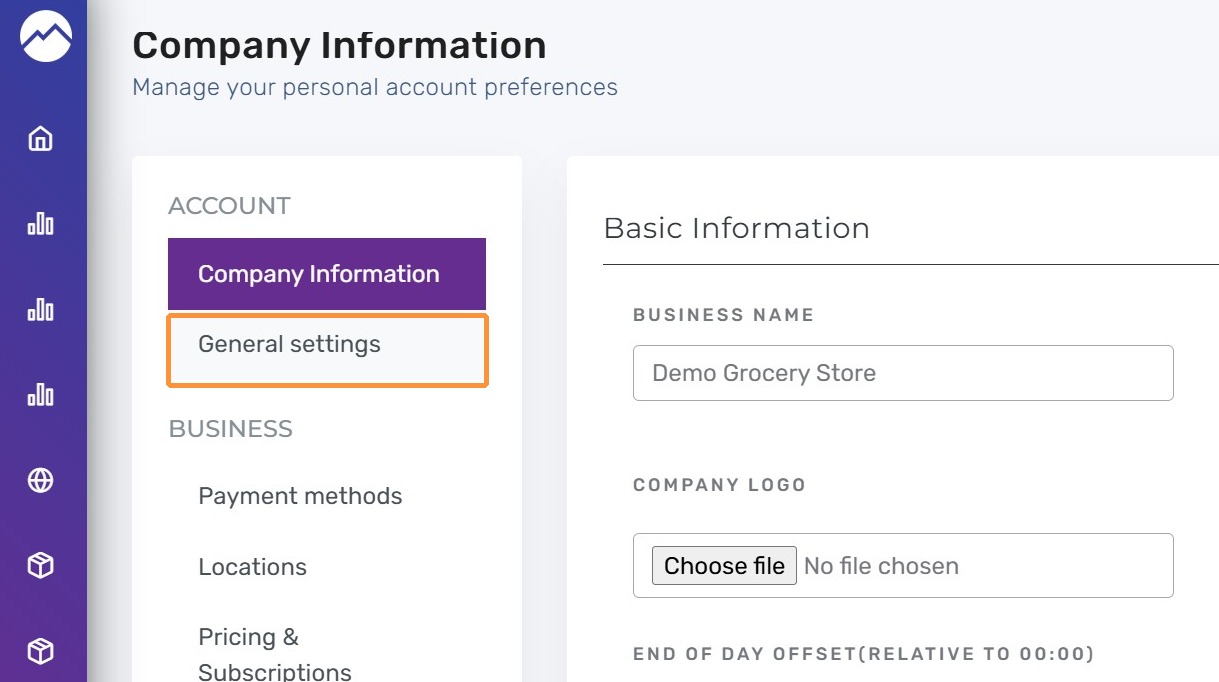
2. Click “General settings”
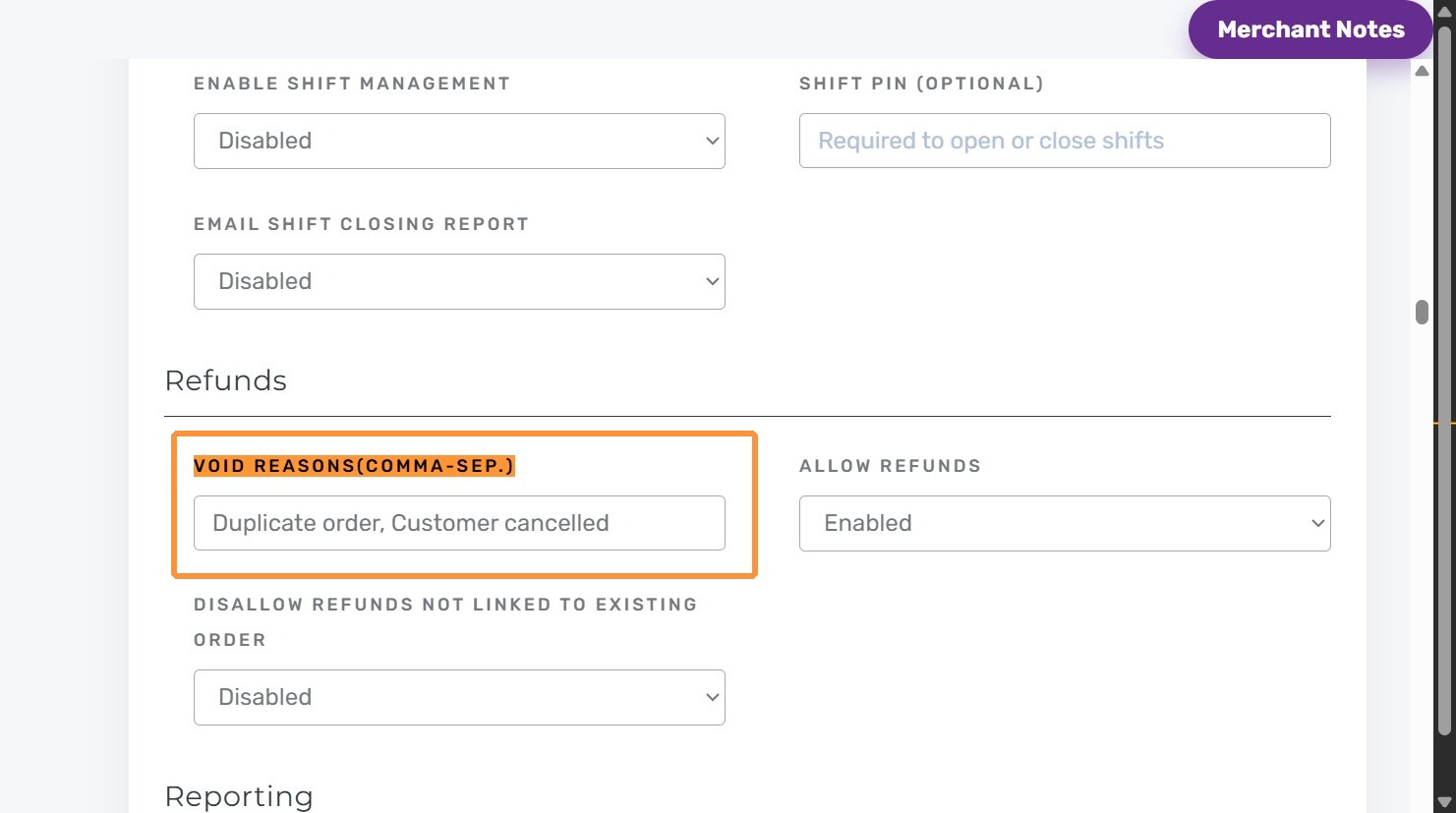
3. Press Ctrl + F (Windows) or ⌘ + F (Mac) and find “Void Reasons”.
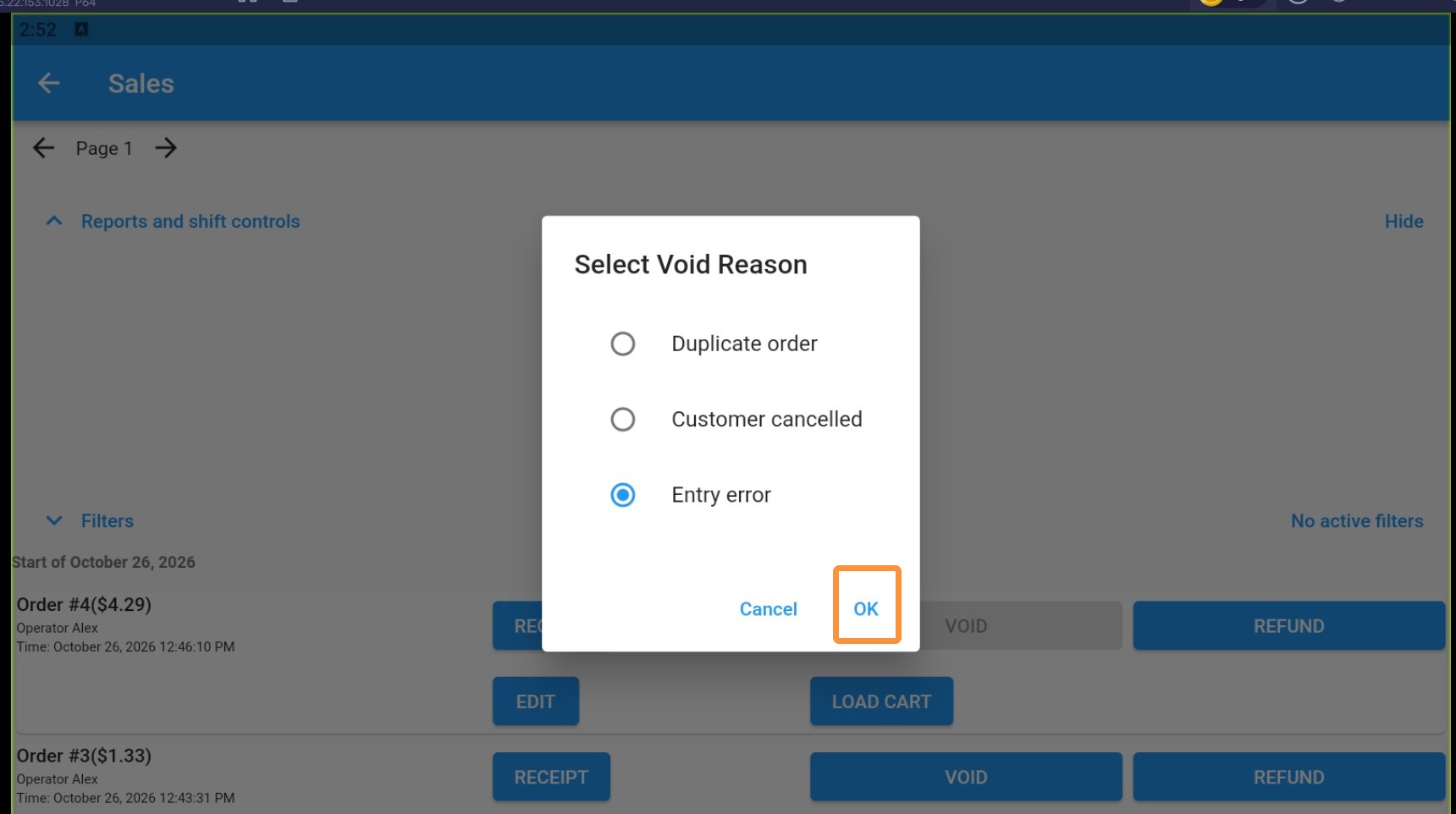
Enter reasons for void separated by comma. For example: Duplicate order, Customer cancelled, Entry error.
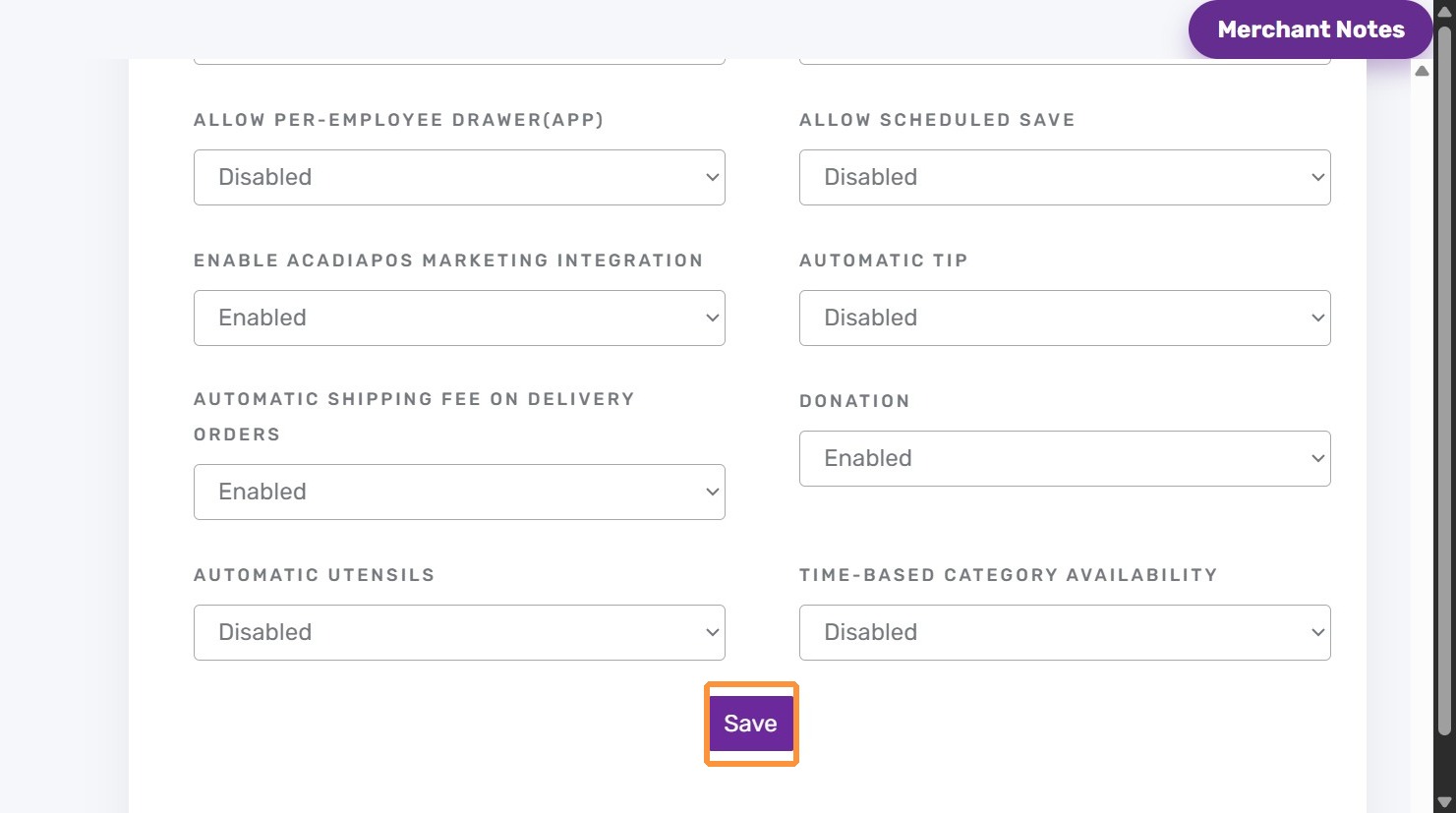
4. Click “Save”
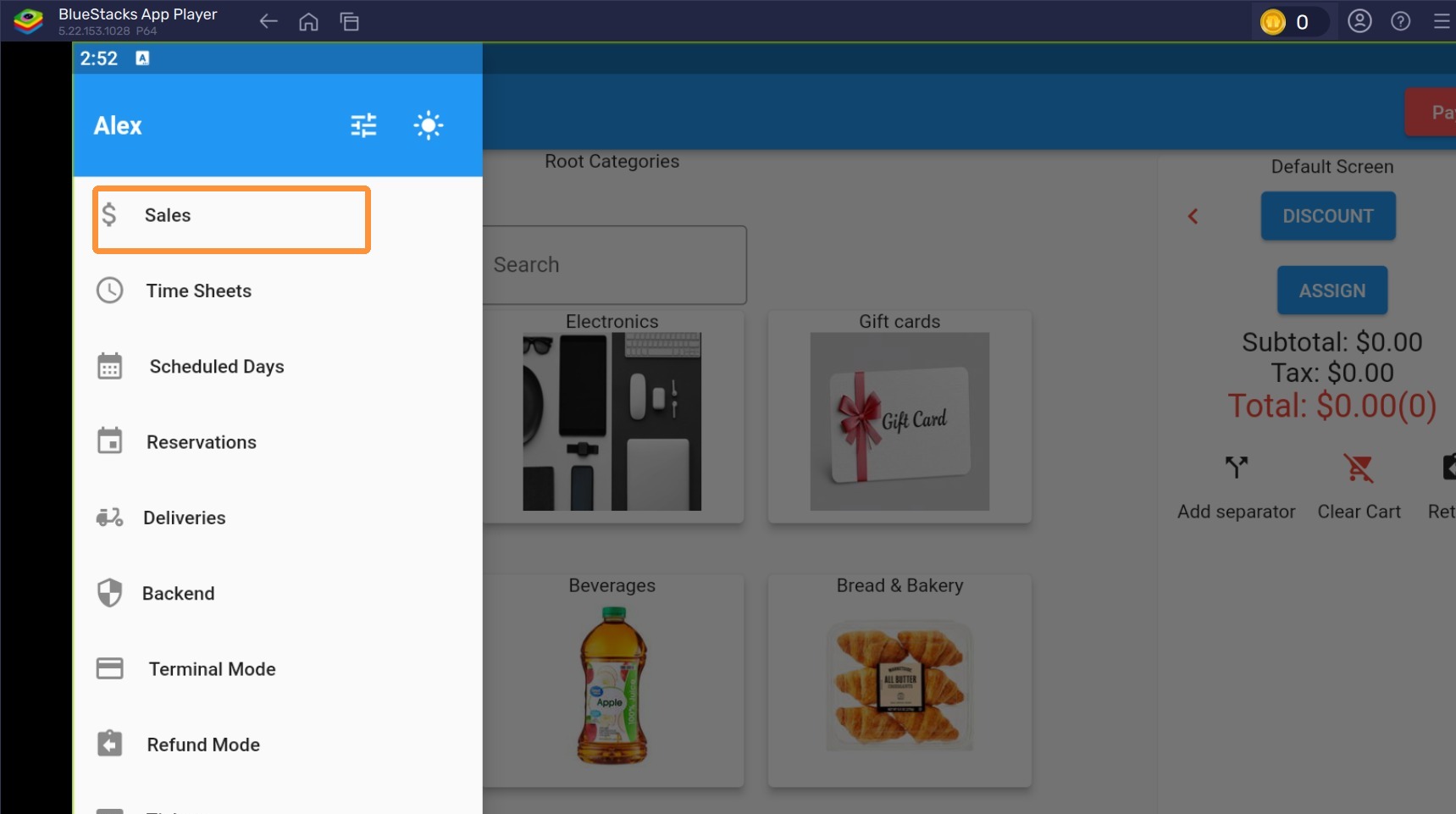
5. Navigate to AcadiaPOS app and click on the left hand side hamburger. Then click “Sales”
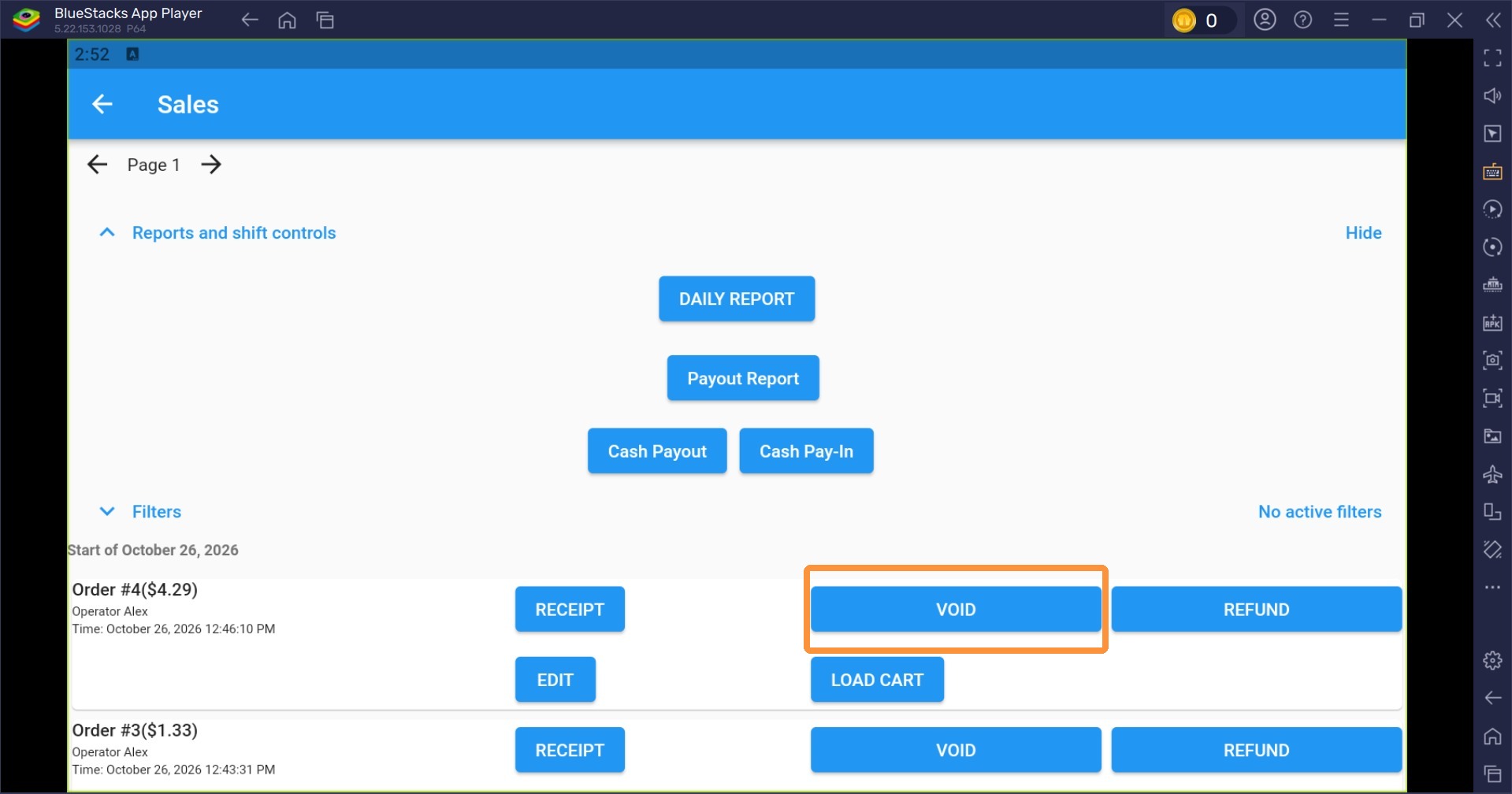
6. Search for the sale that you want to void. Click on Void button
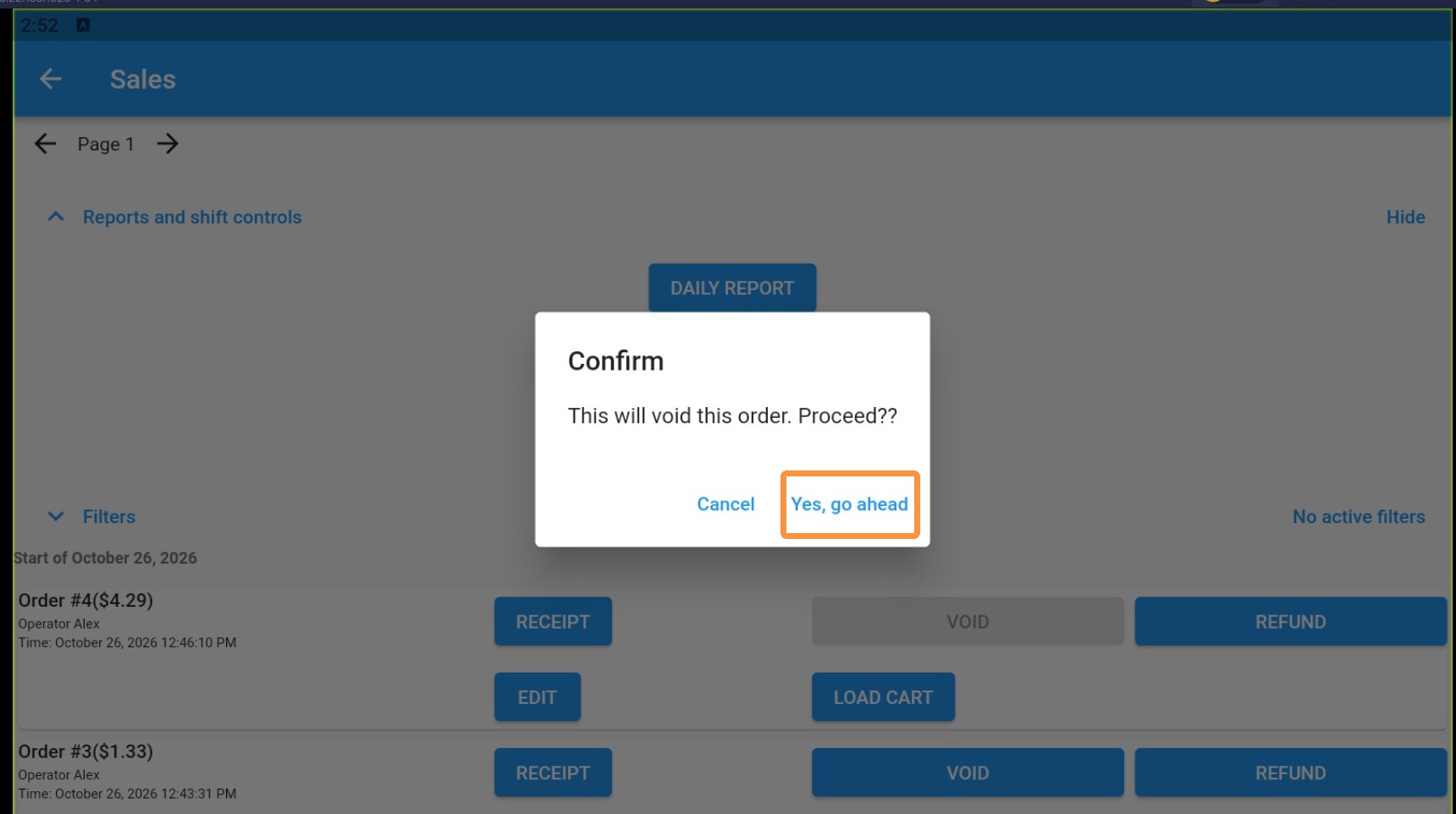
7. Click “Yes, go ahead”
8. Select the void reason and click “OK”
9. Click “Ok”