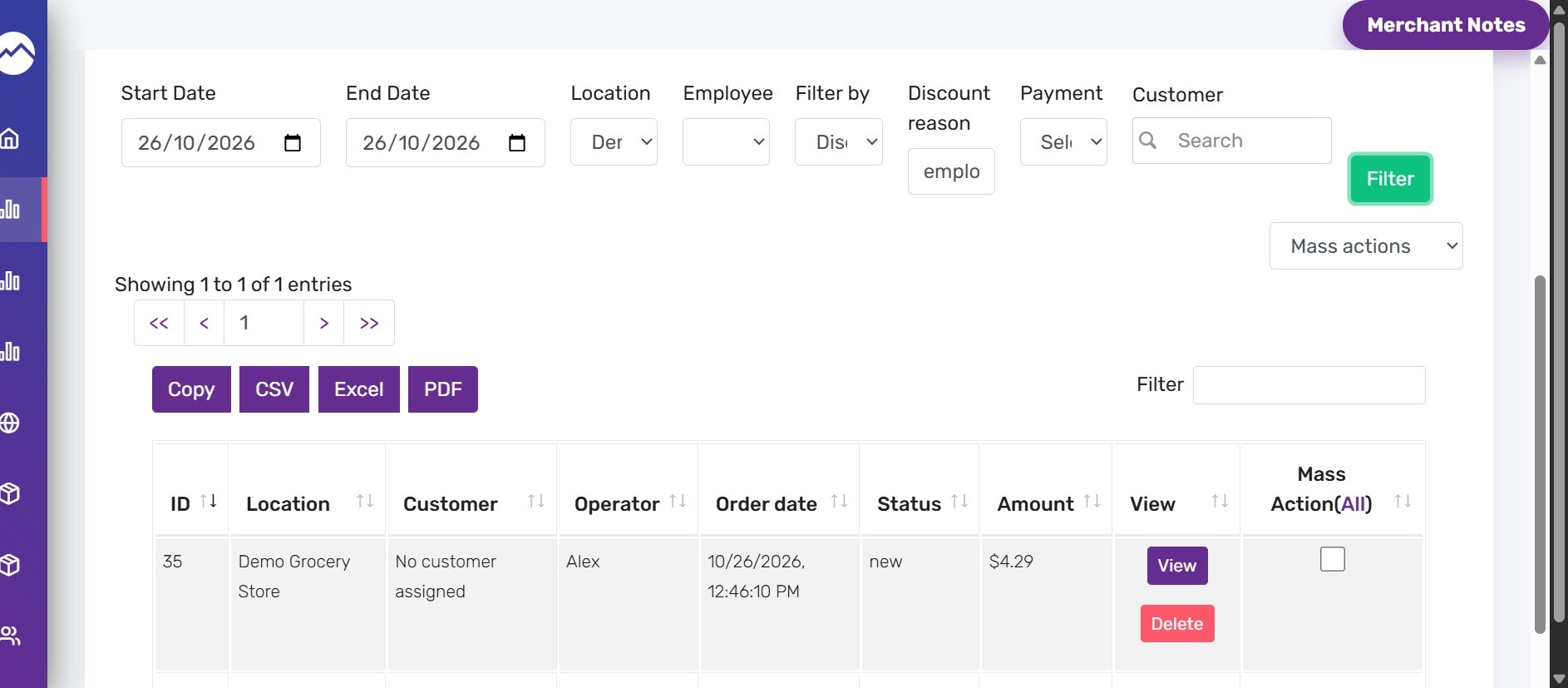


This guide shows how to quickly filter sales to find orders tagged with a specific discount reason, so you can review which orders used that discount. It also helps identify who applied the discount and view the order details for audit, reporting, or resolving pricing questions.
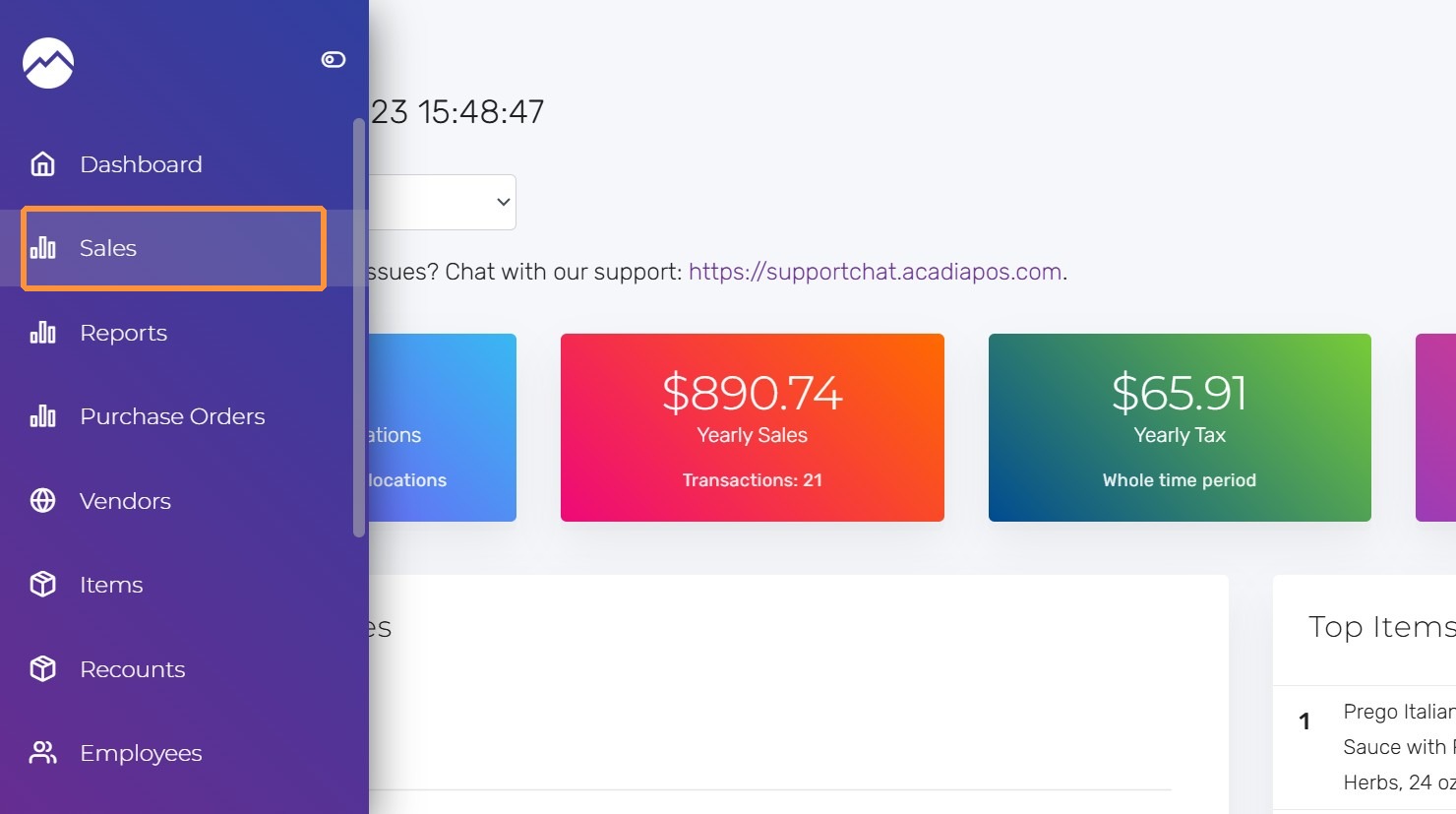
1. Navigate to manage.acadiapos.com for Retail or rfsm.acadiapos.com for Restaurant and click Sales in the sidebar menu.
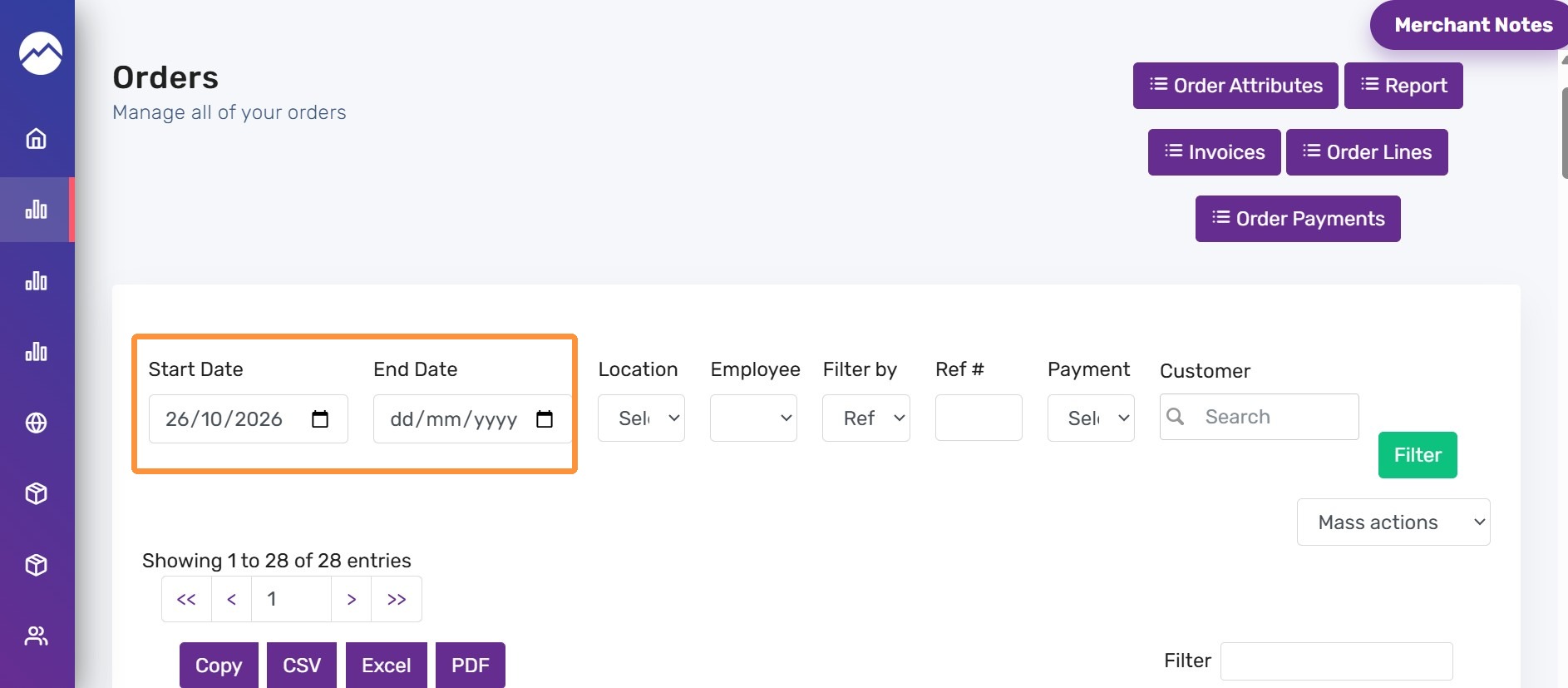
2. Click on the date fields and select the date on which the sale occurred
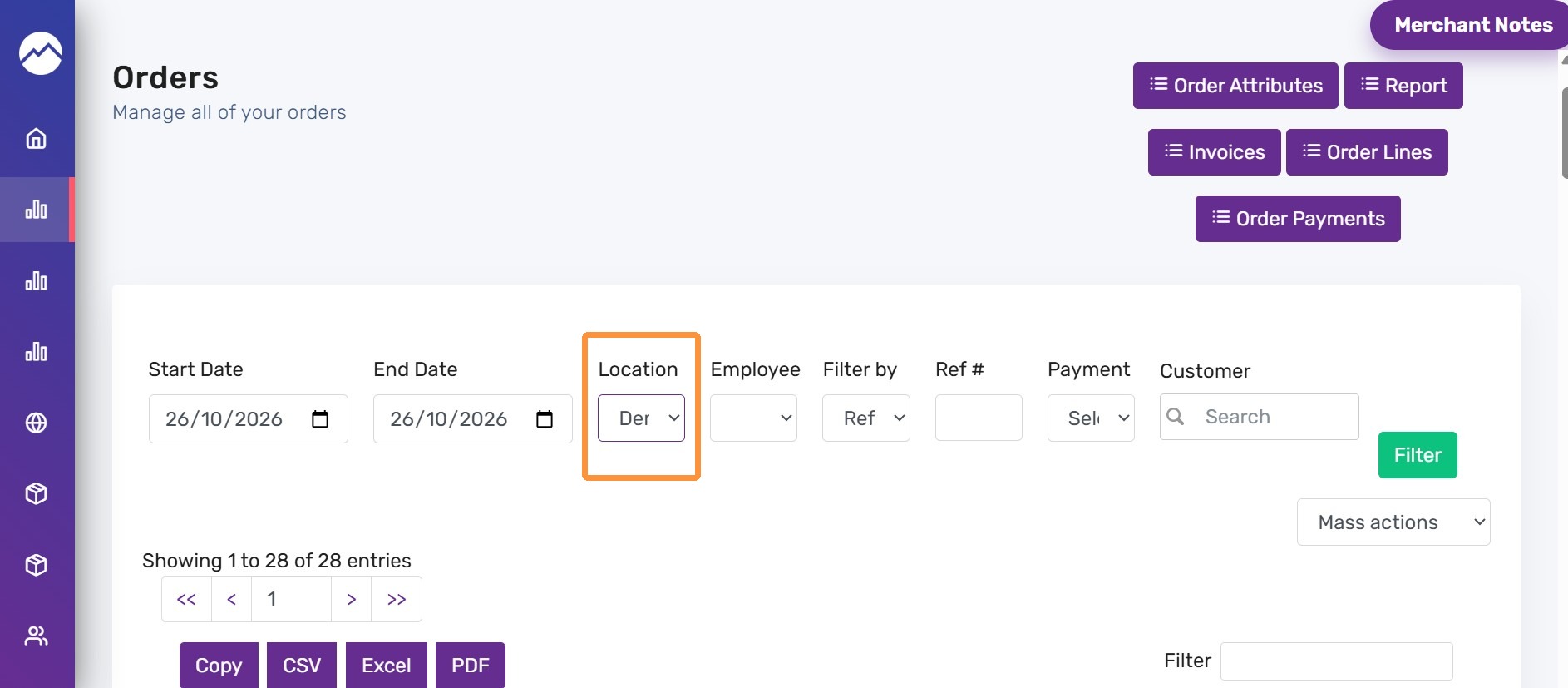
3. Select the specific location.
4. Open the filter by dropdown and select the “Discount reason” option.
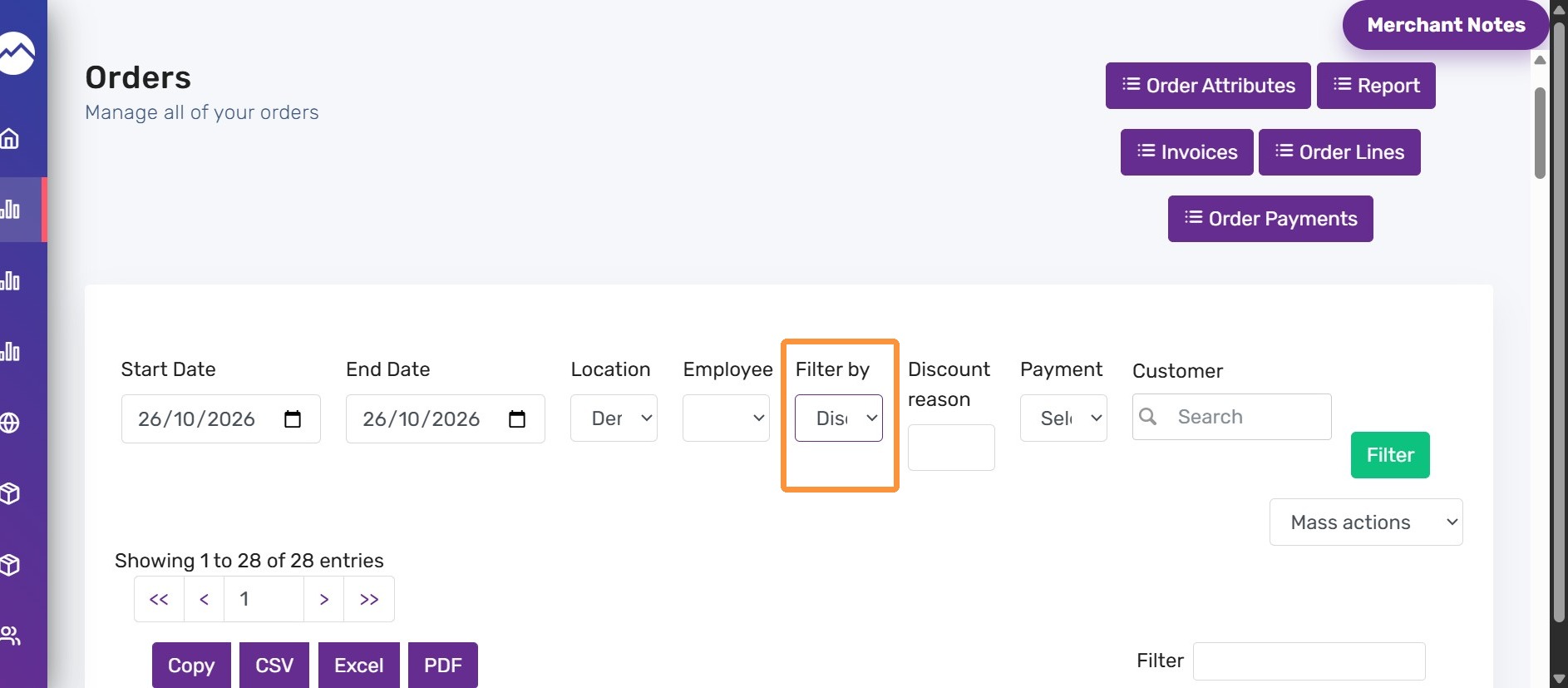
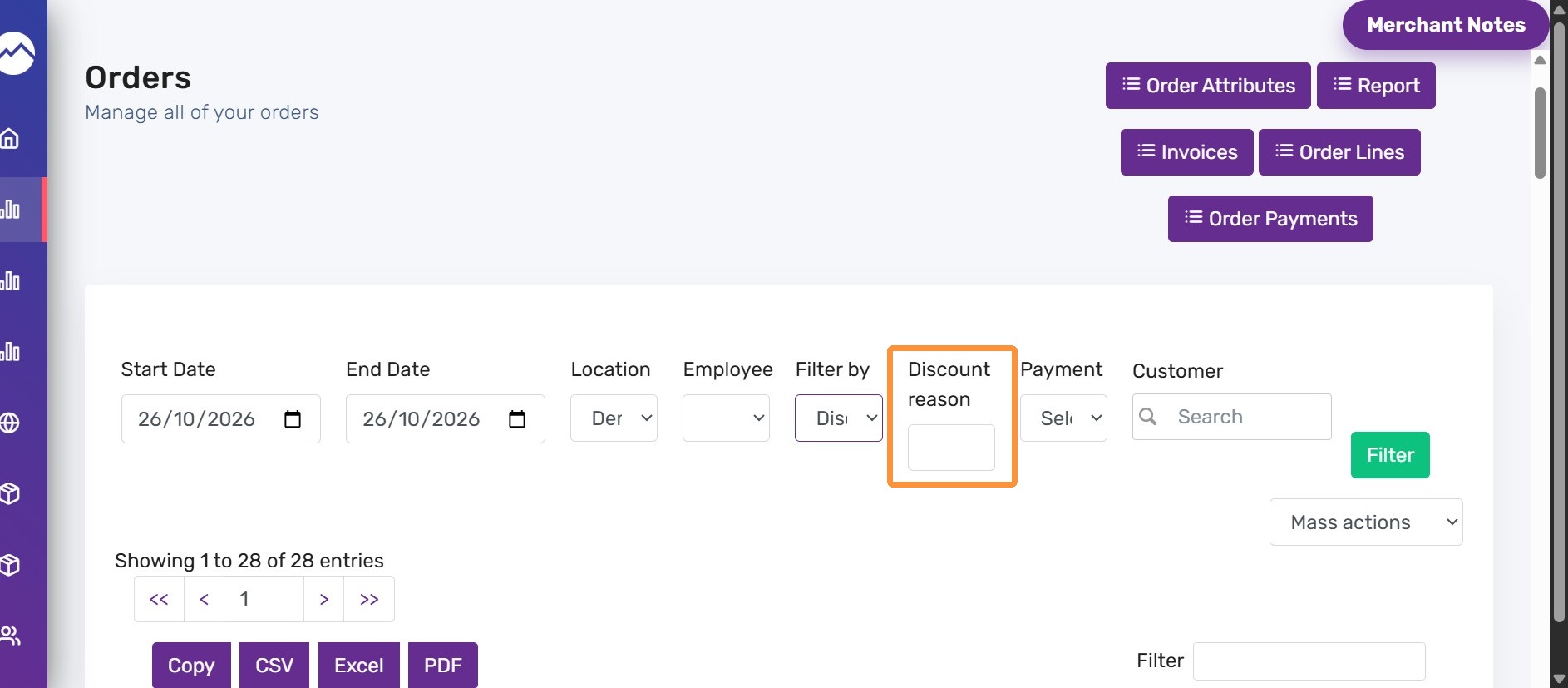
5. Enter the discount reason in the text field.
For example, Here discount was given to employee and the reason selected while sale was “Employee”. So entering Employee in Discount reason text field.
6. Click the Filter button. It will show the order details with discount reason and the employee who applied it when those details were recorded.
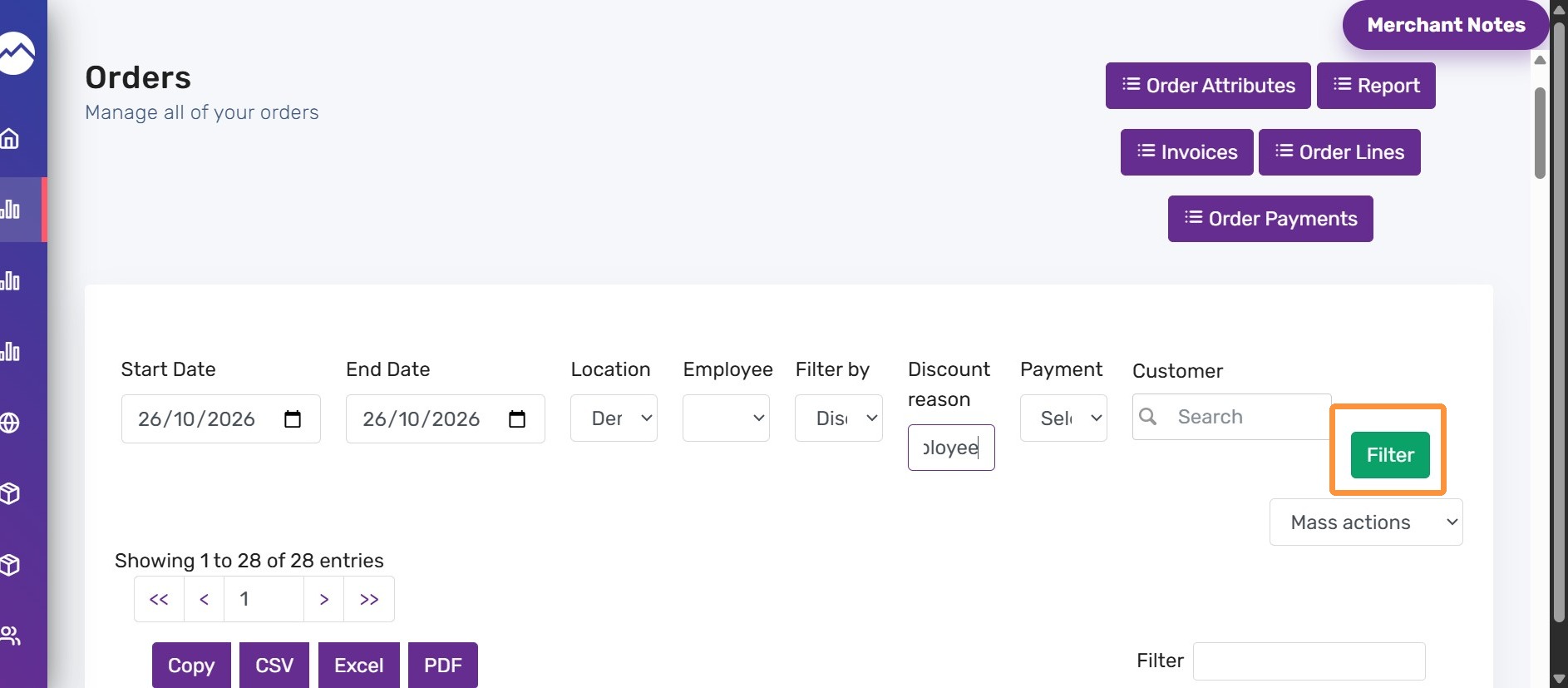
7. Now you should be able to see the order for which the discount reason was recorded as “Employee”.