


This guide explains how to generate a detailed Full Inventory Report so you can quickly produce sortable, exportable inventory data tailored to your needs. Inventory reports include subtypes for standard inventory review, barcode audits, and tax or EBT checks.
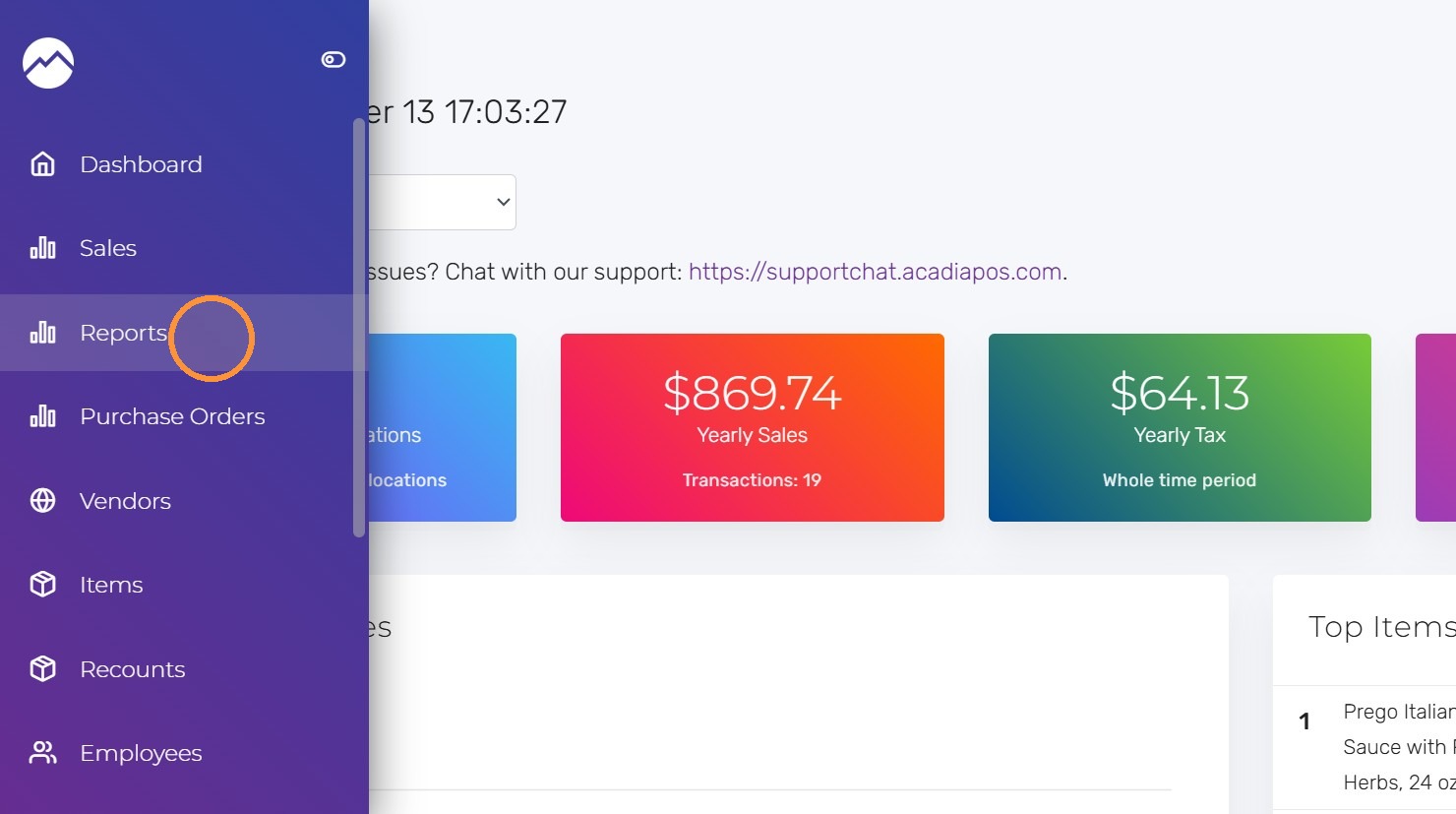
1. Navigate to manage.acadiapos.com for Retail or rfsm.acadiapos.com for Restaurant and click Reports in the sidebar menu.
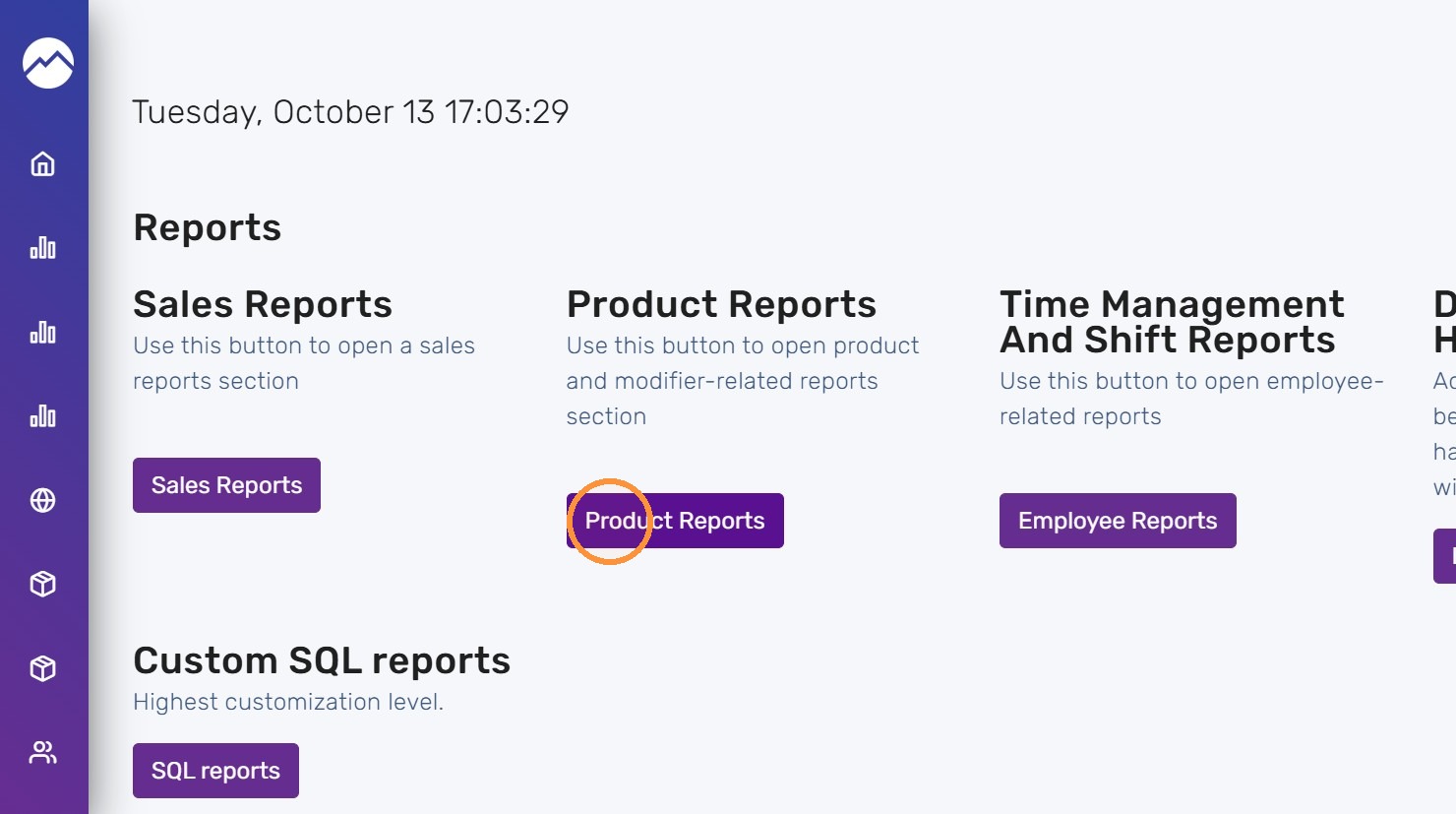
2. Click “Product Reports”
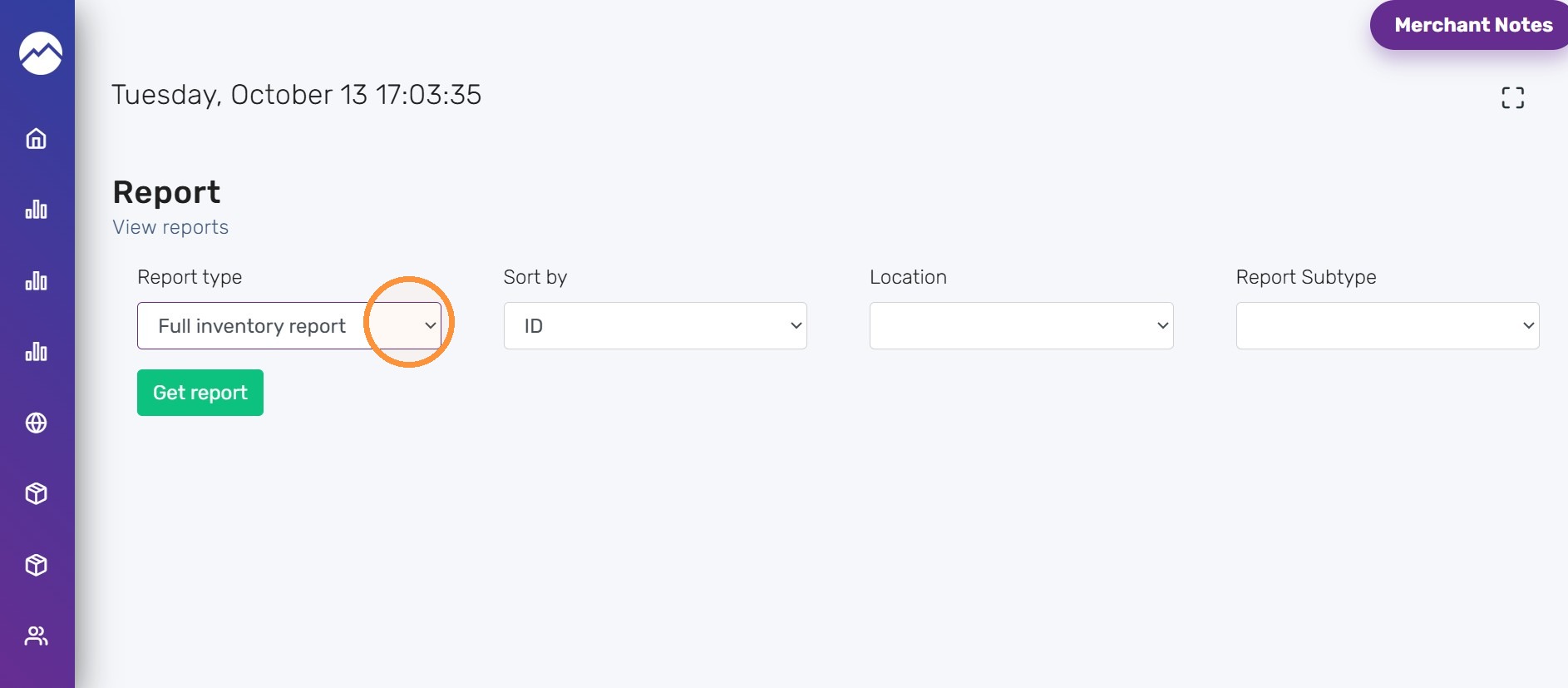
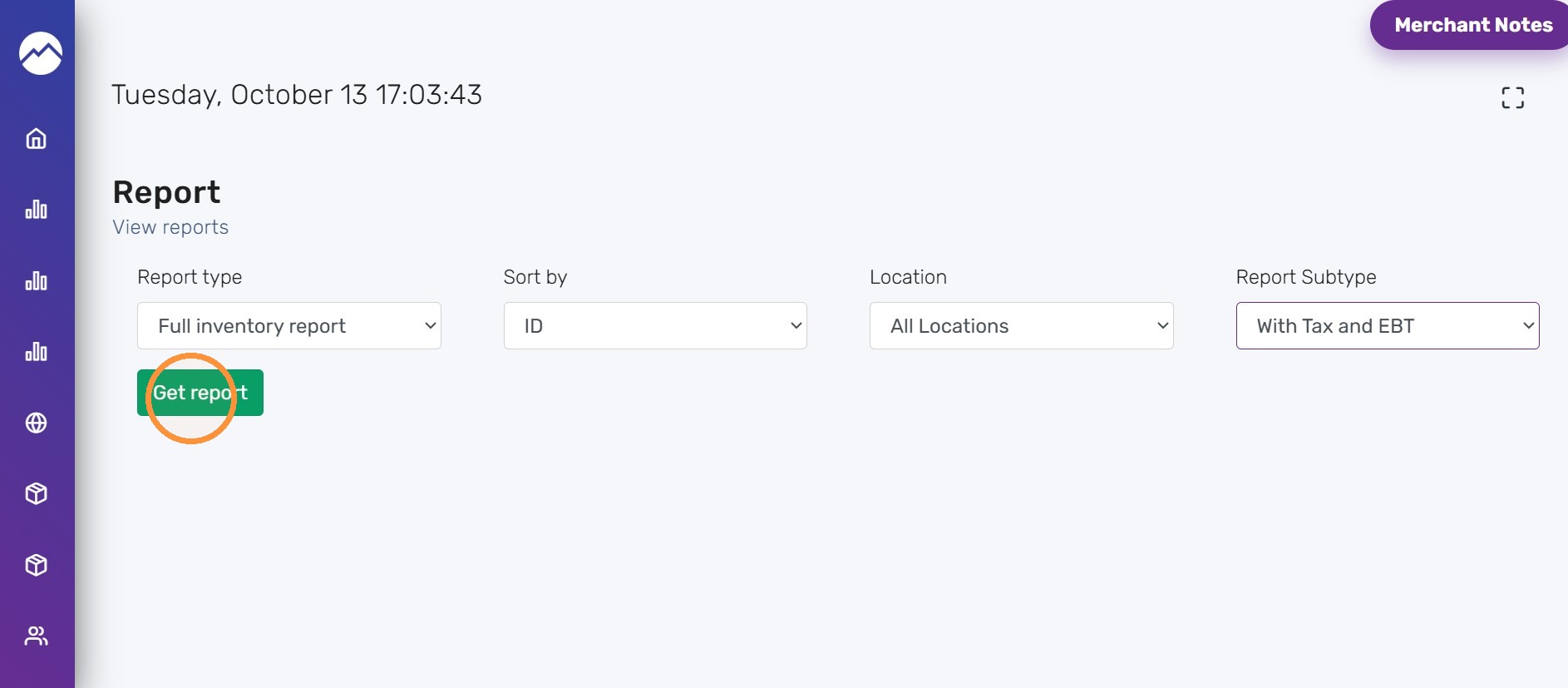
3. Select the “Full inventory report” option.
- Sort by ID, Name, Category, SKU or Vendor.
- Select the location.
- Select the subtype that matches the review. For example, select With Tax and EBT report subtype.
4. Available Subtypes:
- Default shows the main inventory values.
- With barcodes adds SKU and additional barcode columns. Additional barcode columns can include up to 20 configured barcode fields.
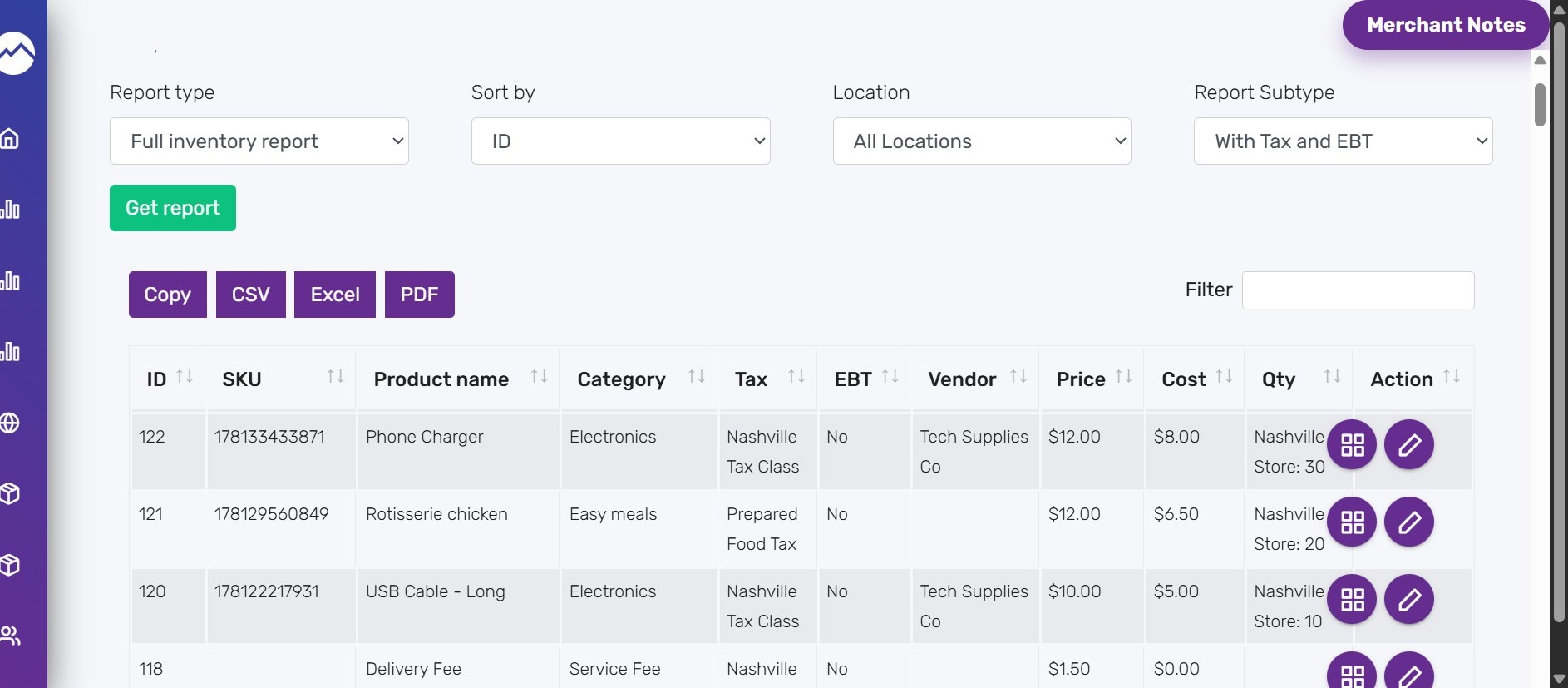
- With Tax and EBT adds tax and EBT columns for compliance review.
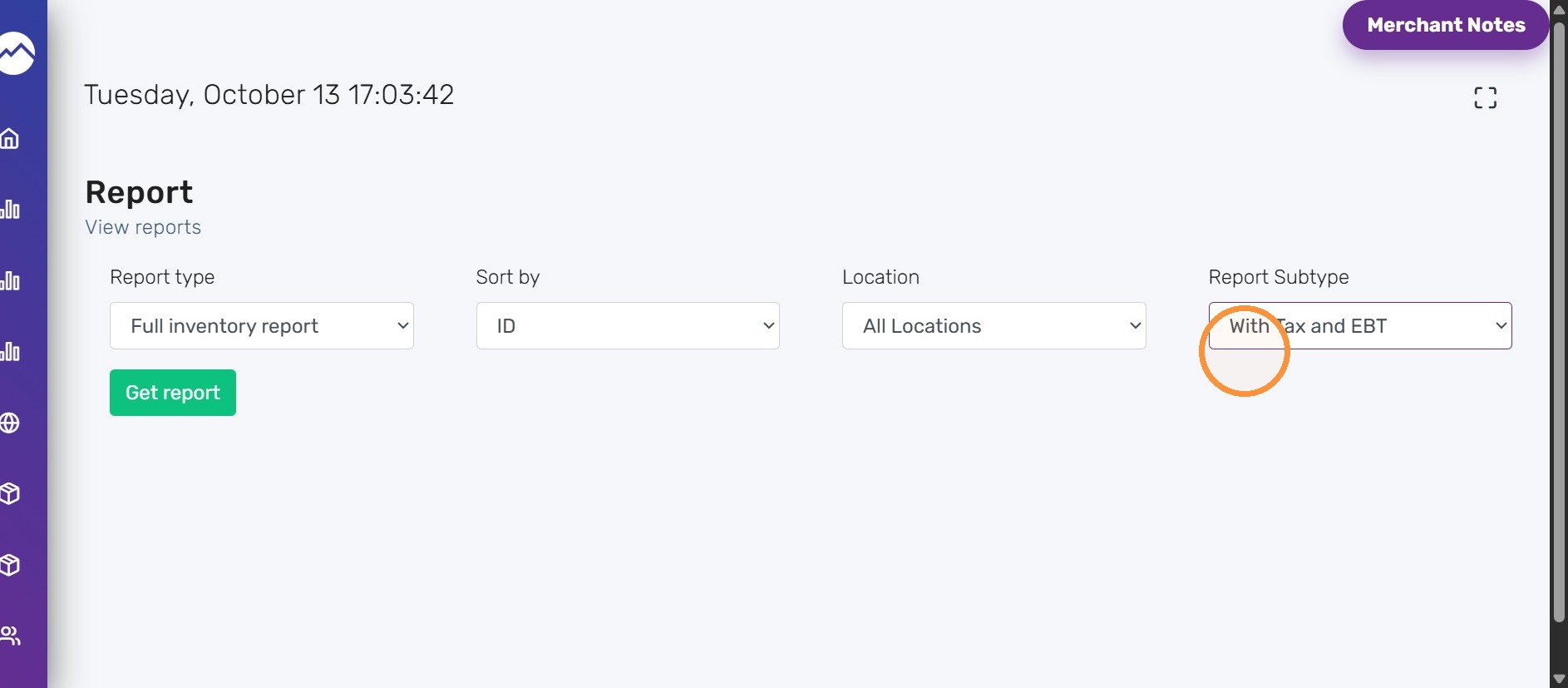
5. Click “Get report”
6. The report can be generated as CSV, Excel or PDF and copied.
Tips:
- Use With barcodes before receiving or scanner audits.
- Use With Tax and EBT when reviewing food, grocery, or tax-exempt catalogs.
- Export the report when a longer product list needs spreadsheet review.


