


A product can send its stock changes to another product at the same location. Use this when several catalog entries draw from the same stock. Follow this guide to enable the products to use a parent product’s inventory.
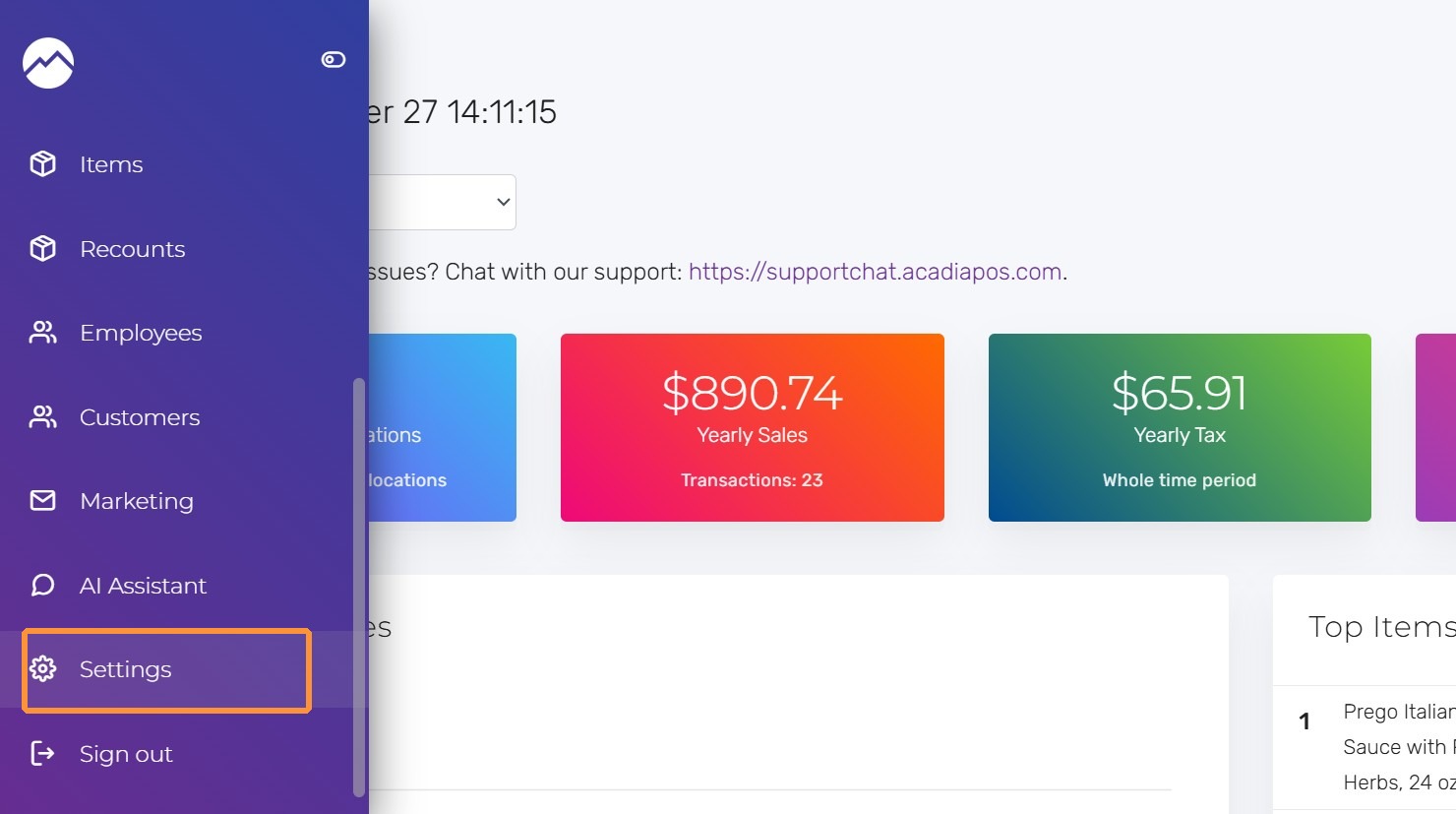
1. Navigate to manage.acadiapos.com for Retail or rfsm.acadiapos.com for Restaurant and click Settings in the sidebar menu.
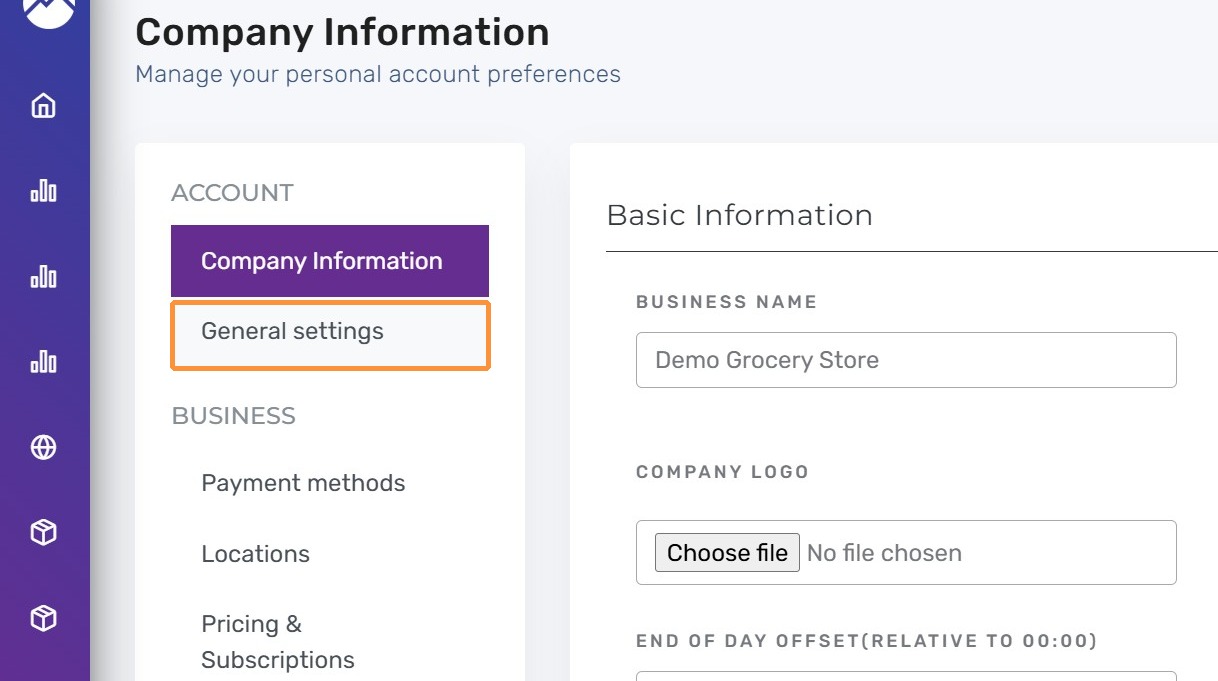
2. Click “General settings”
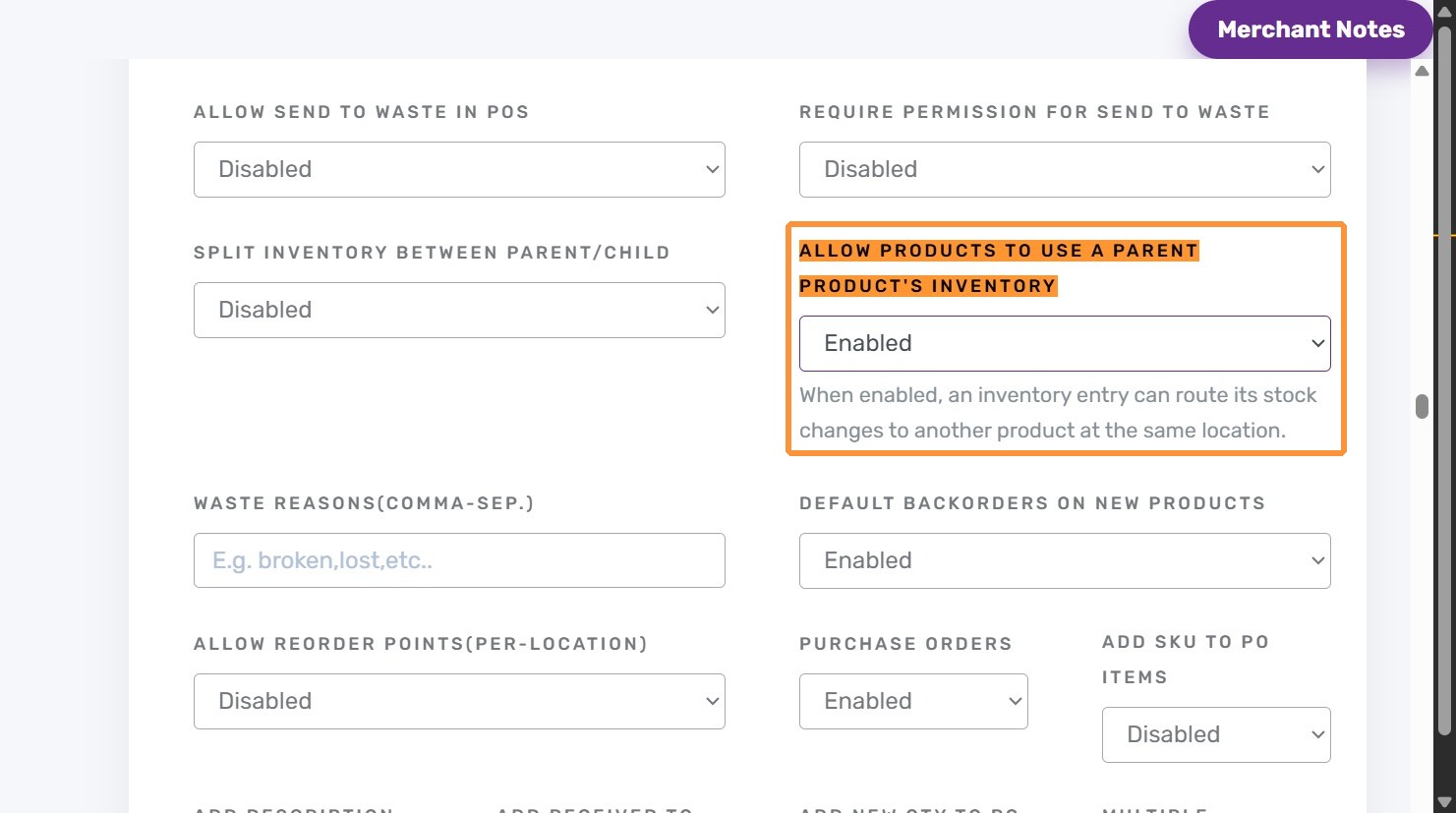
3. Press Ctrl + F (Windows) or ⌘ + F (Mac) and find “Allow products to use a parent product’s inventory”.
Select the “Enabled” option for “Allow products to use a parent product’s inventory”.
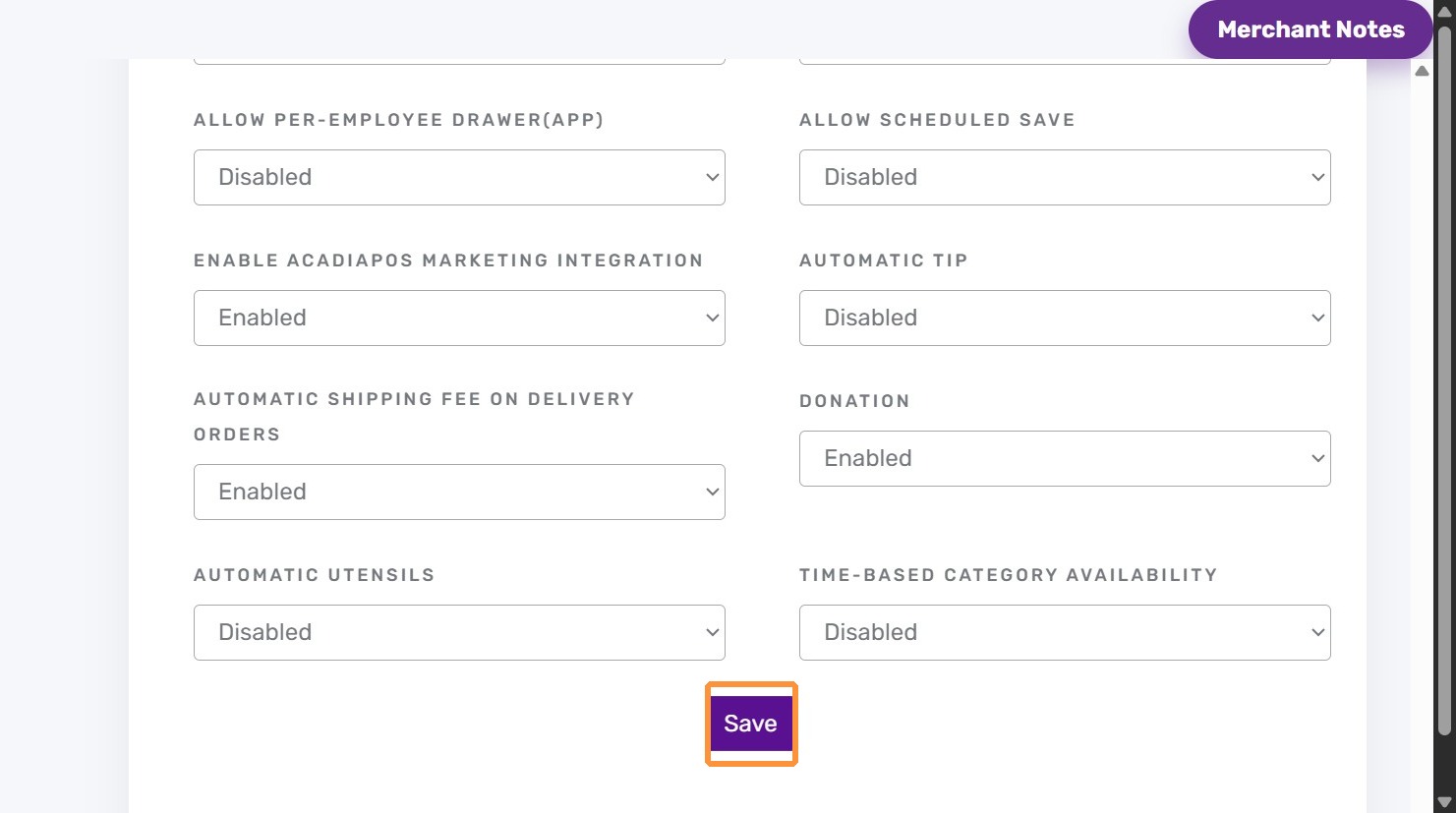
4. Click “Save”
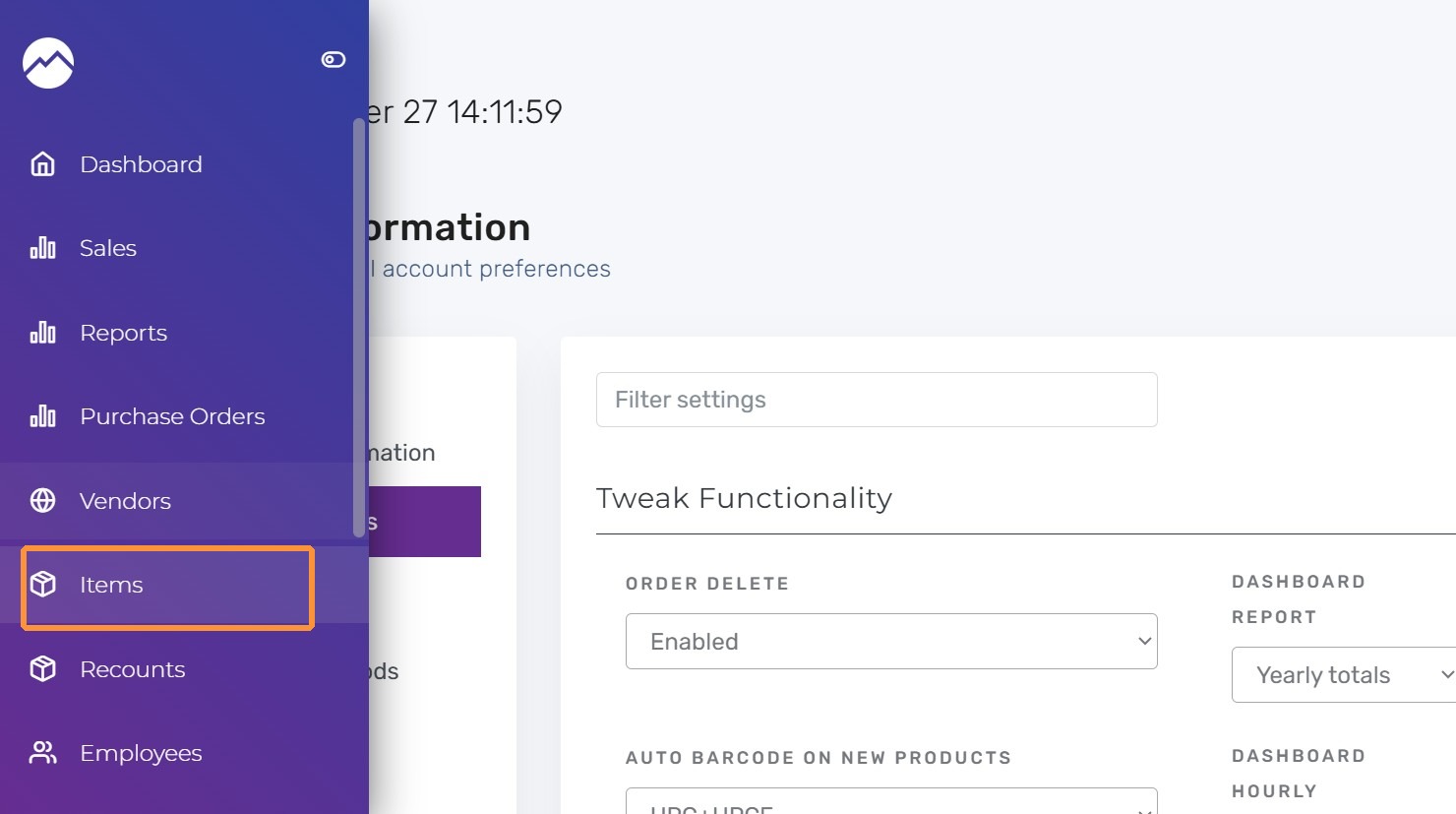
5. Click “Items”
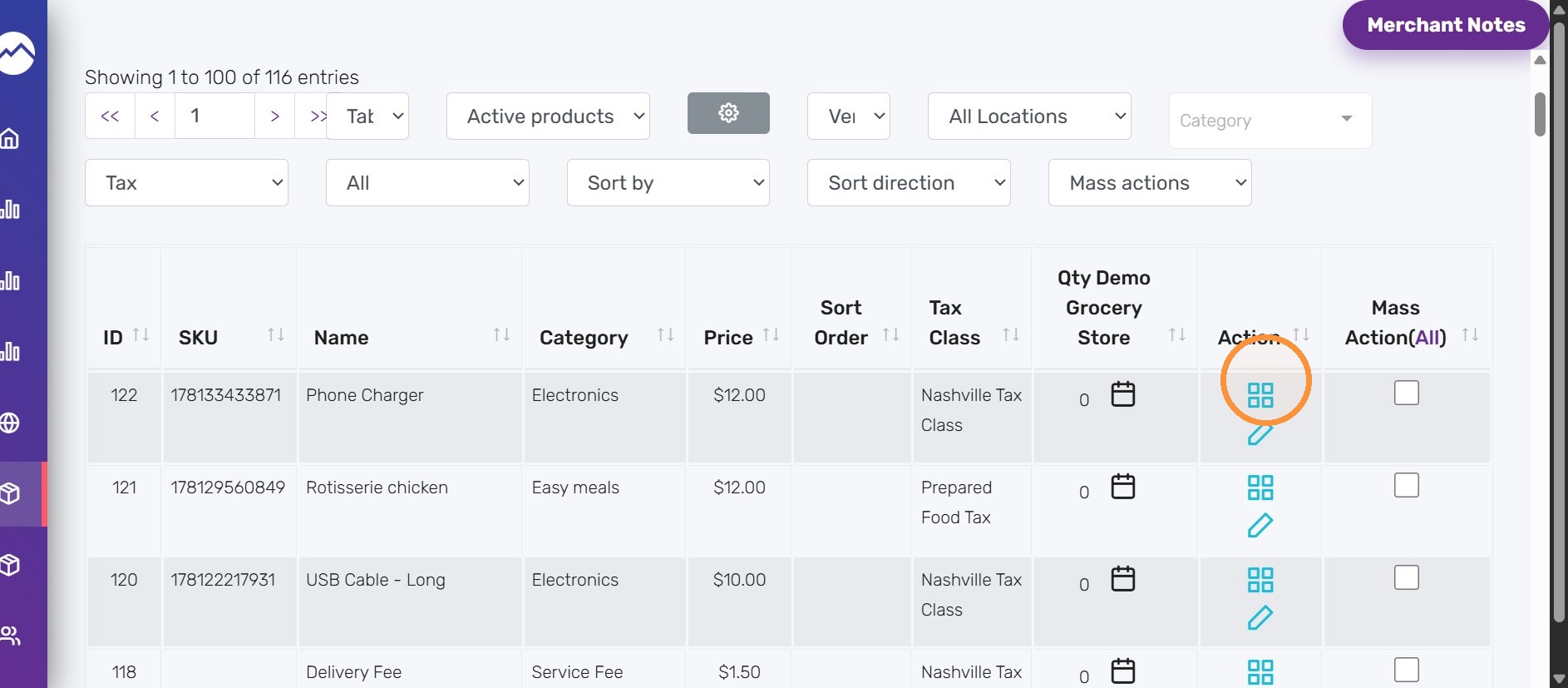
6. Click the inventory action icon for the product.
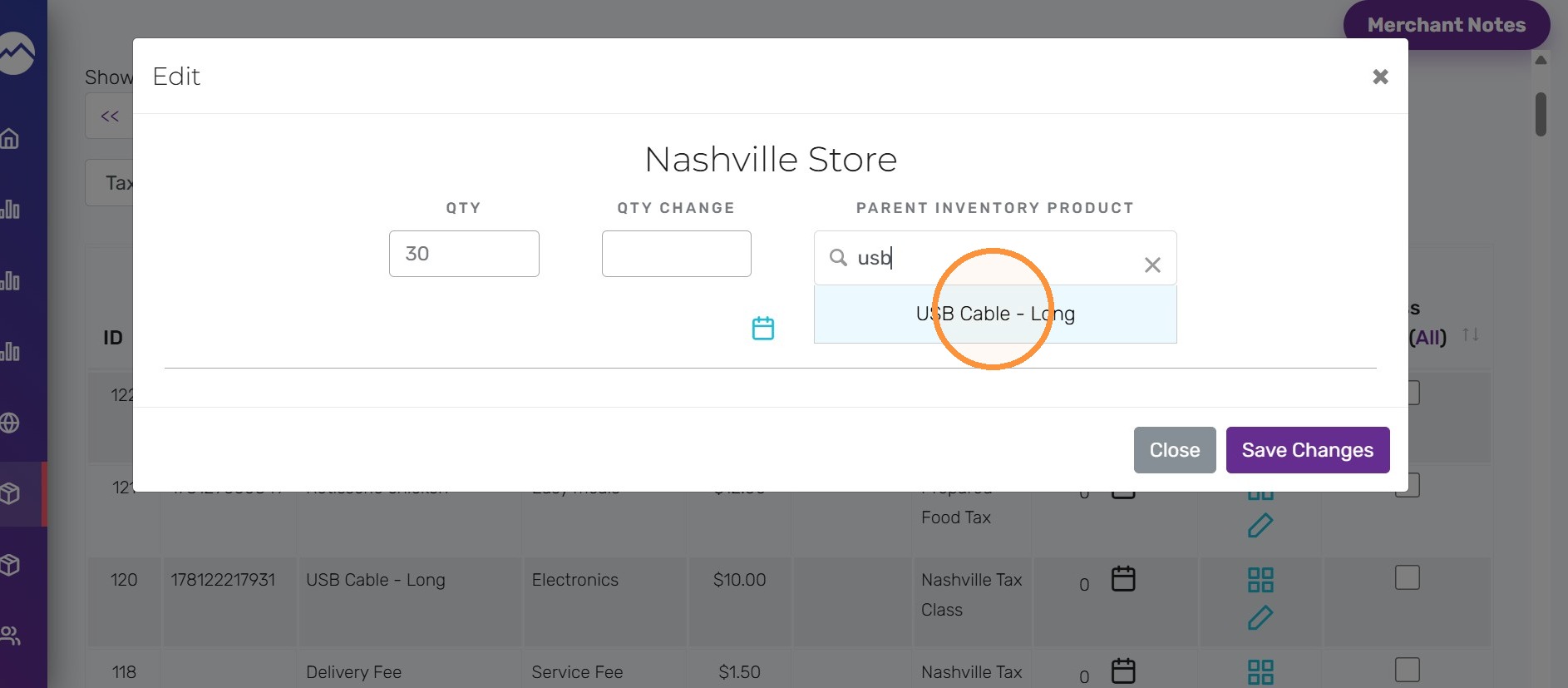
7. Select the parent inventory product
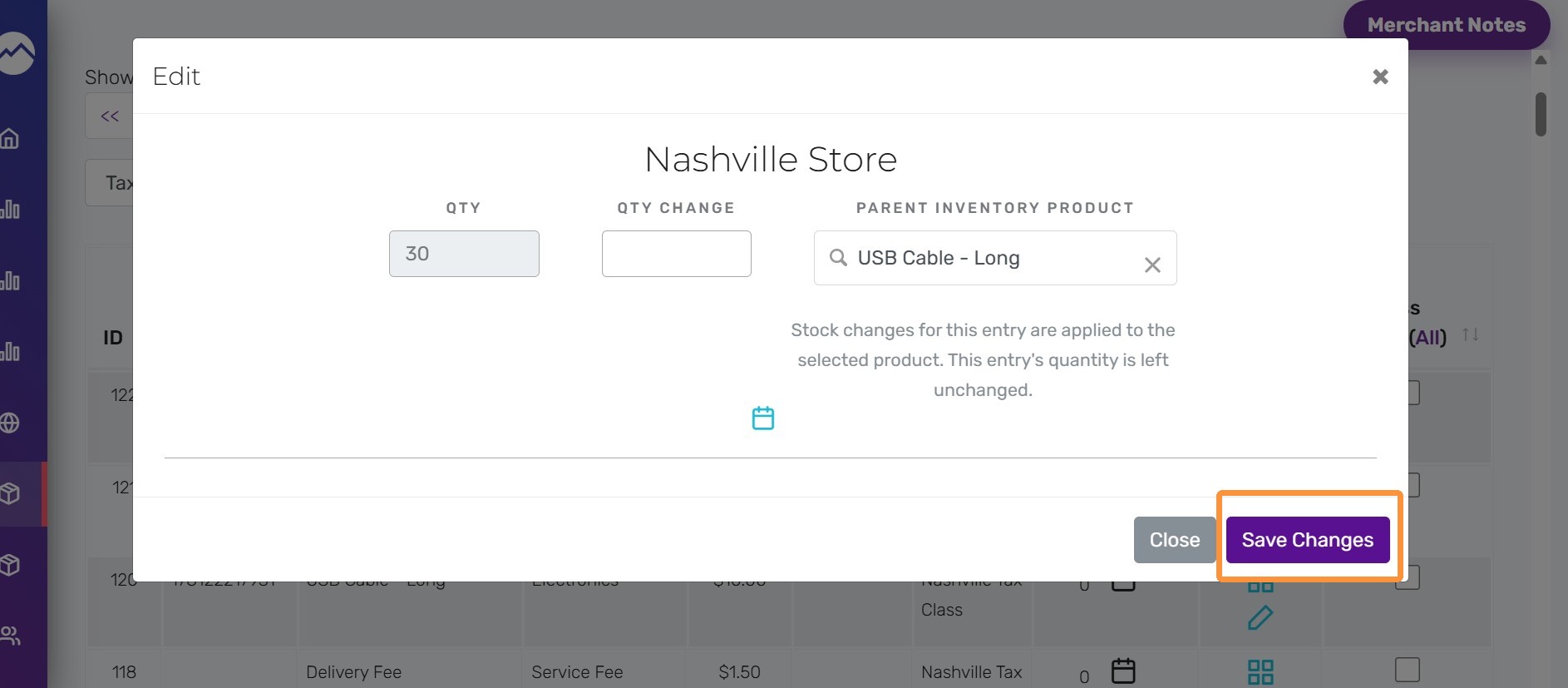
8. Click “Save Changes”
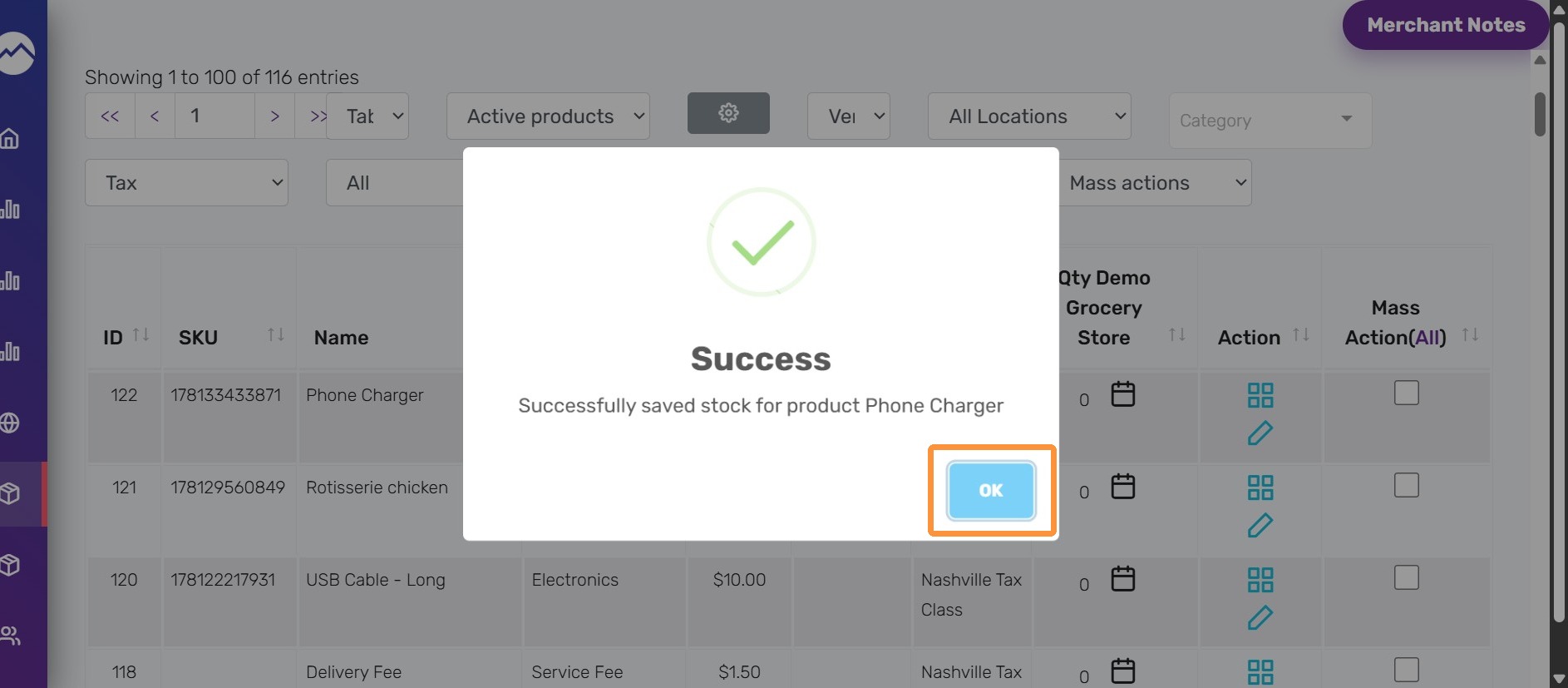
9. Click “OK”
Tips:
- The linked entry’s own quantity stays unchanged, and its quantity field is disabled while a parent is selected.
- Review stock on the parent product when checking availability or investigating adjustments.
- Selecting a parent does not combine the two product’s existing quantities.


