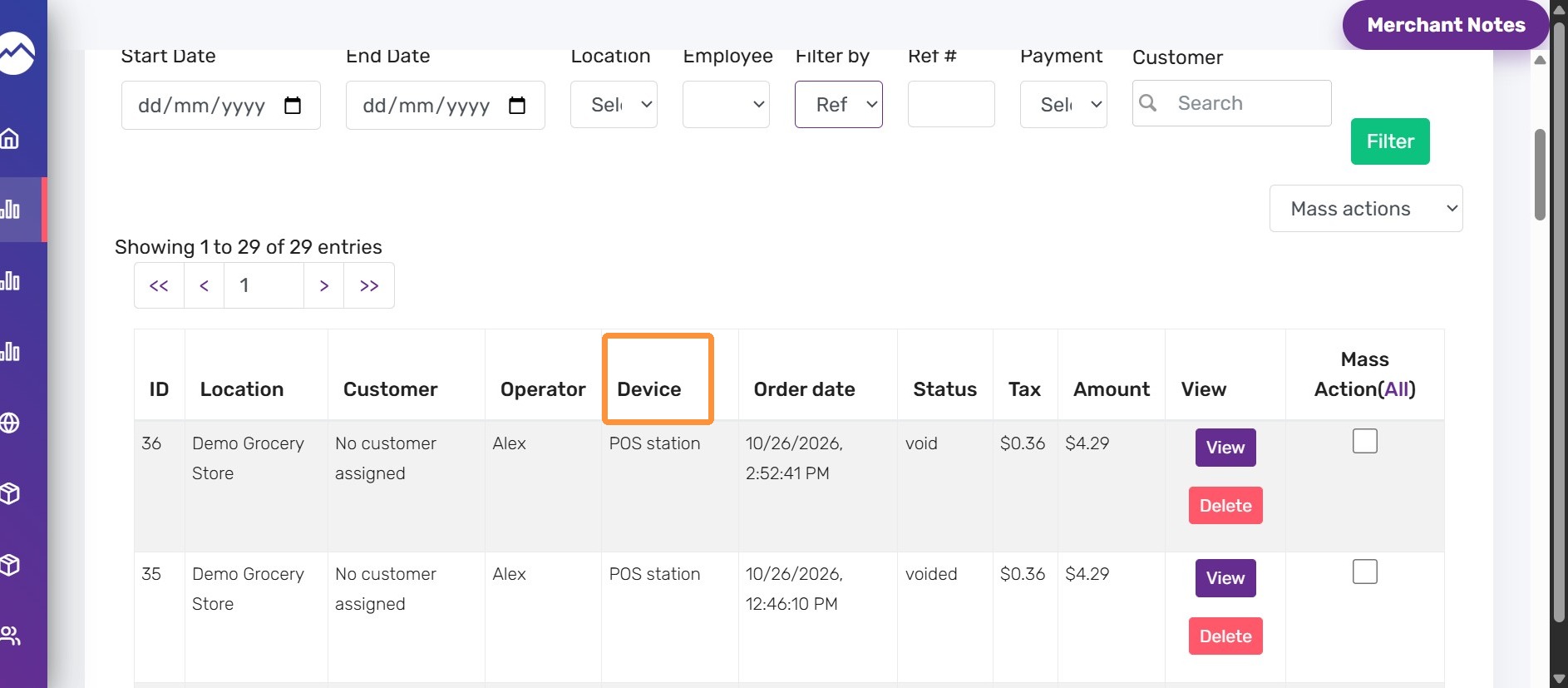


This guide quickly shows how to enable the option that displays each device’s name on the orders list in the backend. It walks you to the settings page, shows how to find and enable the specific setting, and confirms where to view the result so you can immediately identify which device created each order.
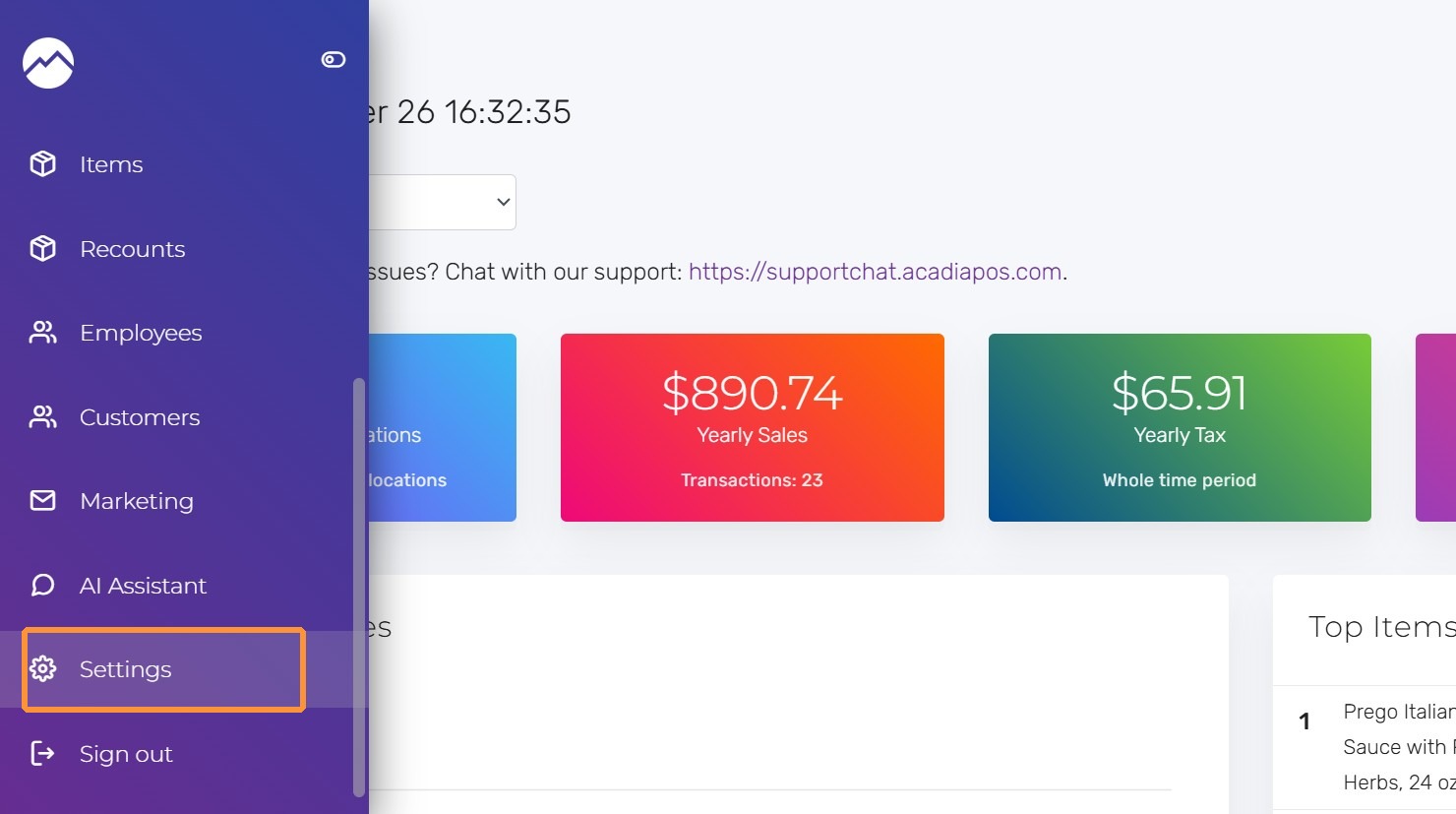
1. Navigate to manage.acadiapos.com for Retail or rfsm.acadiapos.com for Restaurant and click Settings in the sidebar menu.
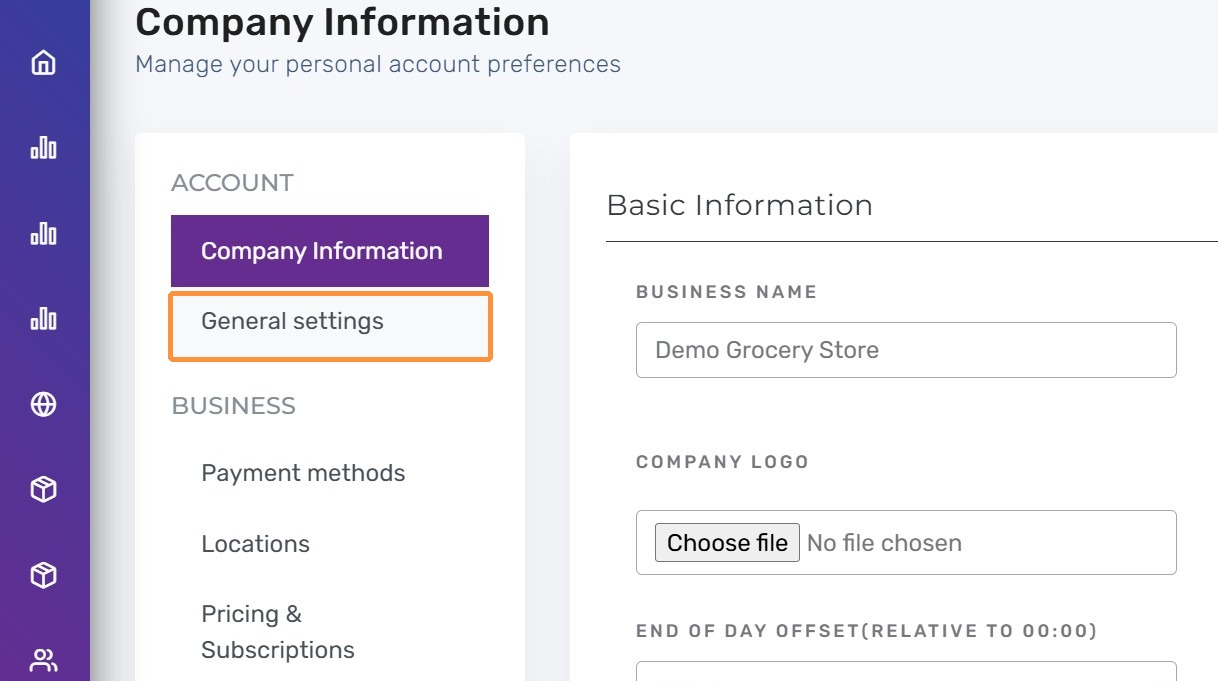
2. Click “General settings”
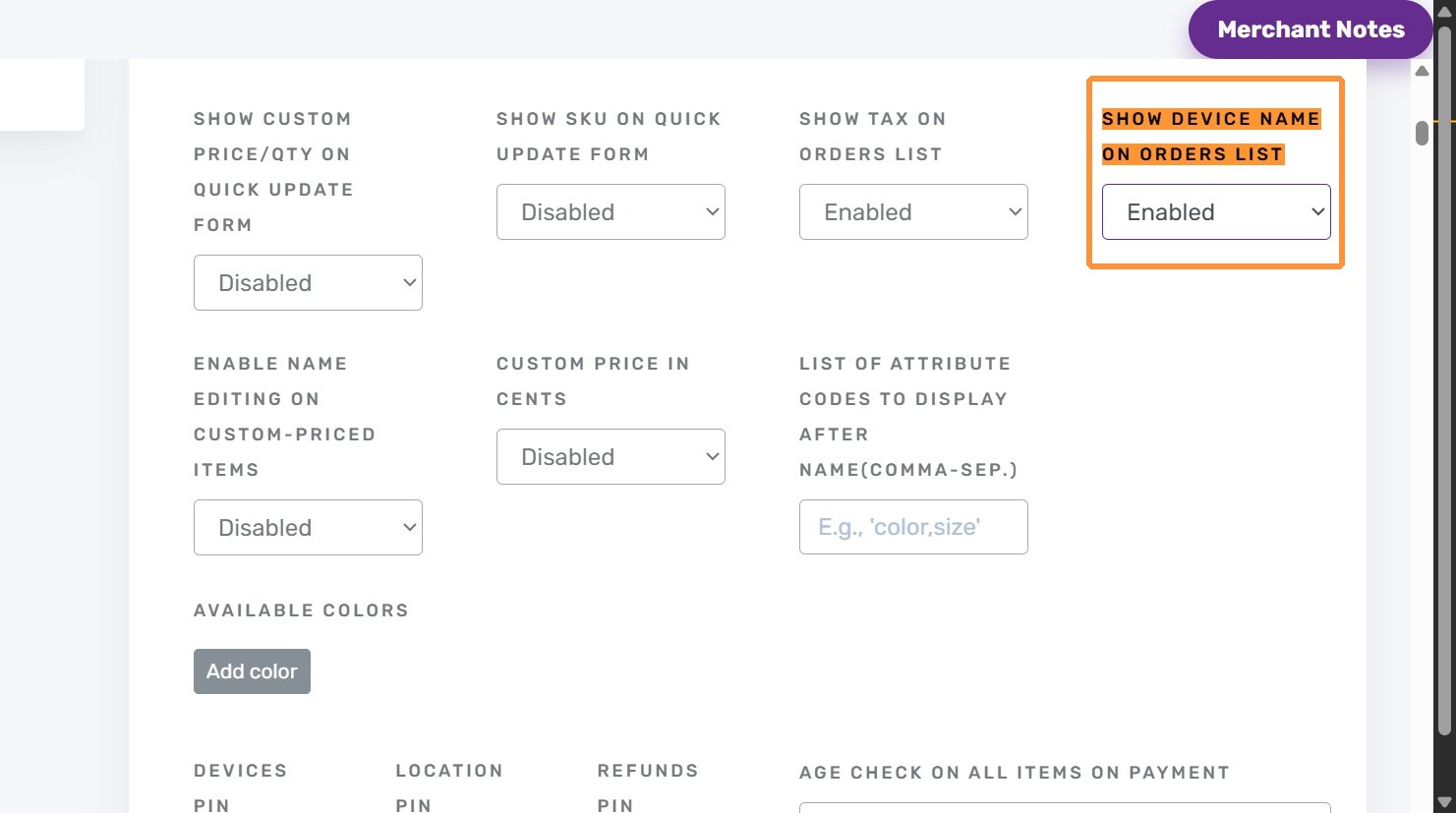
3. Press Ctrl + F (Windows) or ⌘ + F (Mac) and find “Show Device Name On Orders List”.
Select “Enabled” for Show Device Name on Orders List.
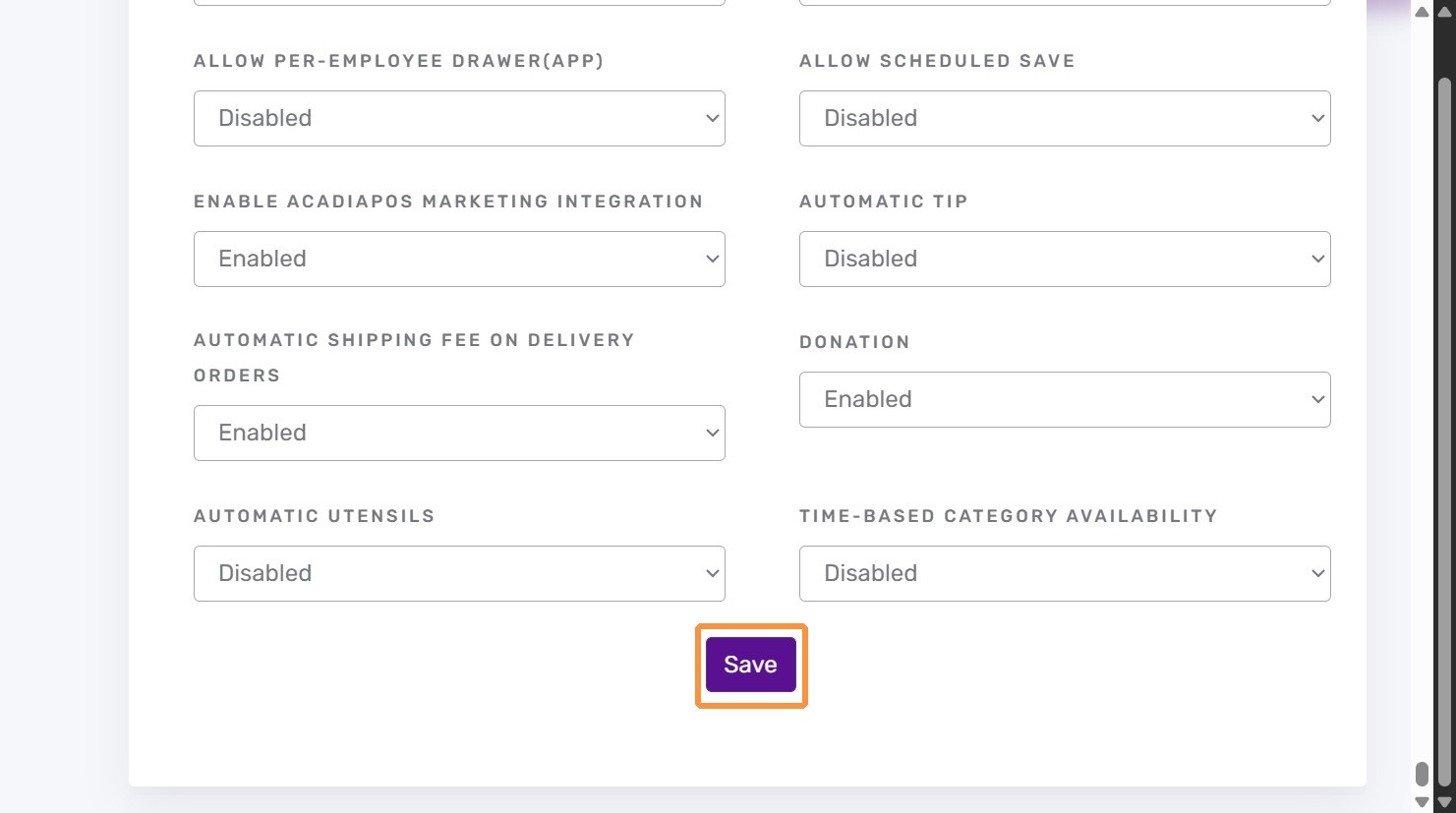
4. Click “Save”
5. Click “Sales”
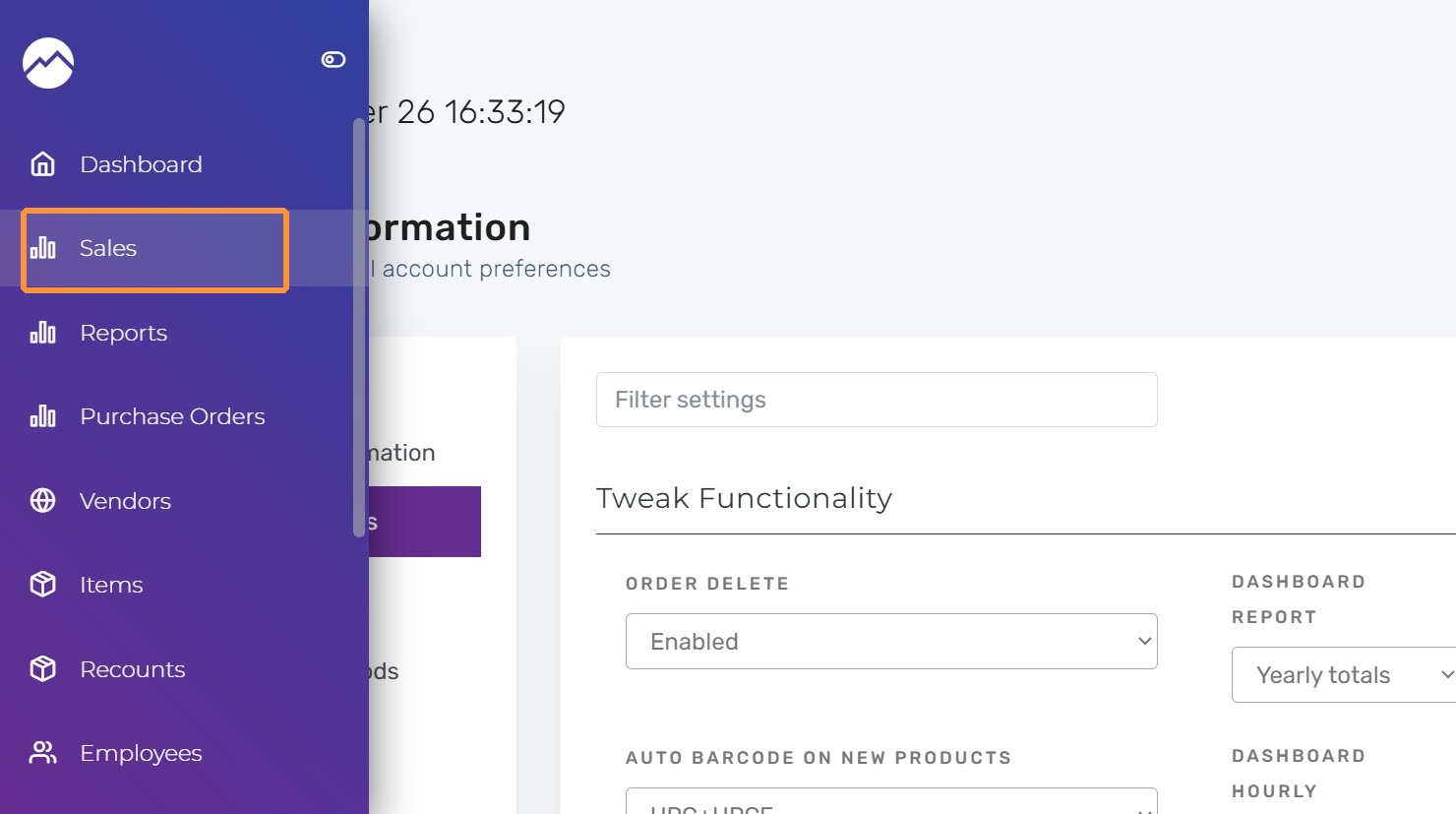
6. Now you should be able to see the device name on orders list