

This guide shows how to turn on and customize a credit-card notice that appears in the app at checkout. Follow it to enable the Cart Item Notice, set the message, then enable the notice on specific products or categories so customers see the CC reminder where it matters. It ensures clear and consistent payment message
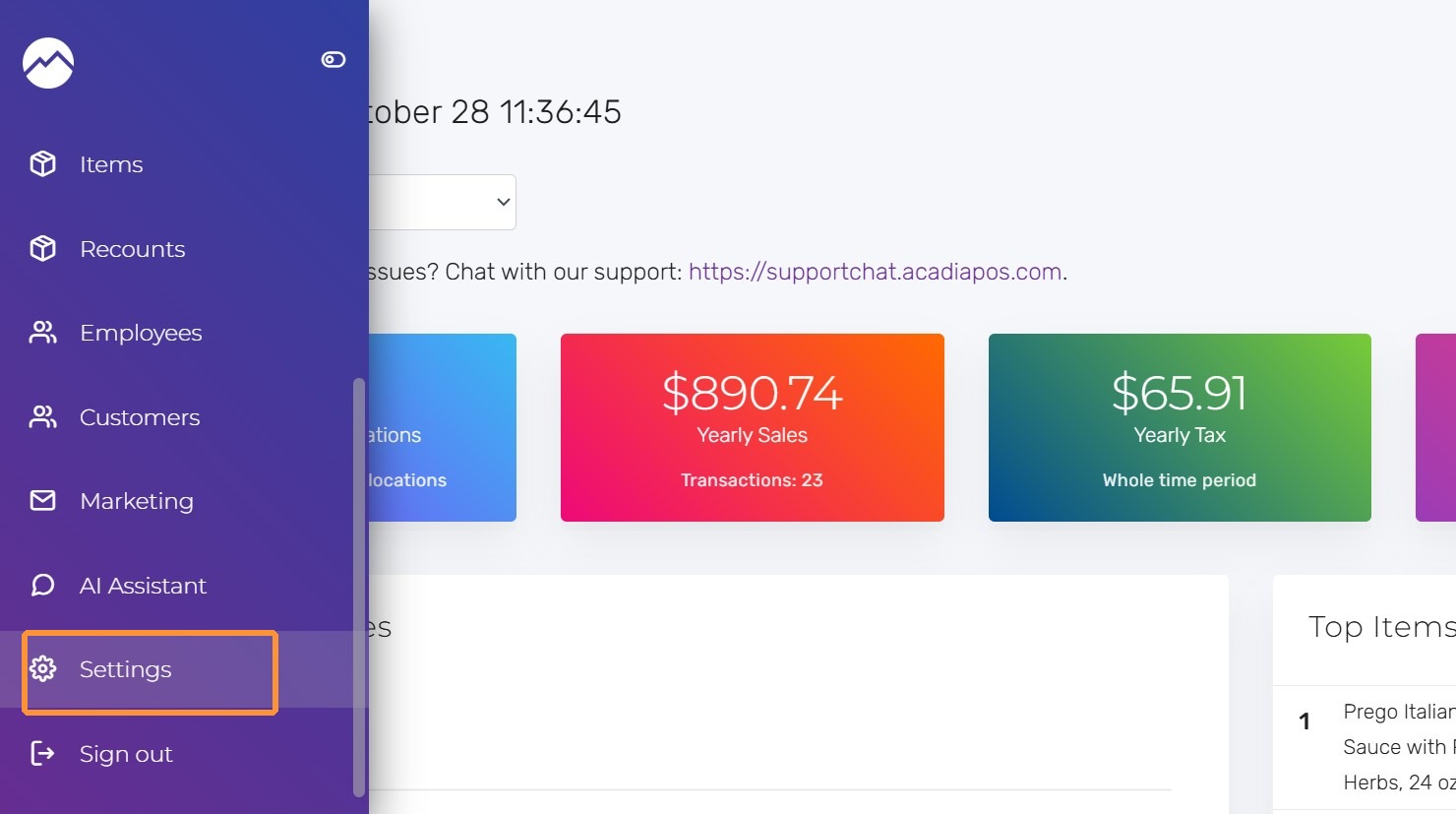
1. Navigate to manage.acadiapos.com for Retail or rfsm.acadiapos.com for Restaurant and click Settings in the sidebar menu.
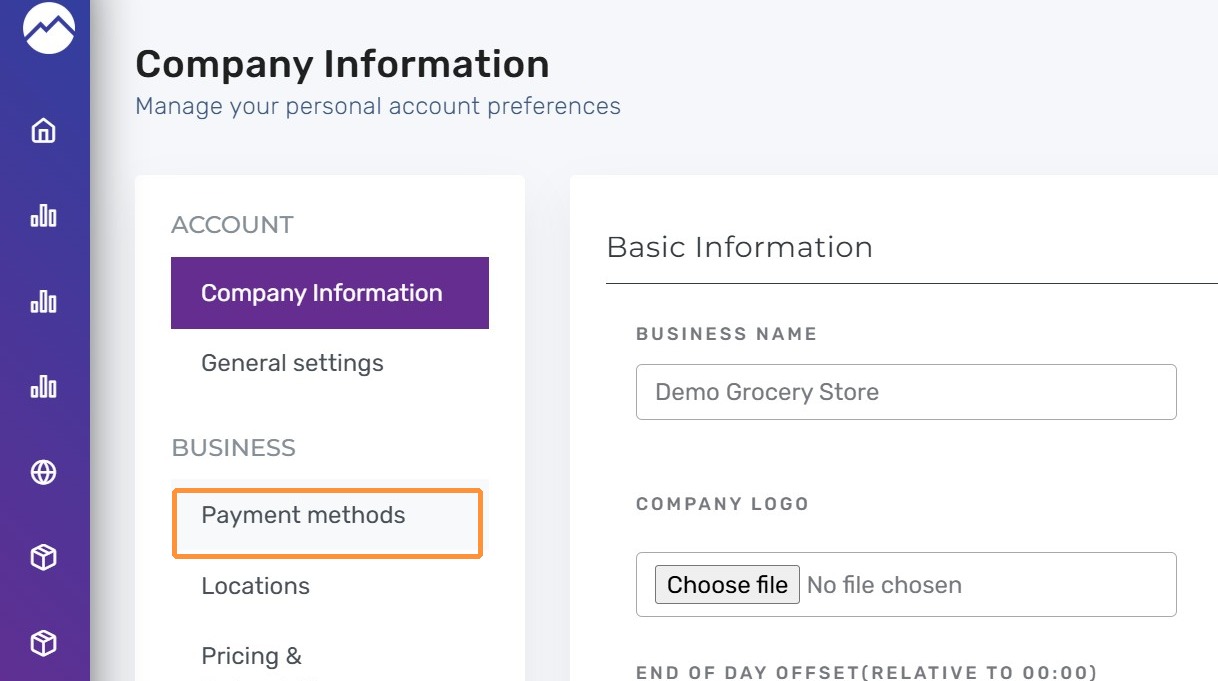
2. Click “Payment methods”
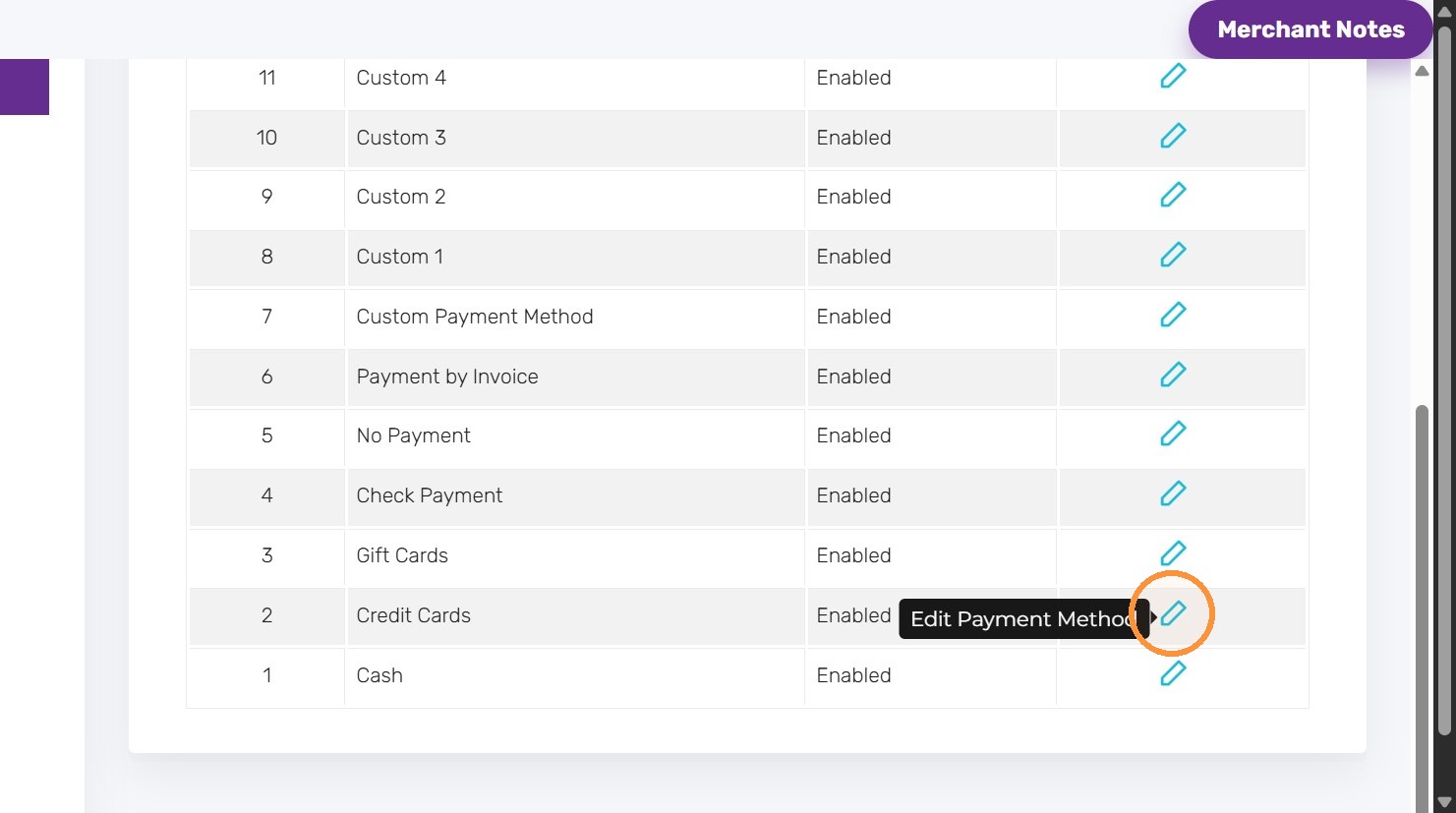
3. Click the edit icon for Credit Cards.
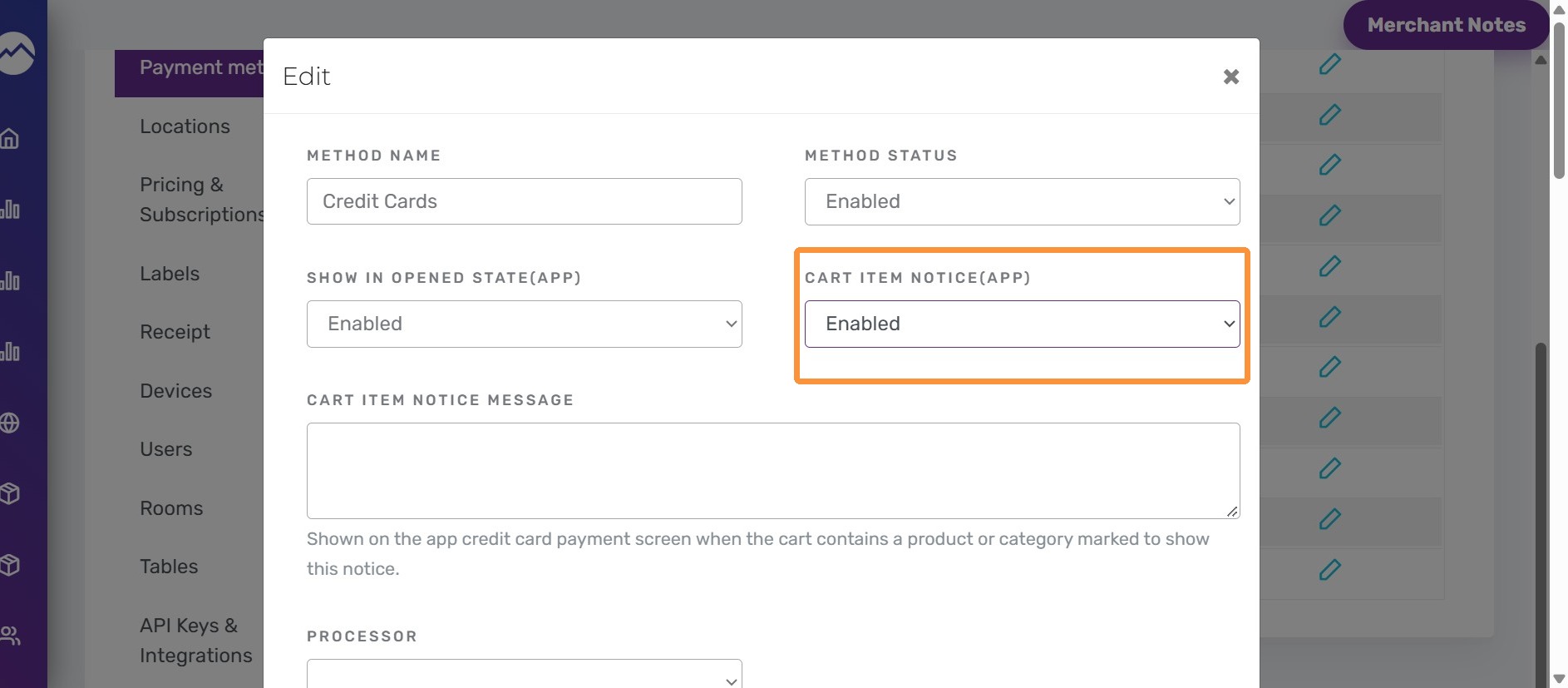
4. Select the “Enabled” option for Cart Item Notice(App)
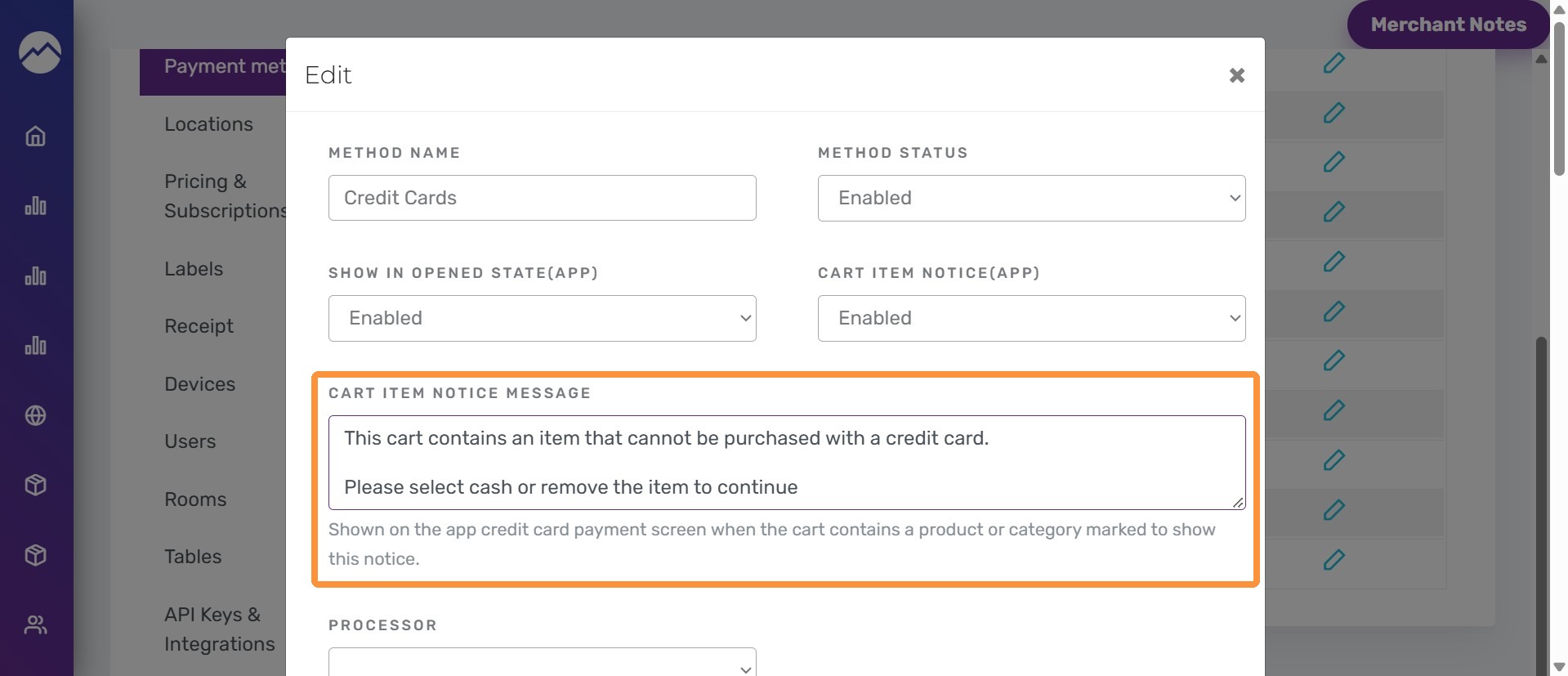
5. Enter the “Cart Item Notice Message”
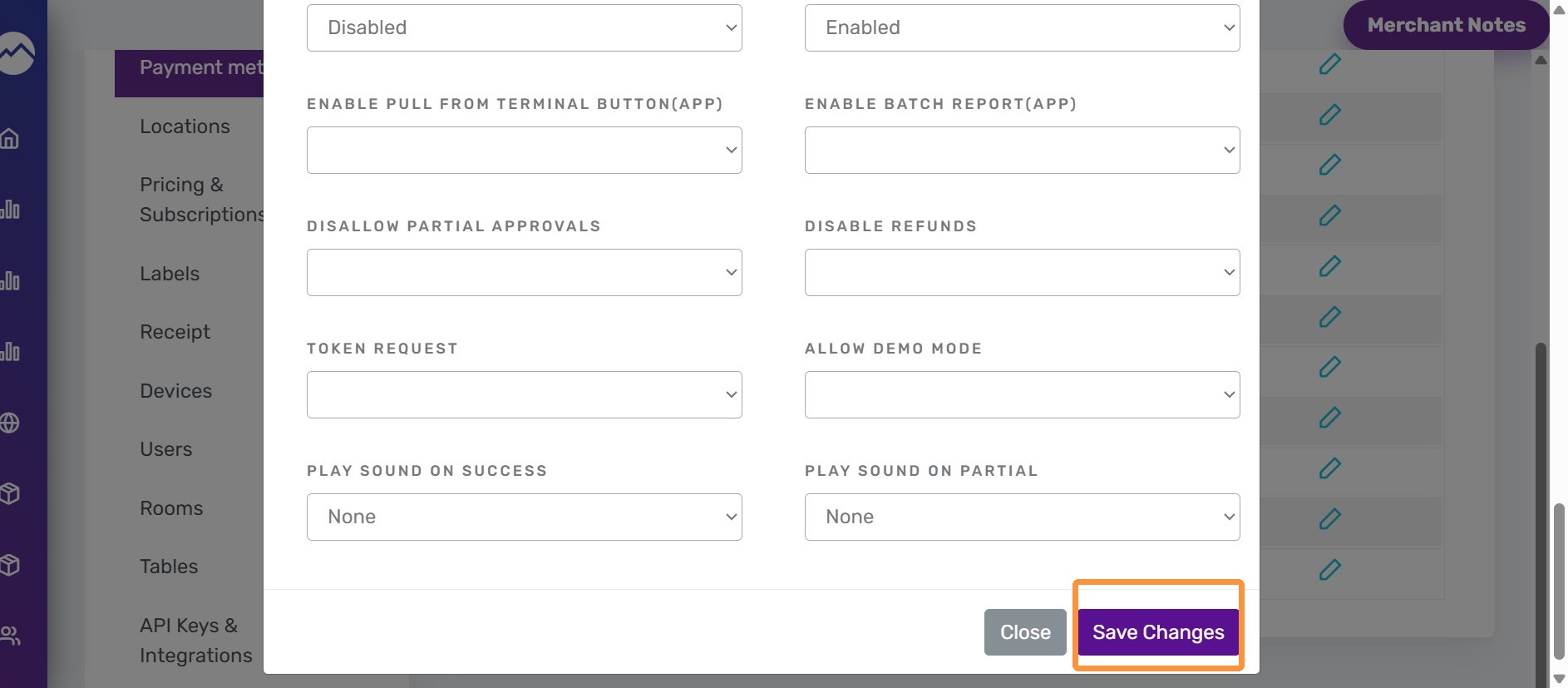
6. Click “Save Changes”
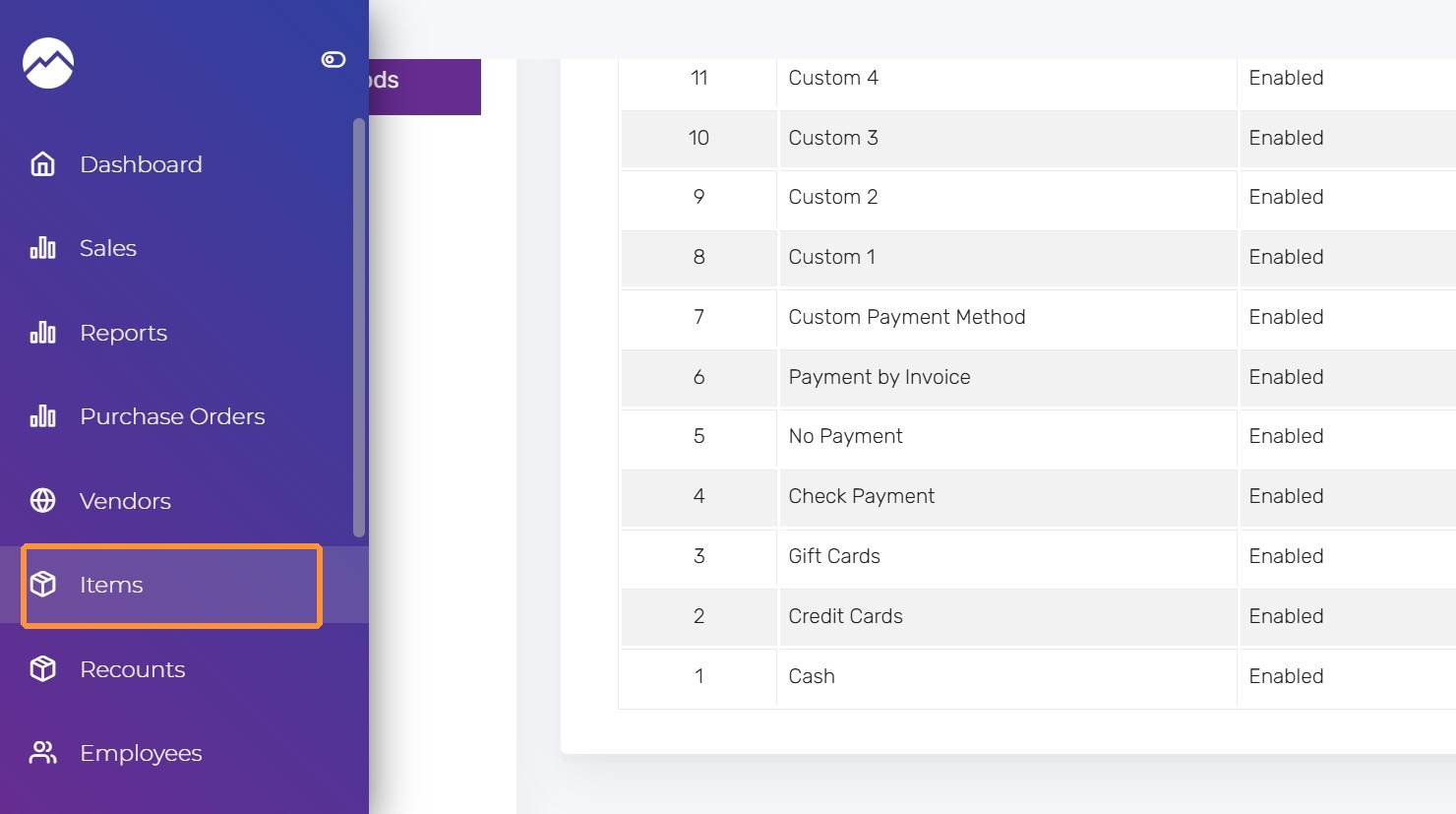
7. Click “Items”
8. Click the edit icon for the relevant product or category for which you want to show the CC notice
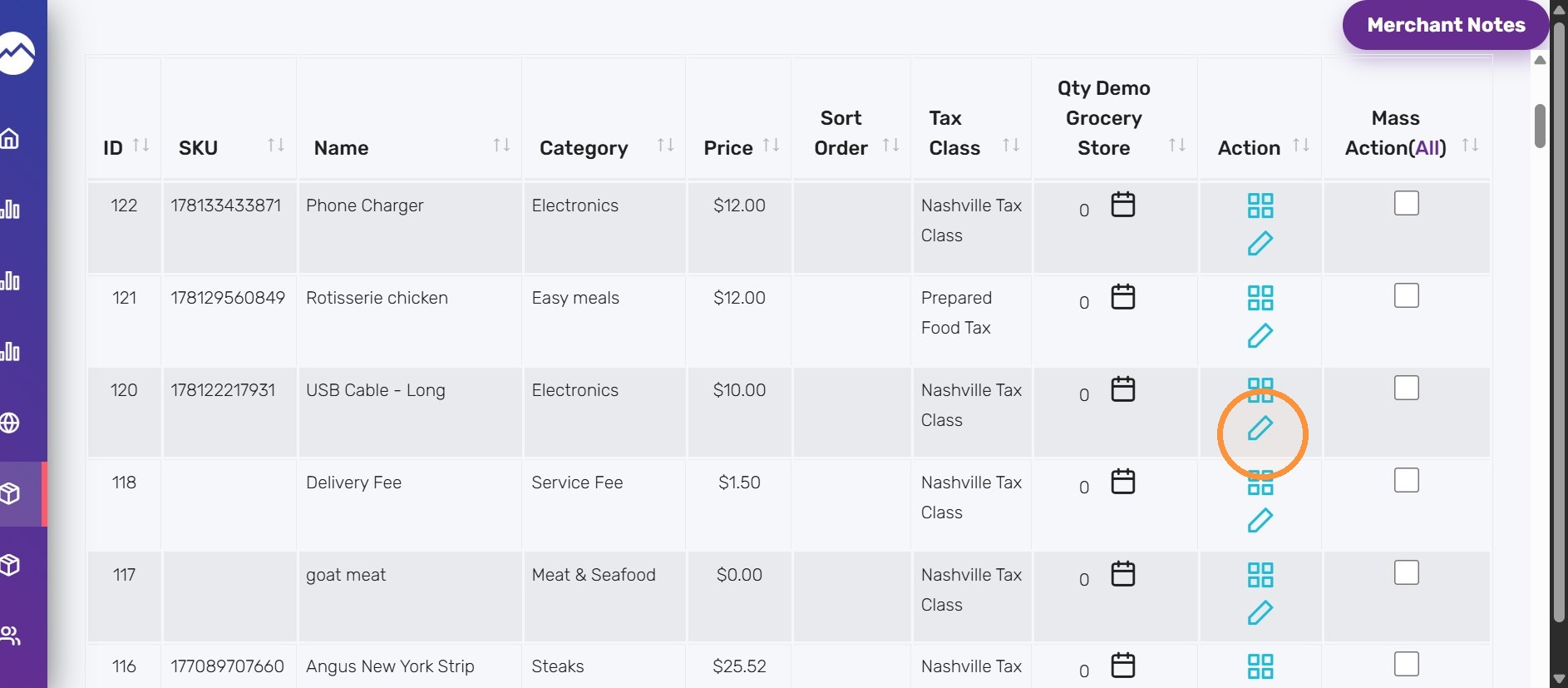
9. Select “Enabled” for “Show CC Notice”.
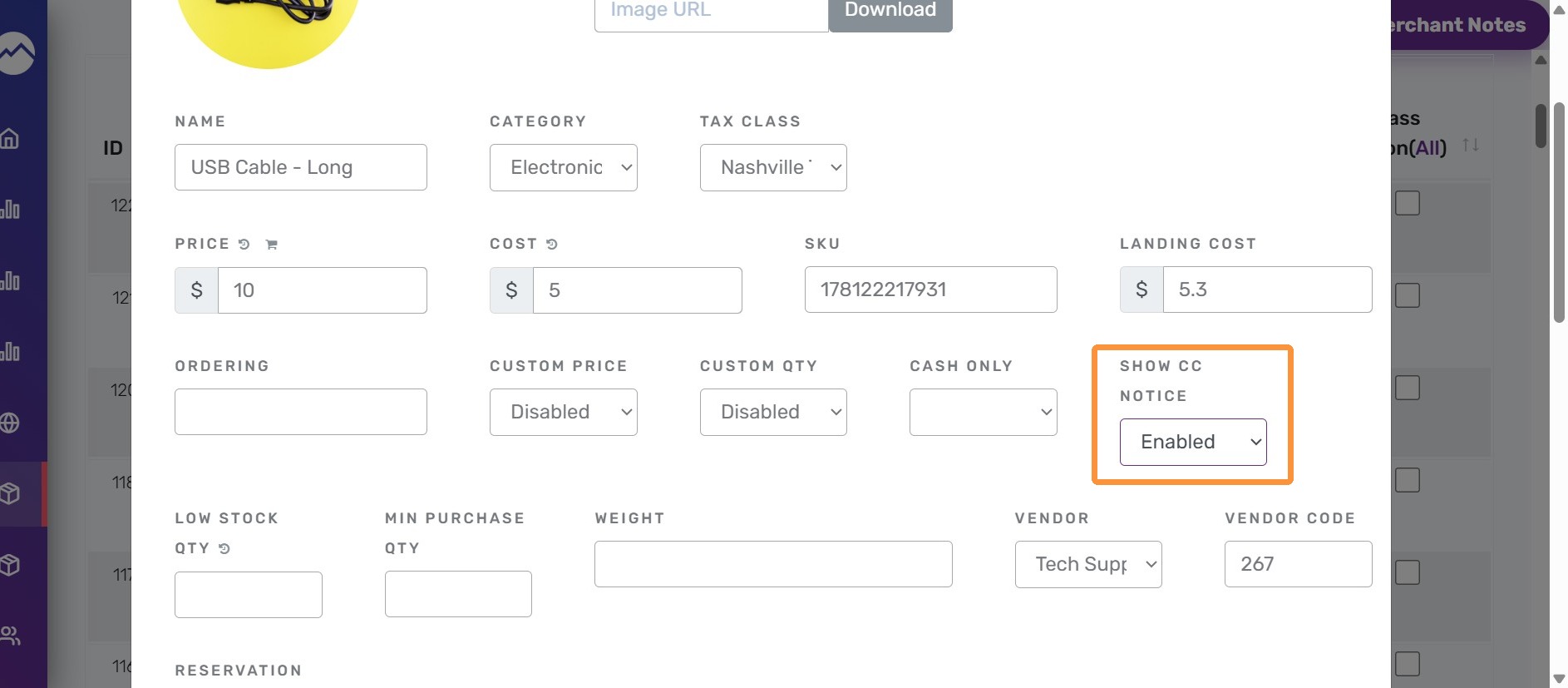
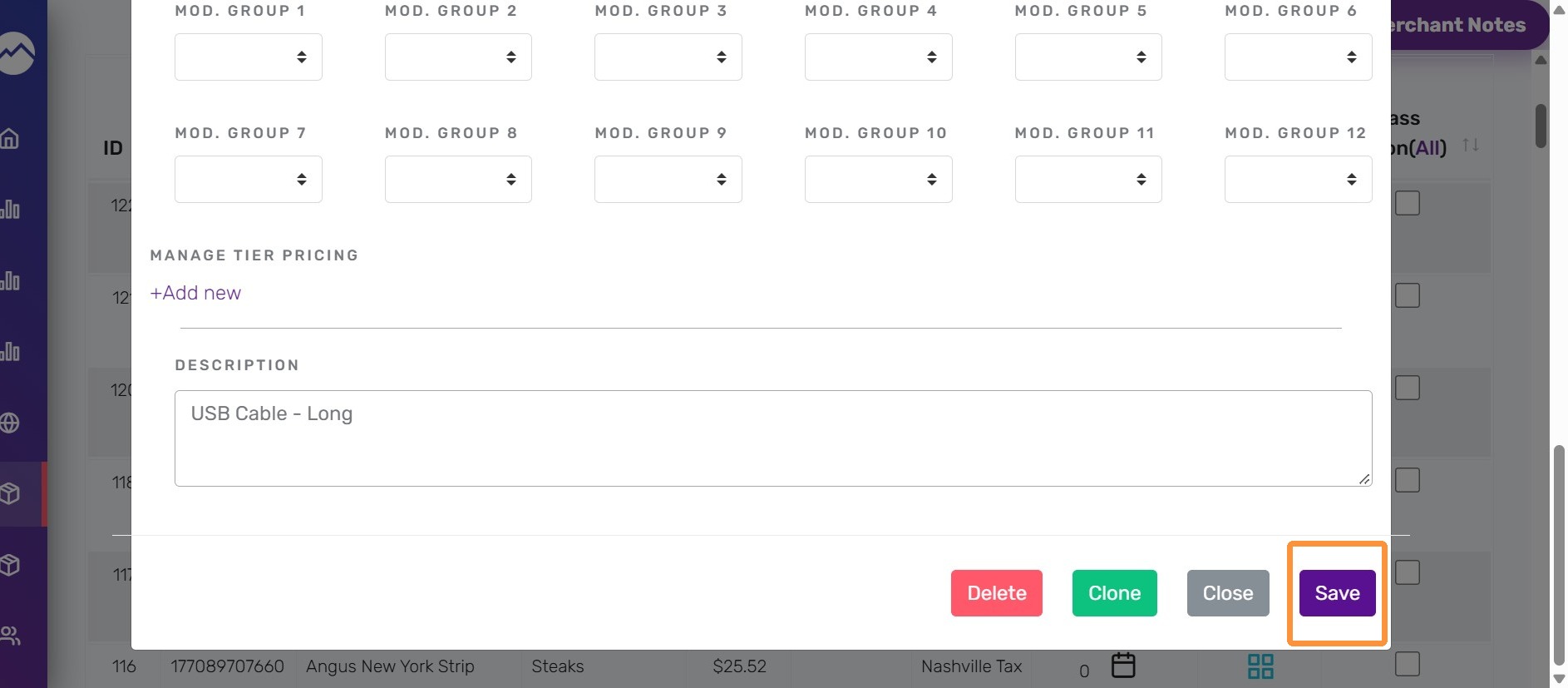
10. Click “Save”