


This guide quickly shows how to enable alphabetical sorting of POS tabs in the Restaurant/Bar settings, making it easier to find and manage tabs alphabetically. It’s useful if you want faster navigation and a tidier tab order.
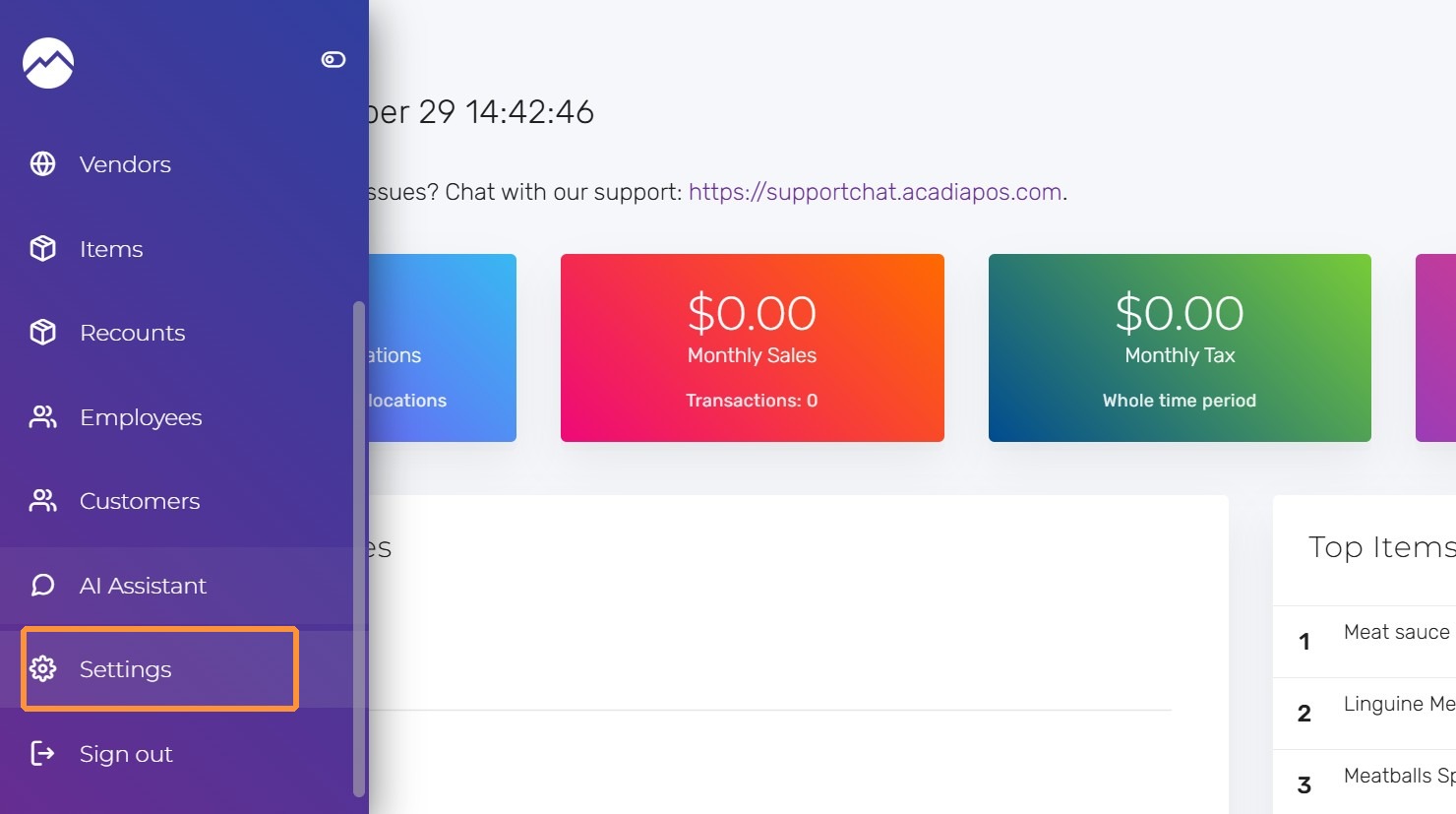
1. Navigate to manage.acadiapos.com for Retail or rfsm.acadiapos.com for Restaurant and click Settings in the sidebar menu.
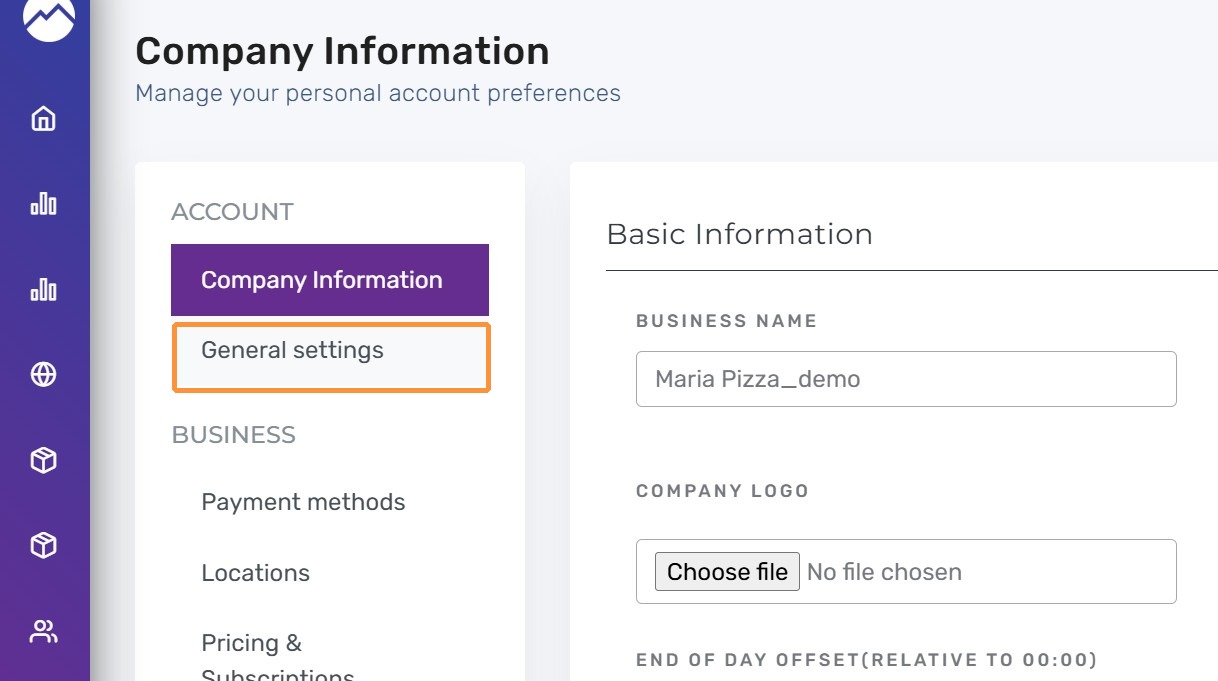
2. Click “General settings”
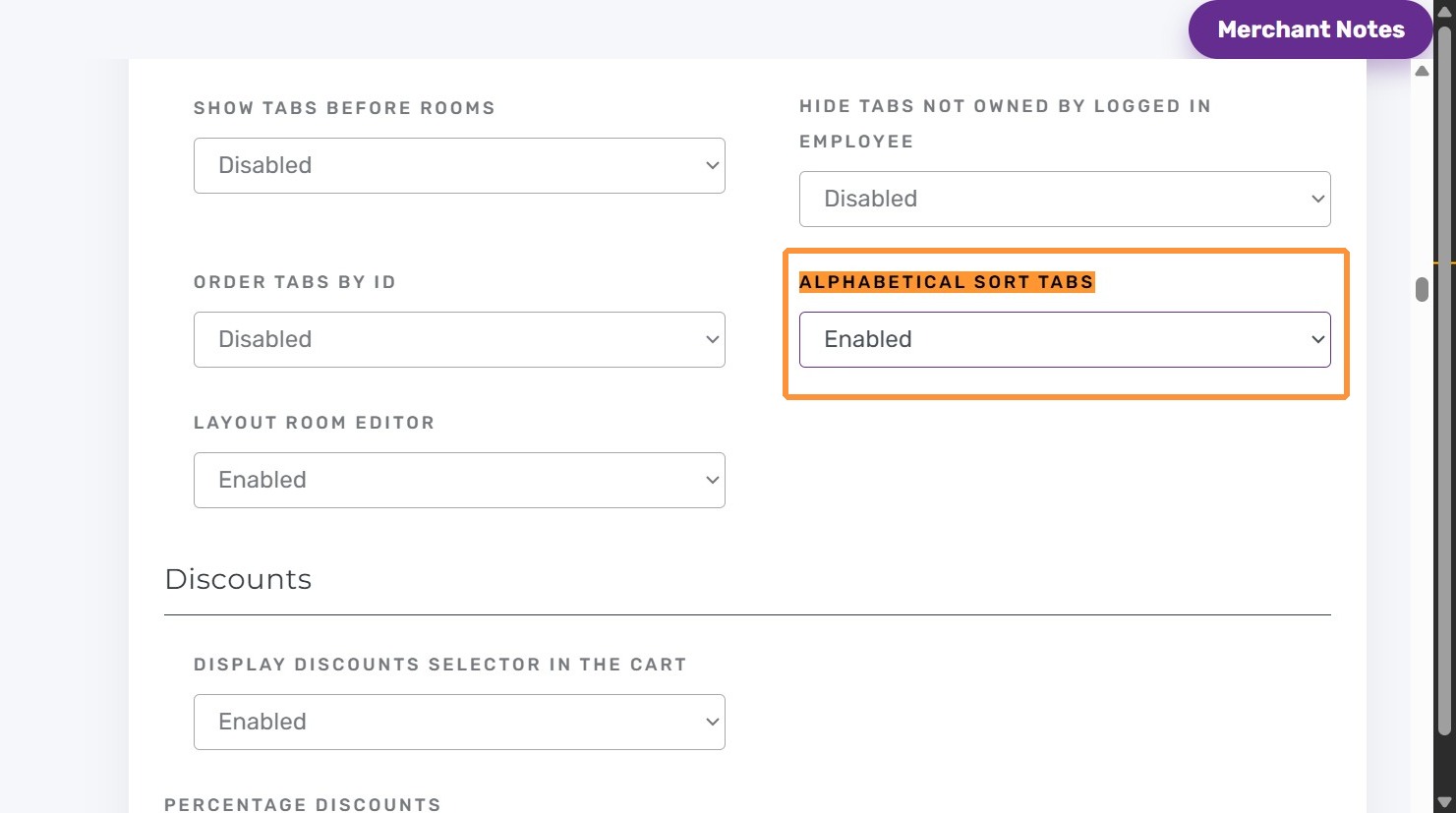
3. Press Ctrl + F (Windows) or ⌘ + F (Mac) “Alphabetical Sort Tabs”.
Set Alphabetical sort tabs to “Enabled”.
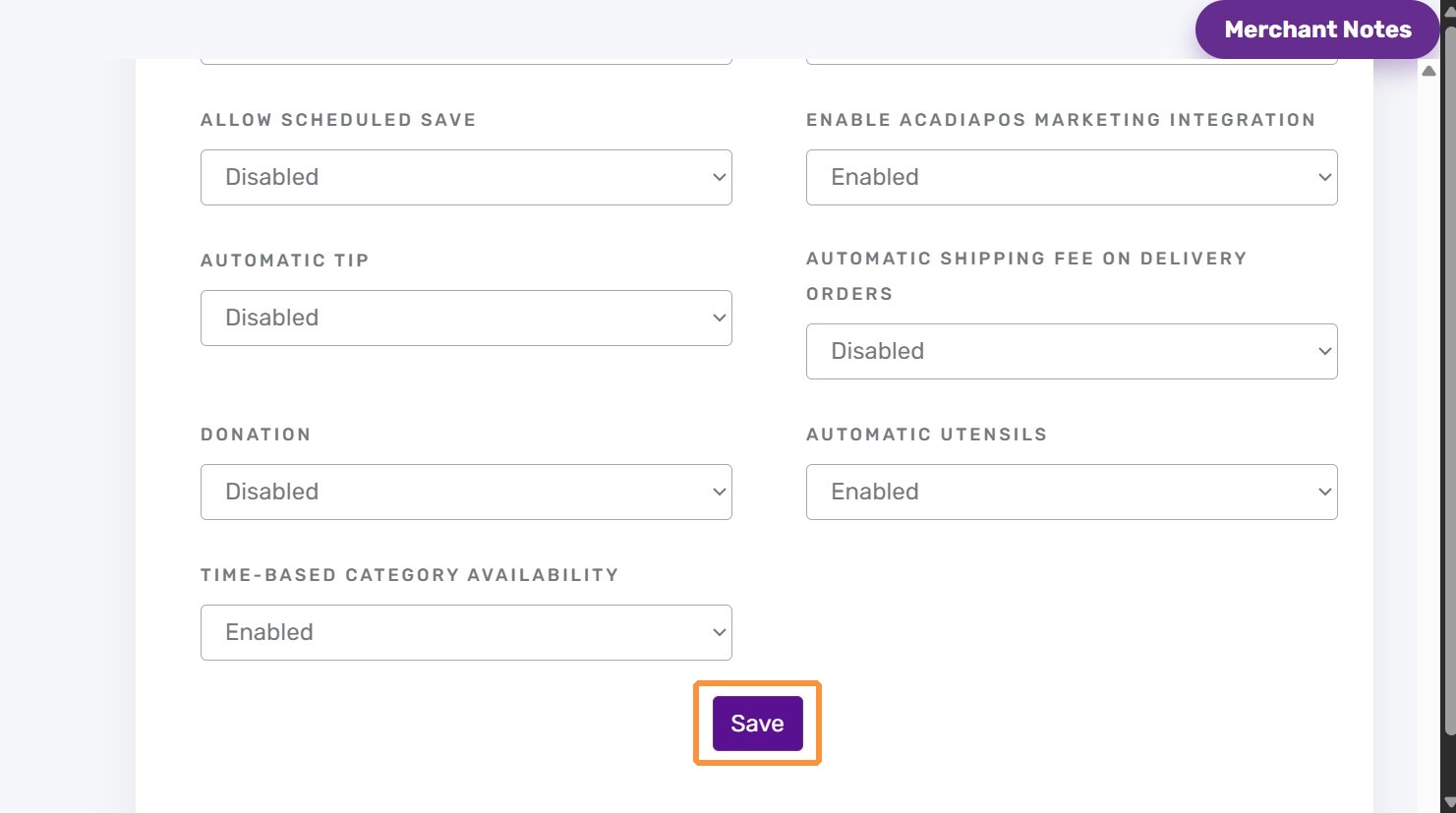
4. Click “Save”
Tip: Use alphabetical sorting when tabs are usually named after customers.
5. Other tab sorting options include the following:
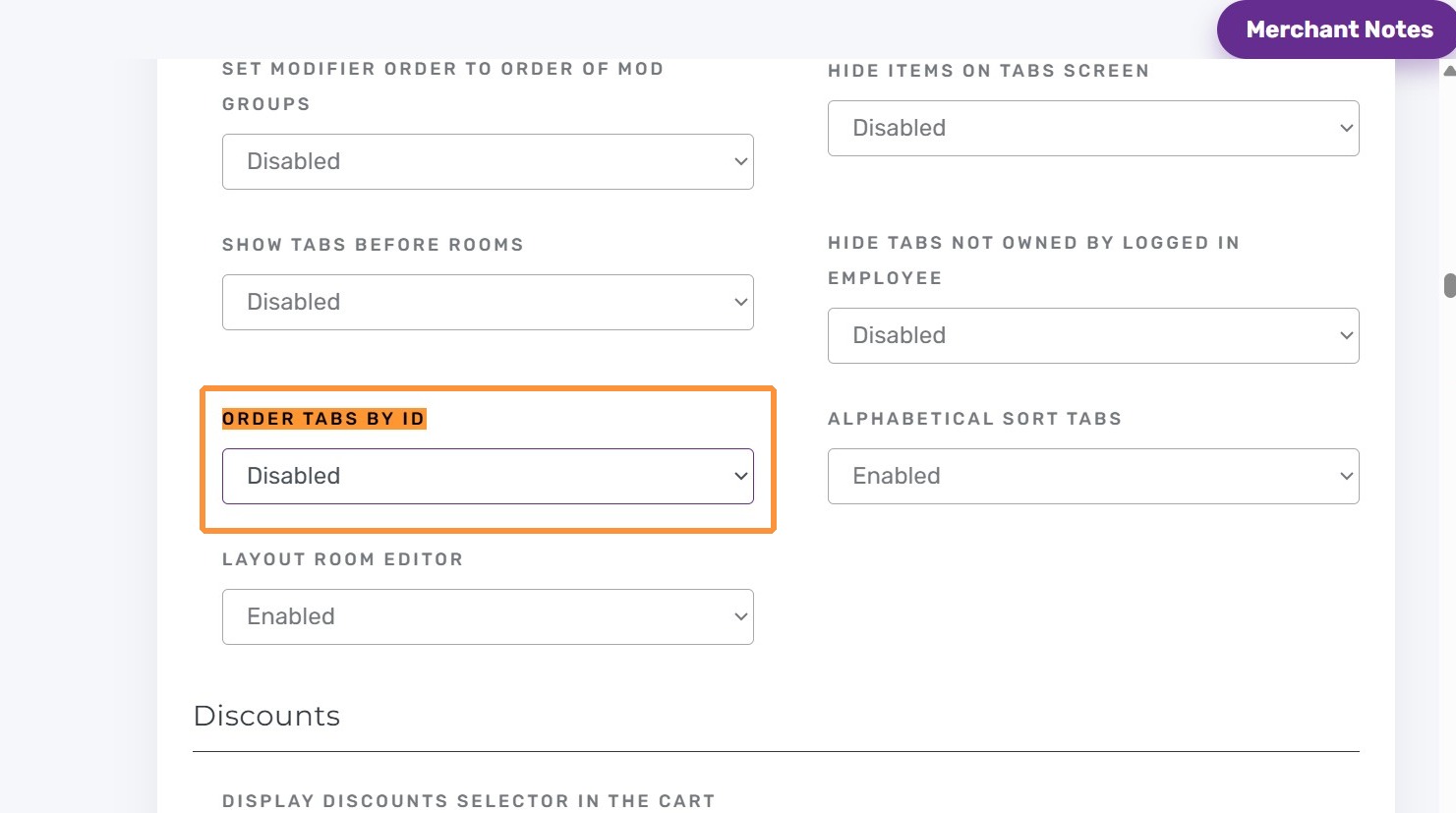
Order tabs by ID sorts tabs by creation order.
Set Order Tabs by ID to Disabled/Enabled.
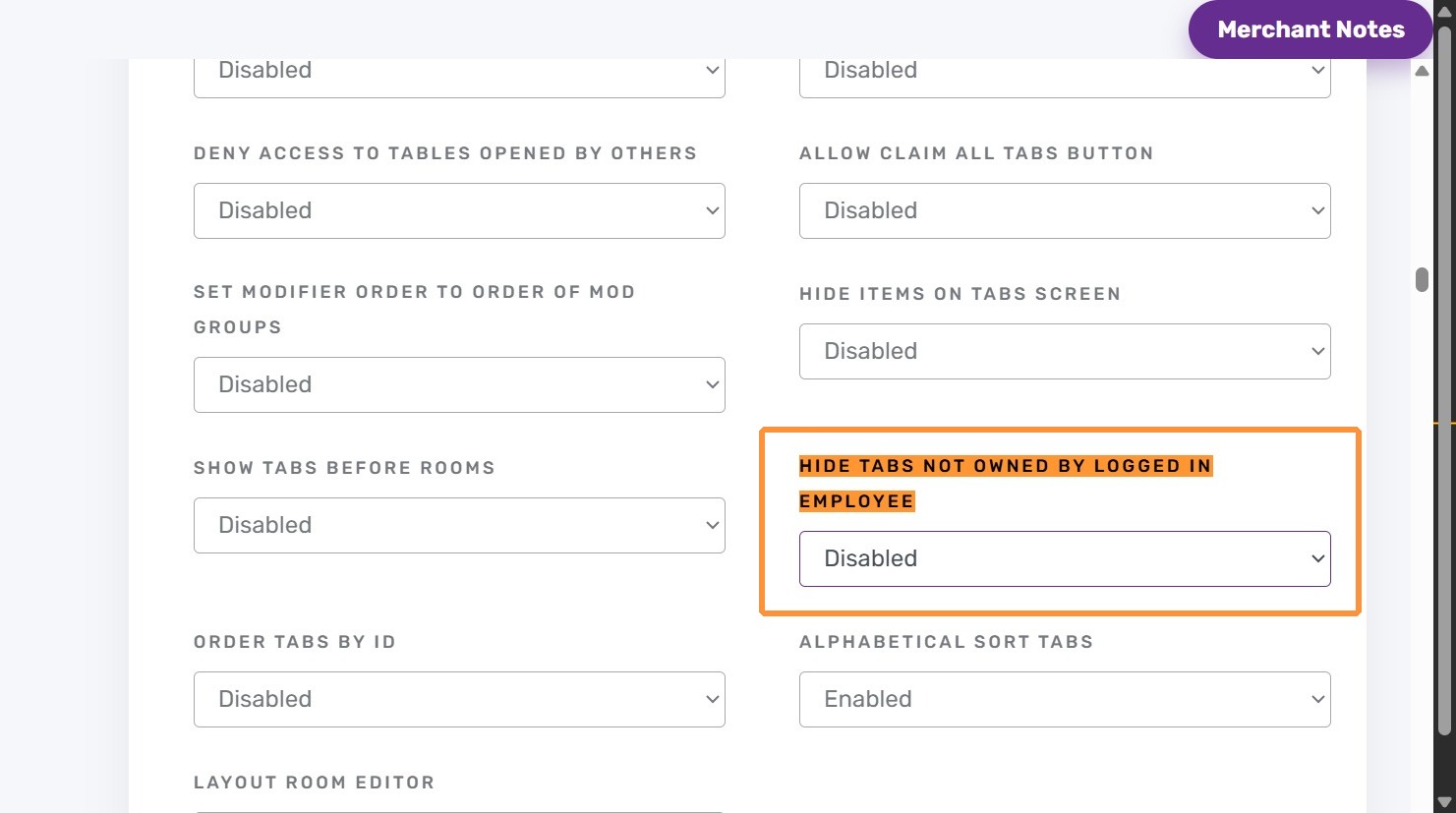
6. Hide tabs not owned by logged in employee limits each employee to their own tabs.
Set Hide Tabs Not Owned by Logged In Employee to Disabled/Enabled.
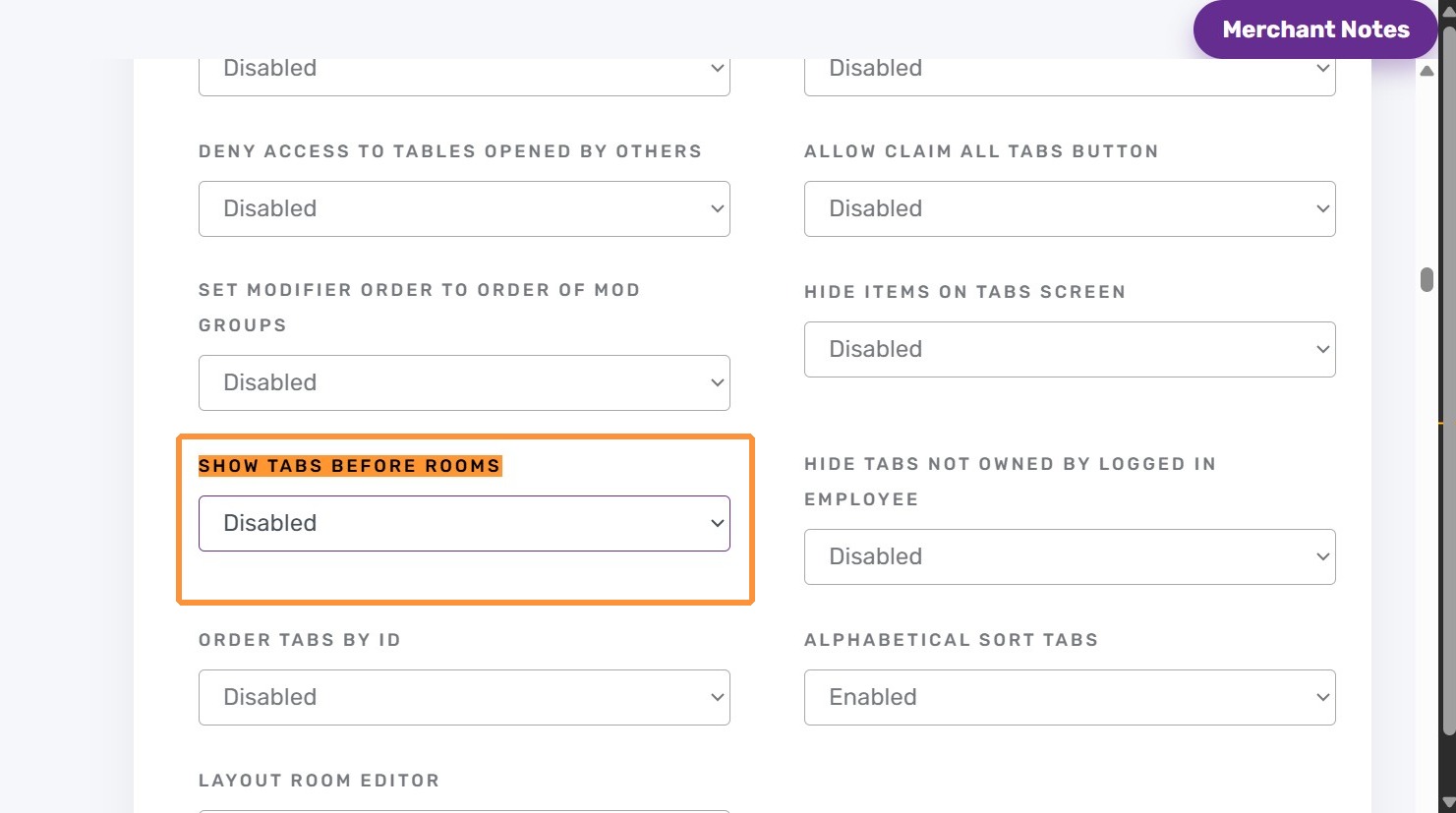
7. Show tabs before rooms shows tabs before room or table views.
Set Show Tabs Before Rooms to Disabled/Enabled.
Tips:
- Use ID sorting when staff rely on tab creation order.
- Review tab ownership settings before hiding tabs from other employees.


